 Tesseract
Who is connected to your computer? Ask, then end it
Since 0.11.37 you can ask Tesseract who is connected to your computer, end the session and stop sharing it, all from the chat. Letting anyone in stays yours.
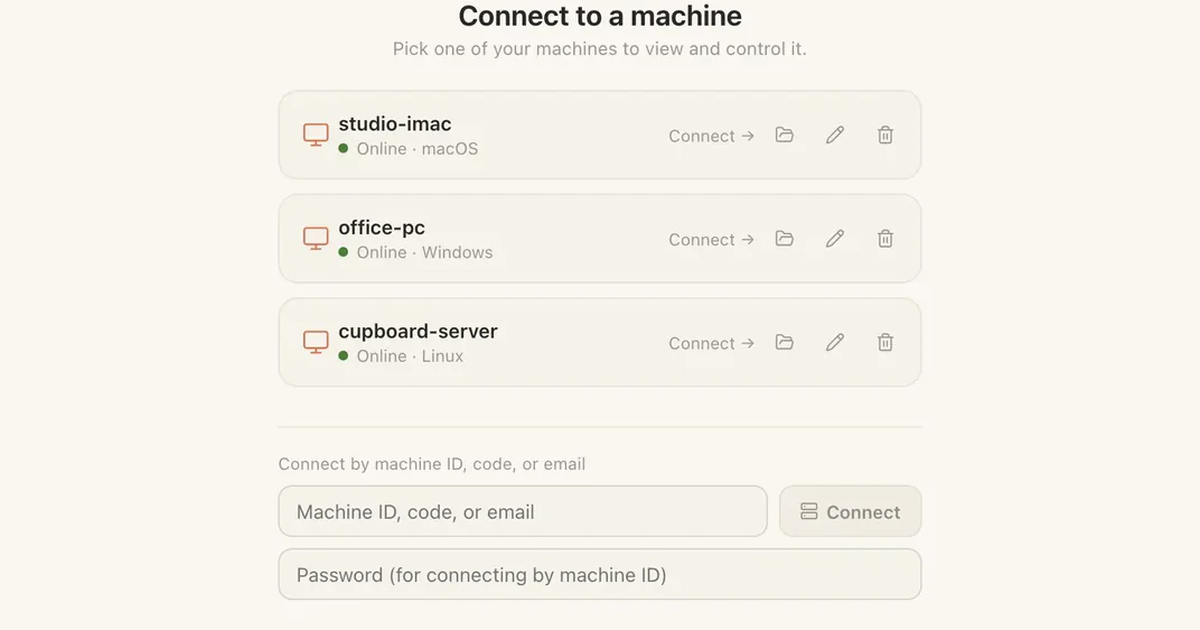
You helped your dad with his printer last week, and you’re not sure the session ever closed. In Tesseract you don’t have to dig through settings to check. Since 0.11.37 you can ask the agent who is connected to this computer, and it can end the session and stop sharing the machine. Letting anyone in, though, is still your click.
What you can ask
These are the requests the 0.11.37 release added for your machines:
- “Who is connected to this computer?” The agent lists the sessions open on it.
- “End that session.” It closes it, just as your click would.
- “Stop sharing this computer.” It turns sharing off.
- “Show me my studio iMac.” It can see another of your computers.
- “Is my private network on? Switch it off.” It checks or switches off your private network.
- “Rename this computer to office-pc.”
- “Send this file to my other computer.”
What stays yours
The agent can close doors. It can’t open them. Anything that lets more in waits for you:
- turning sharing on
- allowing someone to control the machine
- approving a request to connect
- joining a network
A file meant for someone else doesn’t go out on its own either. It waits in the Send sheet until you press Send.
Why it’s worth a look now and then
Tesseract Remote Desktop has several ways in, and each one needs your say:
| Way in | How it works |
|---|---|
| Your own account | Signed in, your machines are listed and connect in one click, with no password to type. |
| ID and password | For machines nobody is sitting at. Sharing is on by default and the password is made for you; you can change it any time. |
| One-time code | You read it out to someone you’re helping. It lasts 30 minutes, or up to a day if you choose. |
| Email request | They ask; you approve it in your own app. You decide who may ask: people you know, anyone, or no one. |
Up to three people can watch the same screen, and a session can be view only or full control. On Windows, the lock screen and admin prompts stay with the person sitting at the machine.
So a code you chose to last a day, or an unattended machine that is shared by default, is exactly when a quick “who’s connected?” is useful.
Try it
- Open a conversation in Tesseract on the computer you want to check.
- Ask: “Who is connected to this computer?”
- If you see a session you don’t expect, say “end it”, then “stop sharing this computer” if nobody should reach it for now.
- When you need help again, turn sharing back on yourself.
Remote Desktop is free on Mac, Windows and Linux, as its own small app or built into Tesseract. Download Tesseract and ask it who’s on your machine.