 Tesseract
Reach your own computers by name, from anywhere
Put your laptop, desktop and server on one free private network with Tesseract Mesh, then open studio-imac:3000 or ssh cupboard-server from wherever you are.
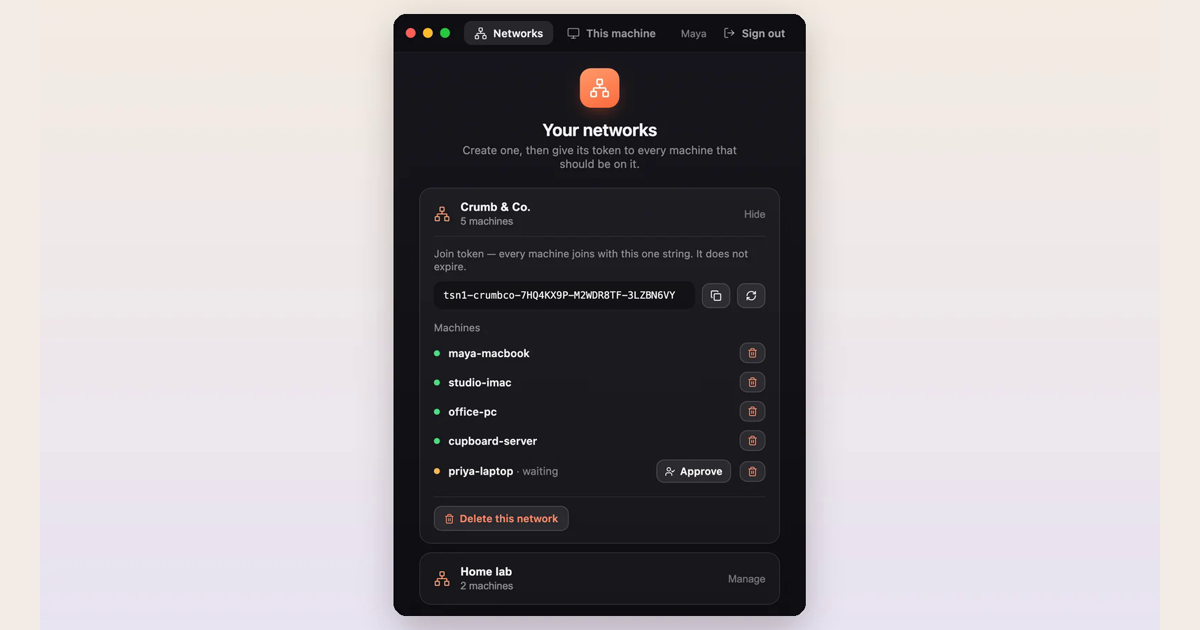
To reach your own computers by name from anywhere, put them on one private network: create the network in Tesseract Mesh, paste its join token on each machine, and every computer answers to its hostname from every other. Mesh is free, runs on Mac, Windows and Linux, and the machines that join don’t need an account.
What you need
- One account, to create the network. Only the person who creates it signs in.
- Mesh on each computer, either the free Mesh app or Tesseract itself, which has it built in.
- For a server with no screen, Node 20 or newer, to install the free command-line agent.
1. Create a network
Open Mesh, sign in, and create a network. You get a join token: one string that every machine uses to join. It keeps working until you replace it, so you can add a machine next month with the same token.
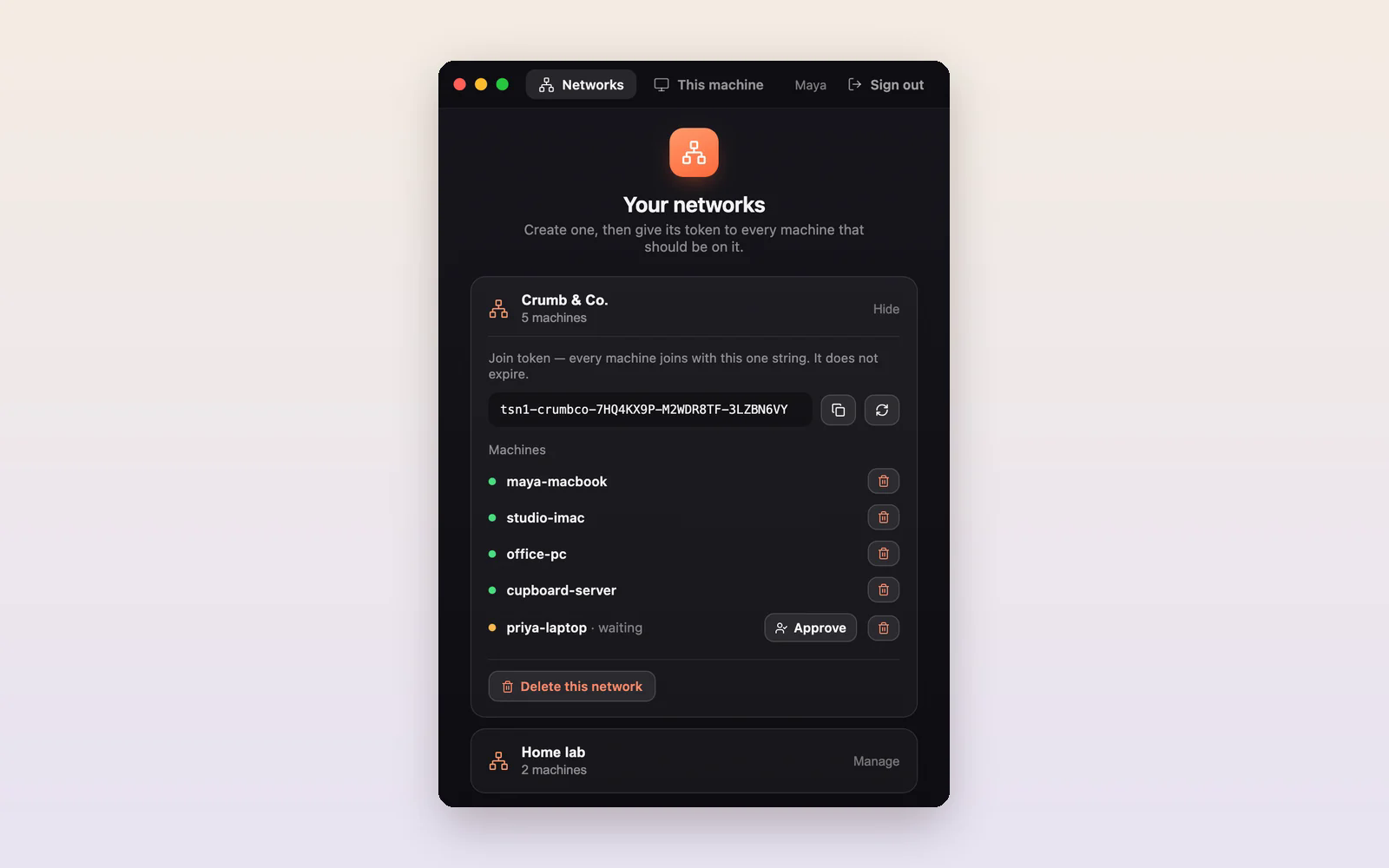
2. Join your other machines
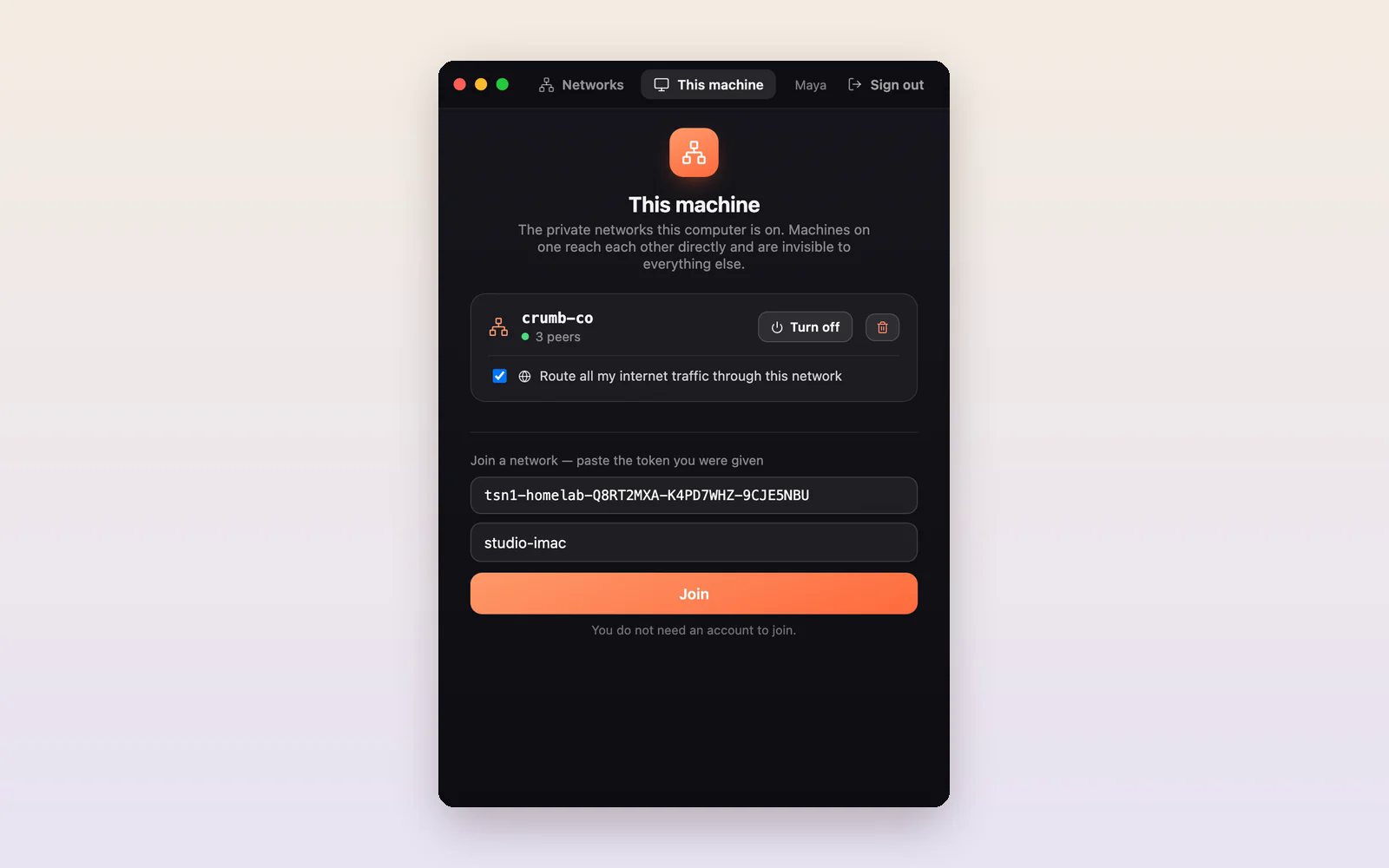
On each computer, open the This machine tab, paste the token and choose Join. That machine needs no account. The first time, Mesh installs a small network helper and asks for your admin password once.
A server with no screen joins from the terminal, with the free Tesseract agent:
npm i -g tesseract-agent "--allow-scripts=tesseract-agent,ffmpeg-static,node-datachannel,@homebridge/node-pty-prebuilt-multiarch"
tesseract-agent mesh join <TOKEN>
tesseract-agent mesh list     # see the network
tesseract-agent mesh down     # take this machine off it
It keeps the network up as a background service.
3. Use them by name
Every machine is now reachable by its hostname from every other, wherever each one is: at home, at the office or in a data centre. Open studio-imac:3000 in a browser to see the site running on your iMac, or ssh cupboard-server from your laptop.
Traffic goes straight from one machine to another whenever the network allows. When it doesn’t, a relay passes it on, still encrypted, so your machines stay connected through almost any router. Our server issues each network’s certificates; the relay can’t read your traffic, but it does see how much passes and when.
Decide who is in
- Approval: require approval for new machines. A machine that joins waits until you approve it.
- Remove: see every machine in the network and remove one at any time.
- New token: replace the token, and the old one stops letting machines in.
- Several networks: a machine can be in more than one, and you can switch each on or off without leaving it.
A network holds up to 65,536 machines.
Send your internet traffic through one of your machines
When the network’s owner allows it, one machine can be an exit node: tick Route all my internet traffic through this network on another machine, and its internet traffic leaves through yours. A Windows machine can be an exit node after you turn on its Containers or Hyper-V feature and restart.
Inside Tesseract, the network does more
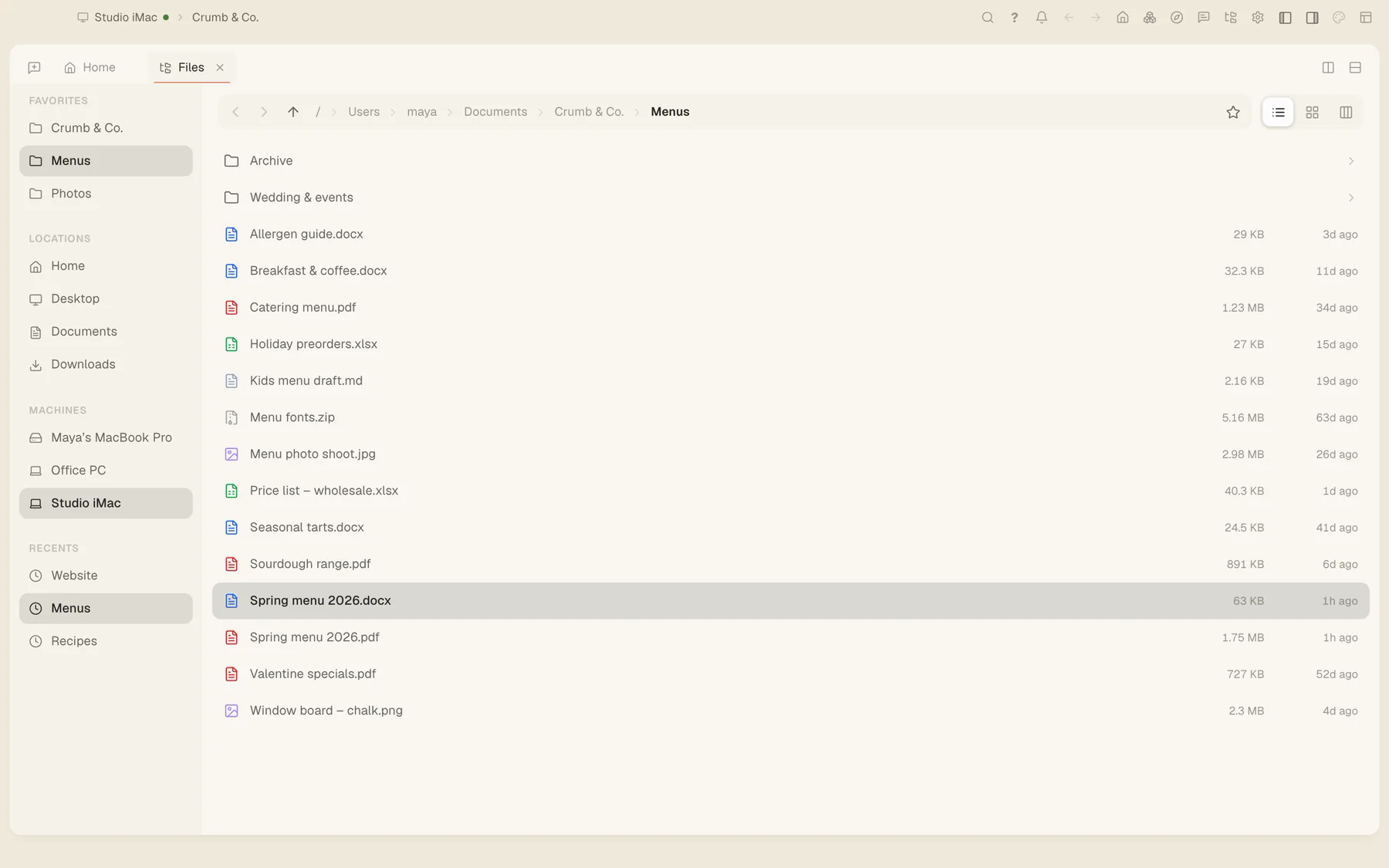
In Tesseract the same network lets you browse every machine’s files as if they were local, open their screens with Remote Desktop, and run AI agents on whichever computer suits the job. Since 0.11.37 you can also ask the agent in a conversation to check your private network, switch it off or rename a computer. Joining a network stays your decision.
More on running your computers as one is on the page for professionals.
Try it
Download Tesseract Mesh, create a network and join your second machine. If you already use Tesseract, Mesh is built in.