 Tesseract
Remote Desktop: reach your own computers from anywhere
How to see and control your other computers with Tesseract's Remote Desktop: one click from your own list, or a machine ID, code or email. Since 0.11.25, dragging, right-clicks, modifier keys and typing in any language work as if you were there.
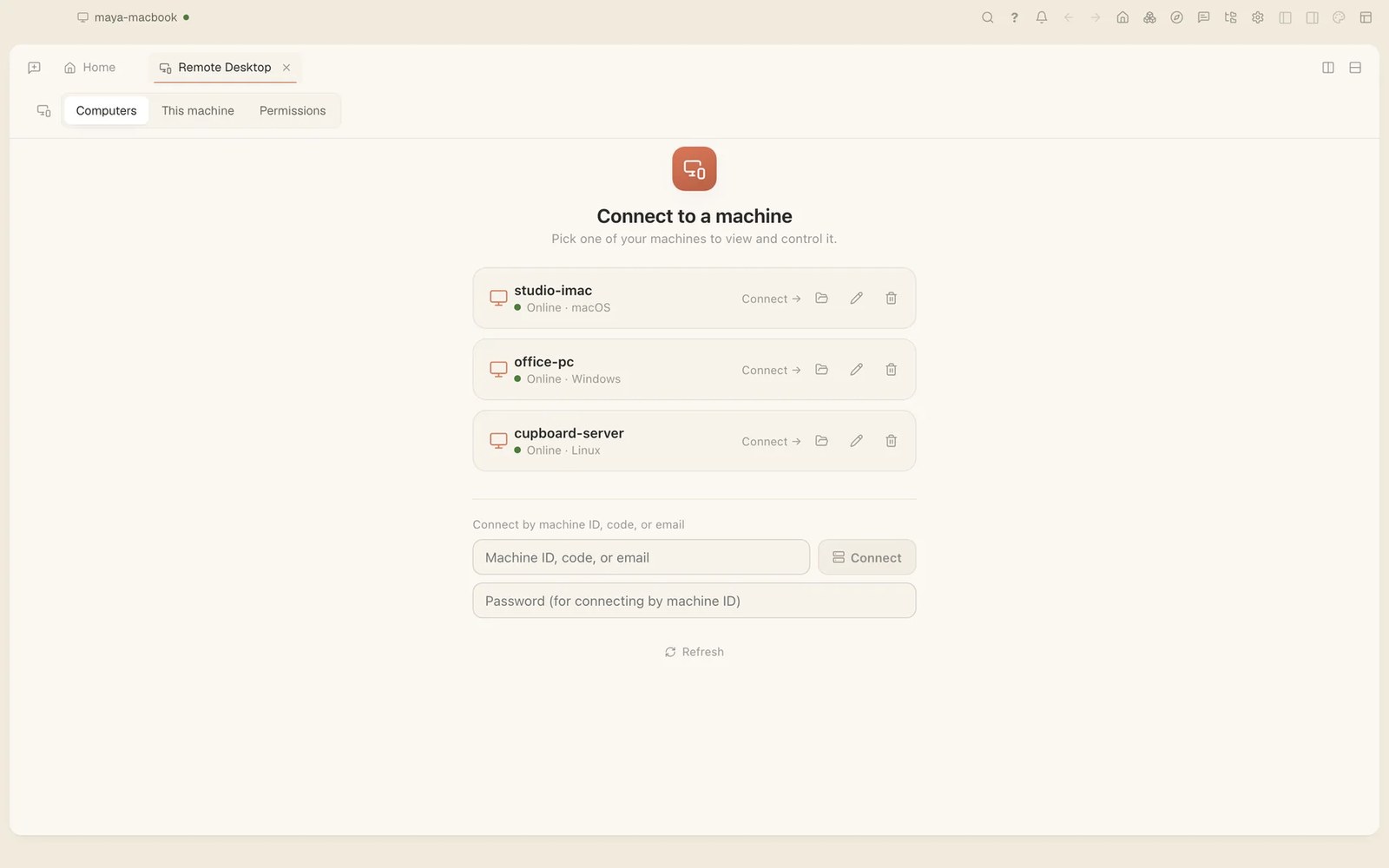
Your other computers are a click away in Tesseract: the iMac at home, the PC at the office, the Linux box in the cupboard. Yesterday’s release, 0.11.25, made controlling them feel like sitting at them, with dragging, right-clicks, modifier keys and typing in any language. It builds on September’s work to help your computers find each other through home and office routers.
Your computers, in one list
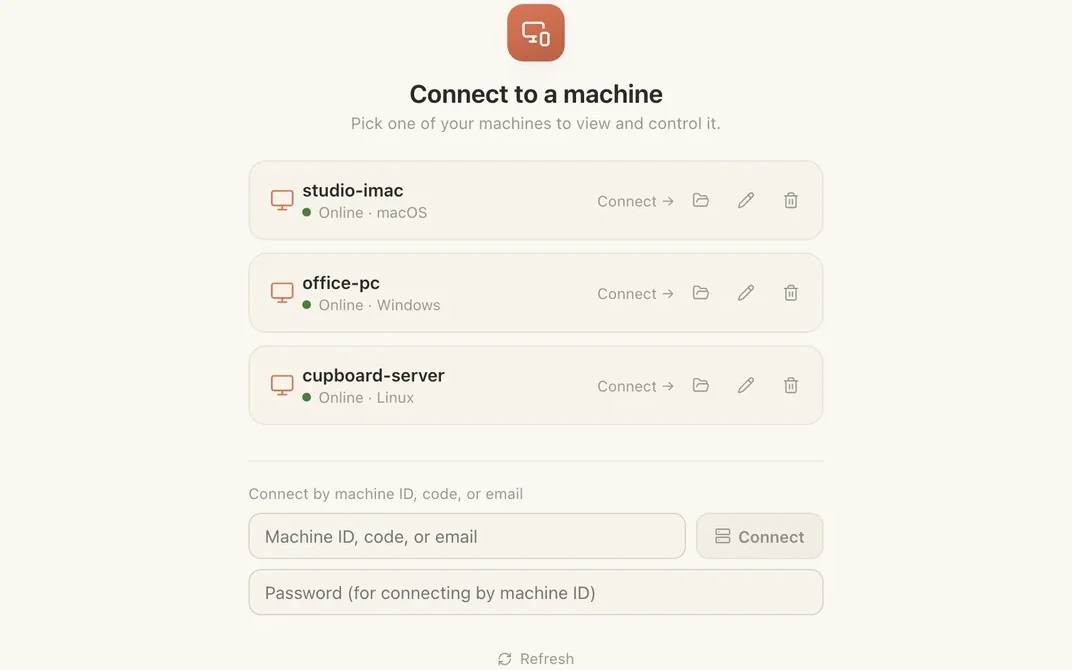
Sign in with the same account on each of your computers and they show up for one another. Open Remote Desktop and the Computers tab lists your machines, with whether each is online and which system it runs. Pick one to view and control it.
A computer keeps one identity in your account. It keeps the same Remote Desktop number whether or not anyone is signed in, and it keeps its place in your account even if Tesseract’s folder is deleted or the system is reinstalled.
For a computer that isn’t on your account, connect with its machine ID, a code or an email address instead. A machine ID comes with a password, for computers nobody is sitting at.
Connect, step by step
- Install Tesseract on the computer you want to reach, sign in with your account, and leave it running. Updates wait for an idle moment and never install while a remote-desktop session is live.
- On the computer in front of you, open Remote Desktop.
- On the Computers tab, find the machine and press Connect.
- For a computer outside your account, type its machine ID, code or email in the box under the list. With a machine ID, add its password. Then press Connect.
- Work on it as if you were there.
What changed in 0.11.25
- It feels like sitting there. Controlling a Mac or Linux computer from afar now drags, double-clicks, right-clicks, holds Shift or ⌘ while clicking, and types in any language, accents, Cyrillic and emoji included. A key you let go of is let go on the other computer too.
- Start at login, on Windows and Linux. The Remote Desktop app’s Start at login pointed Windows at a temporary copy that was gone by the next sign-in, and did nothing on Linux. It now starts from the app you downloaded, quietly in the tray.
- Straight to your Windows PC. If you answered Windows’ “allow access” question the usual way, private networks only, Windows also shut out your own computers on your Tesseract private network, so every connection took the slower route through a relay. Your private network now gets through, and your answer still holds everywhere else.
- Honest about Wayland. On Linux under Wayland, clicking and typing from afar can’t work. Tesseract now says so and suggests the Xorg session, instead of reporting clicks that went nowhere.
Controlling from Windows got the same care a few days ago in 0.11.23: mouse buttons land where you click on a scaled display, and accented and non-Latin characters arrive as you typed them.
Getting through, wherever you are
Remote Desktop connects directly when the network allows, and through a relay when it doesn’t. Your Tesseract private network, which links your computers, got a run of fixes earlier this month:
- A computer behind a home or office router now discovers the address the internet sees it at and shares it with your other computers, so two computers on different networks can connect.
- A computer with both a newer and an older style of internet address offers both.
- If the private network’s helper stops and restarts, the connection comes back on its own.
- On your private network, you can reach a computer by its own name instead of its number. The names work only between your computers; nothing is published anywhere.
A black screen now comes with a reason. Three ways a connection could fail used to leave you looking at a black window in silence; each now says what happened, including the common case where the other computer has screen sharing turned off. And the one that connected, stayed black for twenty seconds and gave up is fixed.
Files, not just the screen
You don’t always need the whole screen. Your other computers are reachable from the file browser, from Explorer and from a machine’s own page, and browsing starts in that computer’s home folder. Images preview as you scroll, fetched only when you need them.
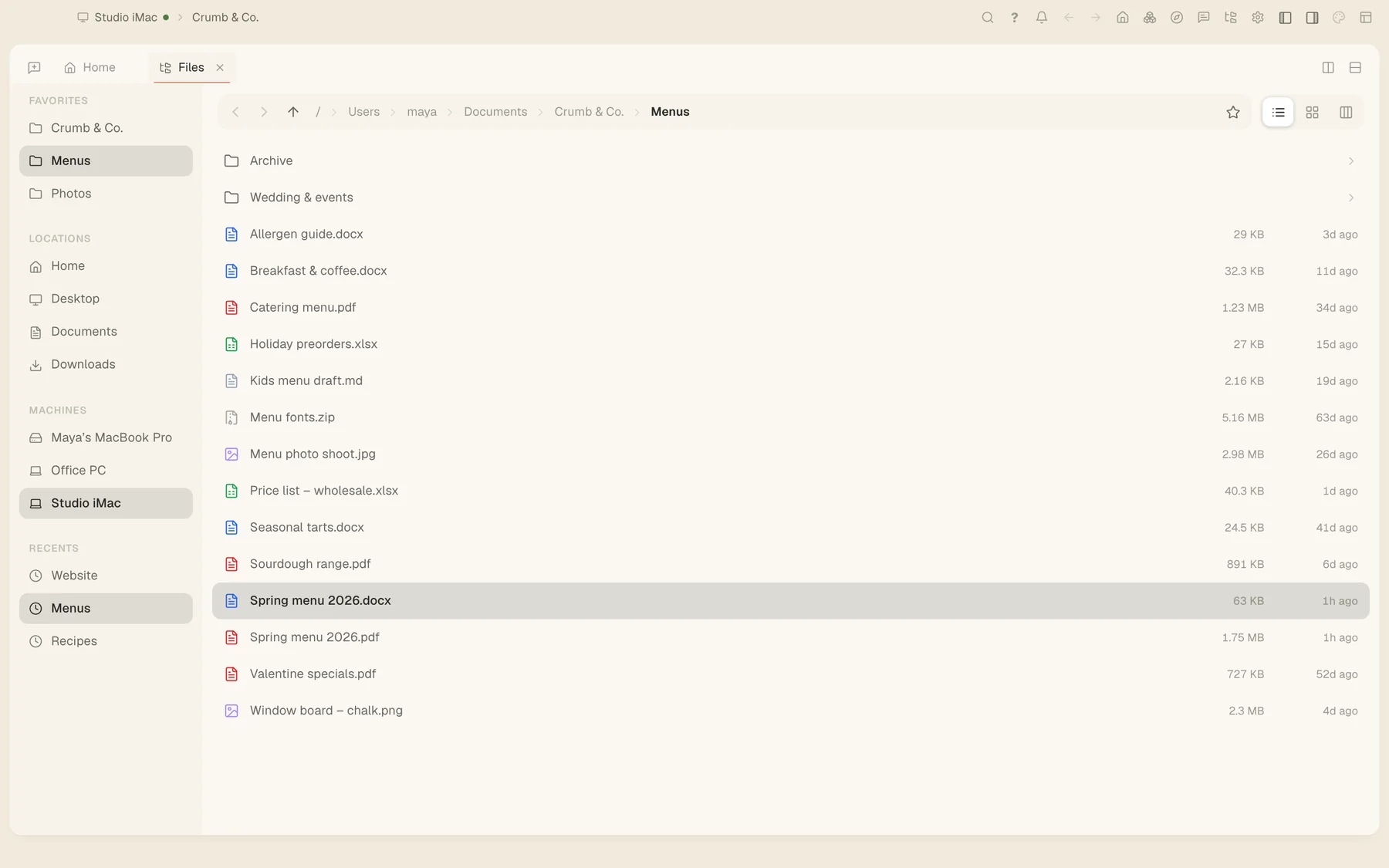
While you are viewing another computer, files you copy over there are offered to you here: drag them out or paste them. Only the list crosses the connection until you take them. Since 0.11.25, copying big files or whole folders through the Tesseract drive is several times faster and no longer stops halfway, and an interrupted copy never leaves a broken file. On Windows, with the private network set up, files up to 4 GB copy in File Explorer and huge folders open, from your next restart.
Try it
Download Tesseract for Mac, Windows and Linux at tesseract.dev, sign in on each of your computers, and open Remote Desktop. There is also a free Remote Desktop app of its own.