 Tesseract
Your first ten minutes with Tesseract: setup, sign-in and Home
A walk through a fresh install of Tesseract 0.11.22: a first run that sets you up on OpenCode with no API key of your own, the new Home, the three ways to let the agent run, and signing in from Home or any Settings page.
Tesseract 0.11.22 is out today, with a simpler first run. A new install is set up with one framework, OpenCode, which works straight away on the models included in Tesseract, so you don’t need an API key of your own to try it. Here is what your first ten minutes look like, from opening the app to your first request.
The first run
The first time you open Tesseract, setup is one guided flow in one place, with a step indicator: the terms, the permissions the app needs, and the framework that does the work.
A framework is the AI agent that reads, writes and runs things for you. Tesseract runs one installed on your computer rather than bundling its own, so you can use the accounts you already pay for. From today, new installs start on OpenCode, because it works out of the box with the models included in Tesseract.
The other frameworks are hidden for now, not removed. If you installed one before, nothing was touched, and if you had chosen a different framework, Tesseract still remembers it.
Setup also got sturdier over the last few releases. If an install fails, the screen hands you the commands to run by hand. And if the check for what is already installed goes wrong, the setup screen no longer sits on “Installing…” with no way past it.
Home: start on the left, come back on the right
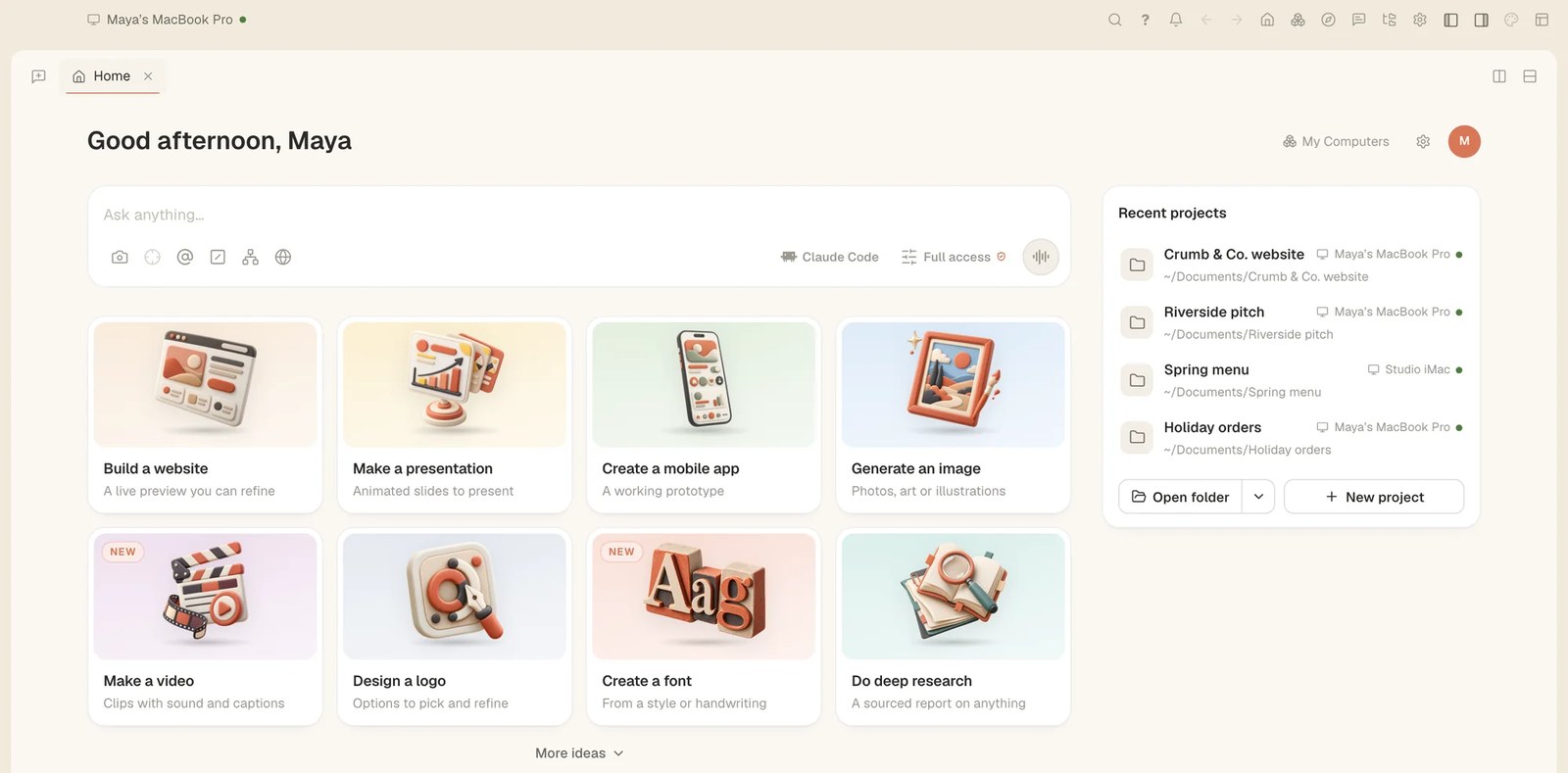
Home is where you start. What you start is on the left: the Ask anything box and a set of illustrated starters, such as Build a website, Make a presentation and Do deep research. Some carry a New badge, like Make a video and Create a font. What you come back to is on the right, starting with your recent projects. New conversations open on the same starters.

A sentence is enough. Type what you want, or start from one of the ready ideas if you’d rather not type at all.
The menu under the message box sets how much the agent may do on its own. There are three ways to run:
- Plan reads and proposes, and changes nothing.
- Full access lets it do the work.
- Unattended is Full access that also answers the agent’s own questions, for work you leave running.
The finer switches are in an Advanced panel, and the defaults for new conversations live in Settings.
Signing in
You don’t need an account to start. If you have one, sign in with the account button. It used to be only on the Home tab; from today it is on every Settings page too, so you no longer have to go back to Home to sign in.
A few things around your account changed in this release:
- Your picture. Sign in with Google and Tesseract picks up your Google picture. You can upload your own in Settings → Account, or remove it and go back to your initials.
- Your password. Settings → Account can change your password. If you have only ever signed in with Google, it offers to set one, so you can sign in with your email too. Changing it signs your other computers out and keeps you signed in on this one.
- The sign-in tab. After signing in with Google, the browser tab used to be a bare line of text. It is now a proper page that tells you what happened and closes itself after a few seconds, with a button in case your browser won’t let it. If you declined Google’s permission screen, it says what went wrong instead of “Signed in”.
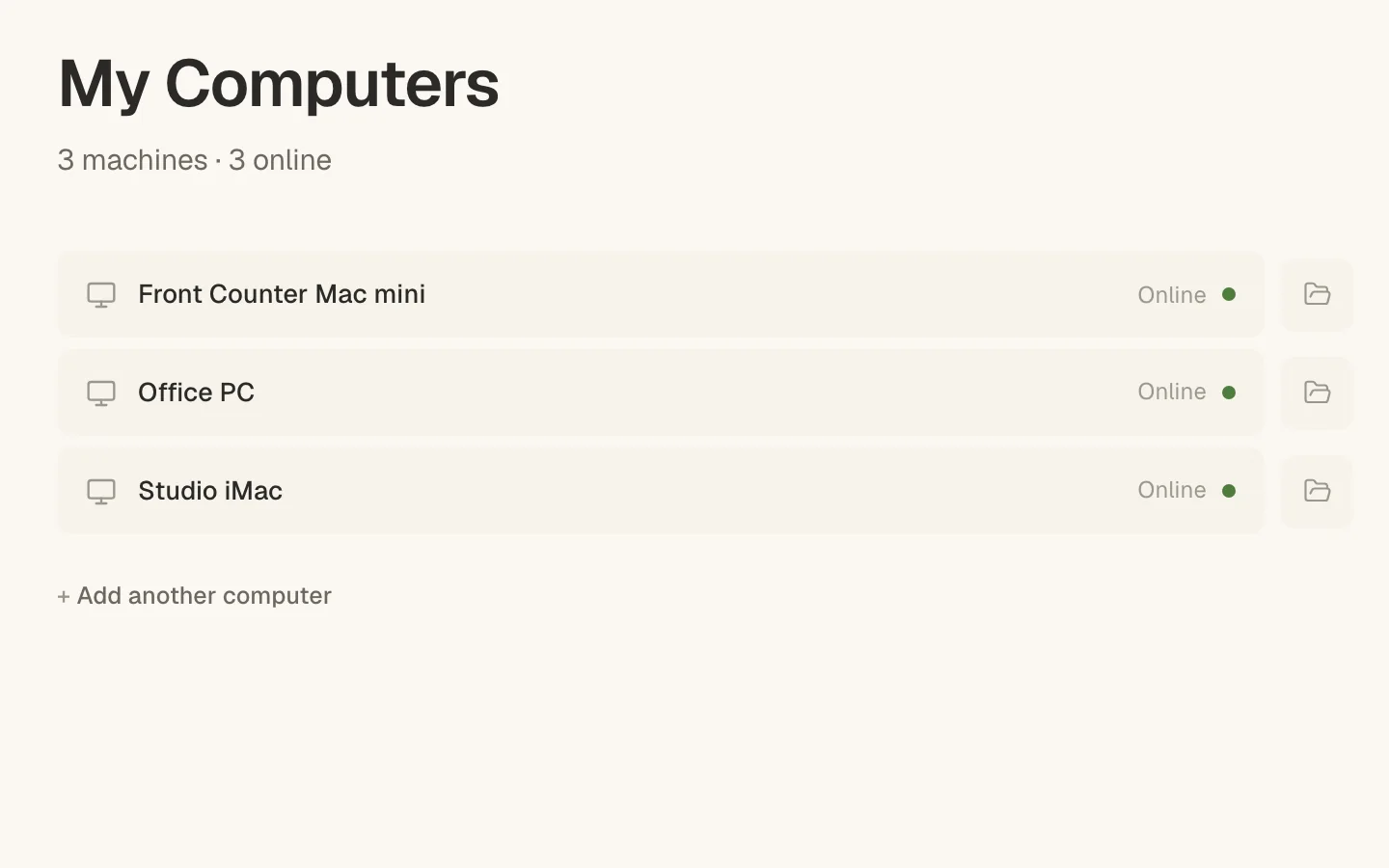
Once you are signed in, this computer is part of your account. Your other signed-in computers appear in My Computers, and this one keeps its place even if you delete Tesseract’s folder; after a system reinstall or a new disk, it is recognised rather than added twice.
Your first ten minutes, step by step
- Download Tesseract for Mac, Windows or Linux and open it.
- Go through setup: the terms, the permissions, and the framework. On a new install, that is OpenCode.
- On Home, type what you want in Ask anything, or click a starter.
- In the menu under the message box, pick Plan to see what the agent proposes before anything changes, or Full access to let it work.
- If you have an account, sign in with the account button on Home or on any Settings page.
- Stuck? Press ⌘/ and ask the guide out loud.
Two settings worth knowing
Updates are yours to control. You can turn automatic updates off in Settings, or by right-clicking the update button in the bottom-right corner. Tesseract doesn’t go quiet when you do: it still tells you a new version is waiting. It just won’t download or install one until you say so.
The guide speaks your language. The narrator, the guide on ⌘/ and the assistant on the message box speak any of the 99 languages the voice service supports. Pick one in Settings, ask out loud, or choose it during a walkthrough, and all three follow. The guide is a voice only: there is no chat window beside it, and opening it ends a walkthrough that was running instead of talking over it.
Try it
Download Tesseract 0.11.22 for Mac, Windows or Linux at tesseract.dev, open it, and ask for the first thing on your list.