 Tesseract
Share a computer or hand it over, and Settings cut to what works
Tesseract 0.11.33 lets you share a computer with your organization, transfer it to someone by email and add a new one with a one-time code. Settings went from 22 pages to 14, keeping only the options that work on every framework.
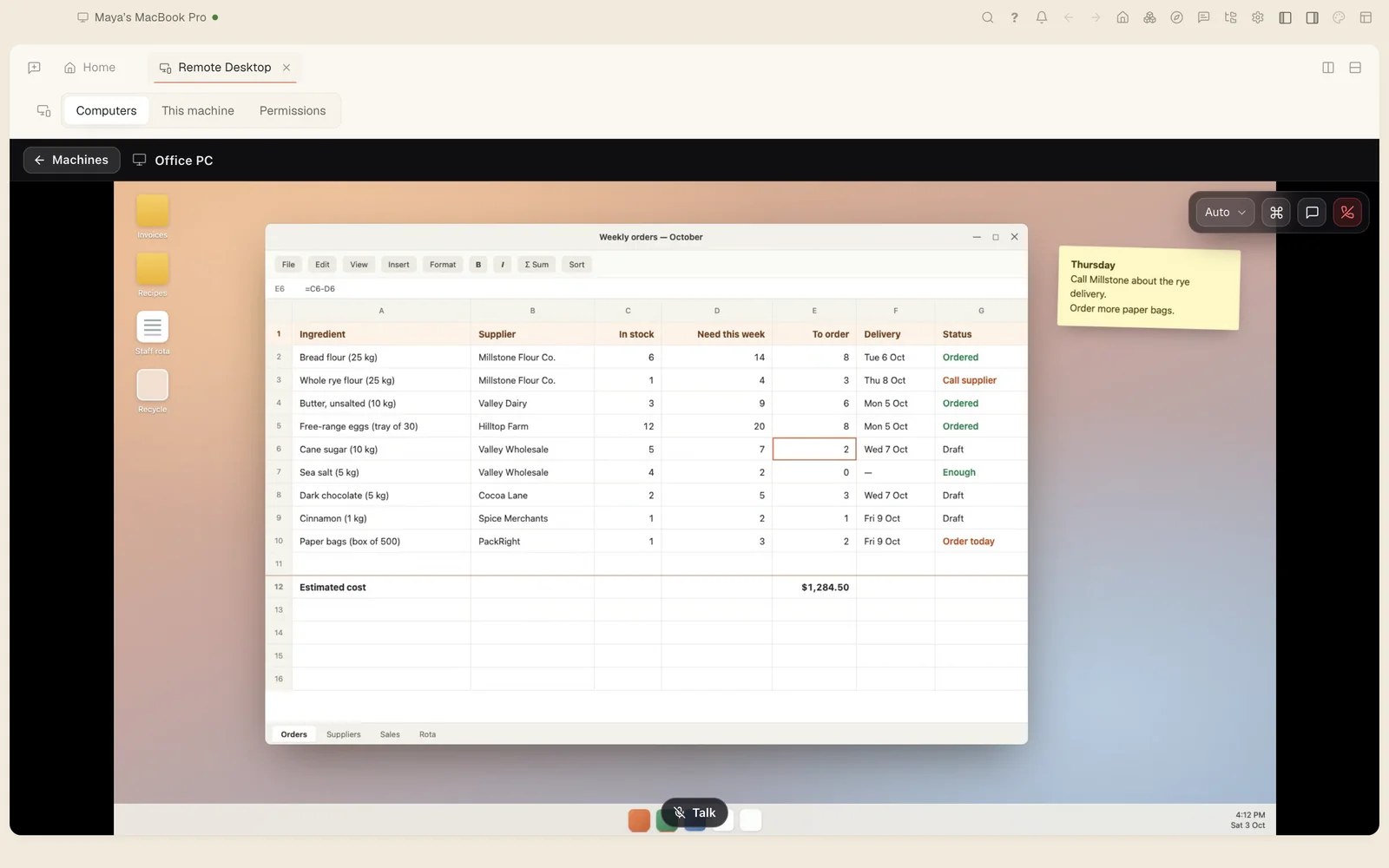
Tesseract 0.11.33 is out today, and your computers no longer have to be yours alone. You can share one with the people in your organization, hand one over to someone for good, or add a new one with a single code. Settings also shrank from 22 pages to 14, and what stayed works on every framework.
Share a computer with your team
Open a computer’s page from My Computers. Under Sharing, share it with an organization you are in, and its members can use it as you do. Shared computers show whose they are, and you can make one personal again at any time.
You manage who is in an organization in Settings → Team, which now works for every organization you are in. Owners and admins change roles, remove people and invite by email. Members see who is in it and can leave.
If you’d rather a computer weren’t reachable at all, turn off Make this machine available. That switch now only stops sharing this computer. Before, it could close the app a second after opening, and leave a signed-in app unable to see your other computers.
Add a computer, or hand one over
Adding a computer now takes one code, and giving one away takes one email.
To add a computer:
- Open My Computers and choose Add a computer.
- You get a one-time code, shown as a QR code, a link and ready-to-paste commands for a server.
- Use it on the new computer. The code works once, for 15 minutes.
To give a computer to someone else:
- Open the computer’s page and choose Transfer to someone.
- Enter their email.
- They accept at the top of My Computers.
- A command-line install moves to them by itself. A computer running the app moves when they sign in on it.
You can also invite a colleague by email, and change the email you sign in with in Settings → Account.
My Computers, redrawn, and one computer per conversation
My Computers now groups your computers by kind, each on one line with its system, how long it has been online and load bars. The bars turn amber or red only when a computer is nearly full. The top counts what is offline or waiting on a transfer, and Files, Terminal and Remote desktop open straight from each row.
Each computer’s page also has a new Configuration tab. It shows the framework and model new conversations use there, the account it runs on, its defaults, skills and plugins. You can change them from any of your devices.
Until now, browsing another computer’s files or opening its terminal switched the whole window to that computer, and every conversation then ran there. Now each conversation stays on the computer it belongs to, and another computer’s files open in a window of their own.
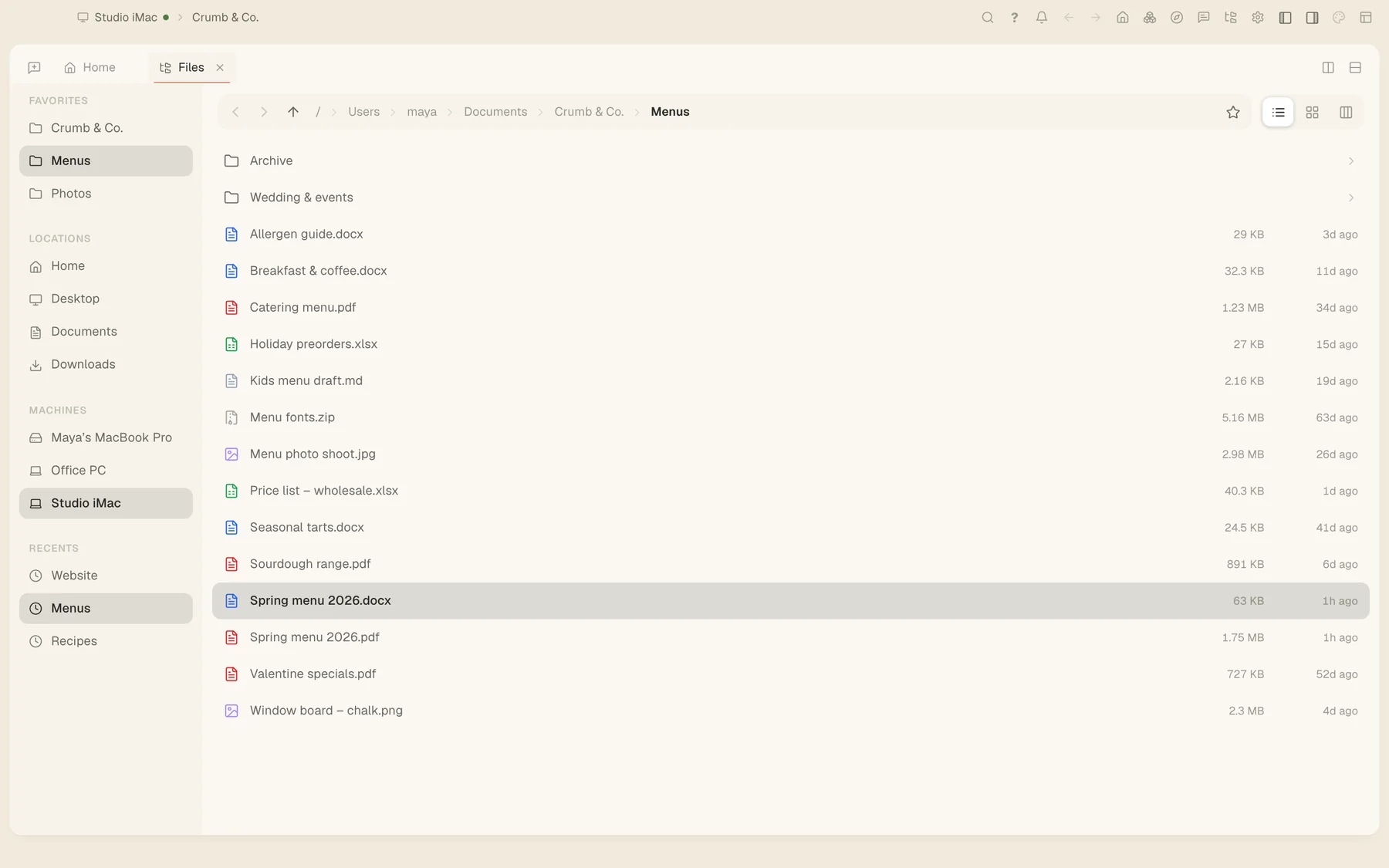
Files still browses any of your computers from the Machines list, as here on the Studio iMac. The difference is that looking around no longer moves your work.
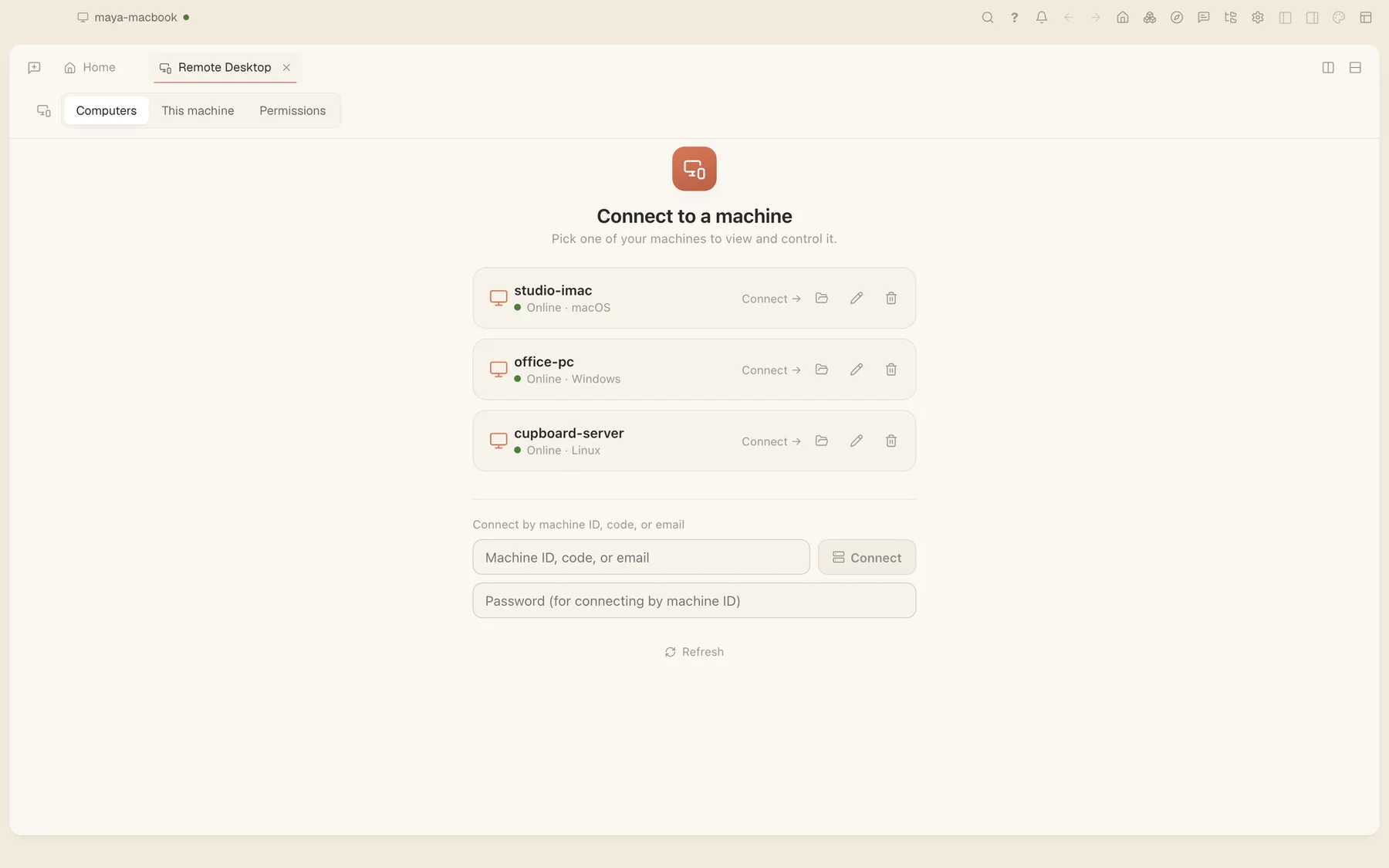
Remote desktop is one click from a row in My Computers, and its own tab keeps a list of your computers too. You can connect with a one-time code, ask for access by email, or use a password for a machine nobody is sitting at. Remote Desktop is also a free app of its own.
Settings, cut to what works
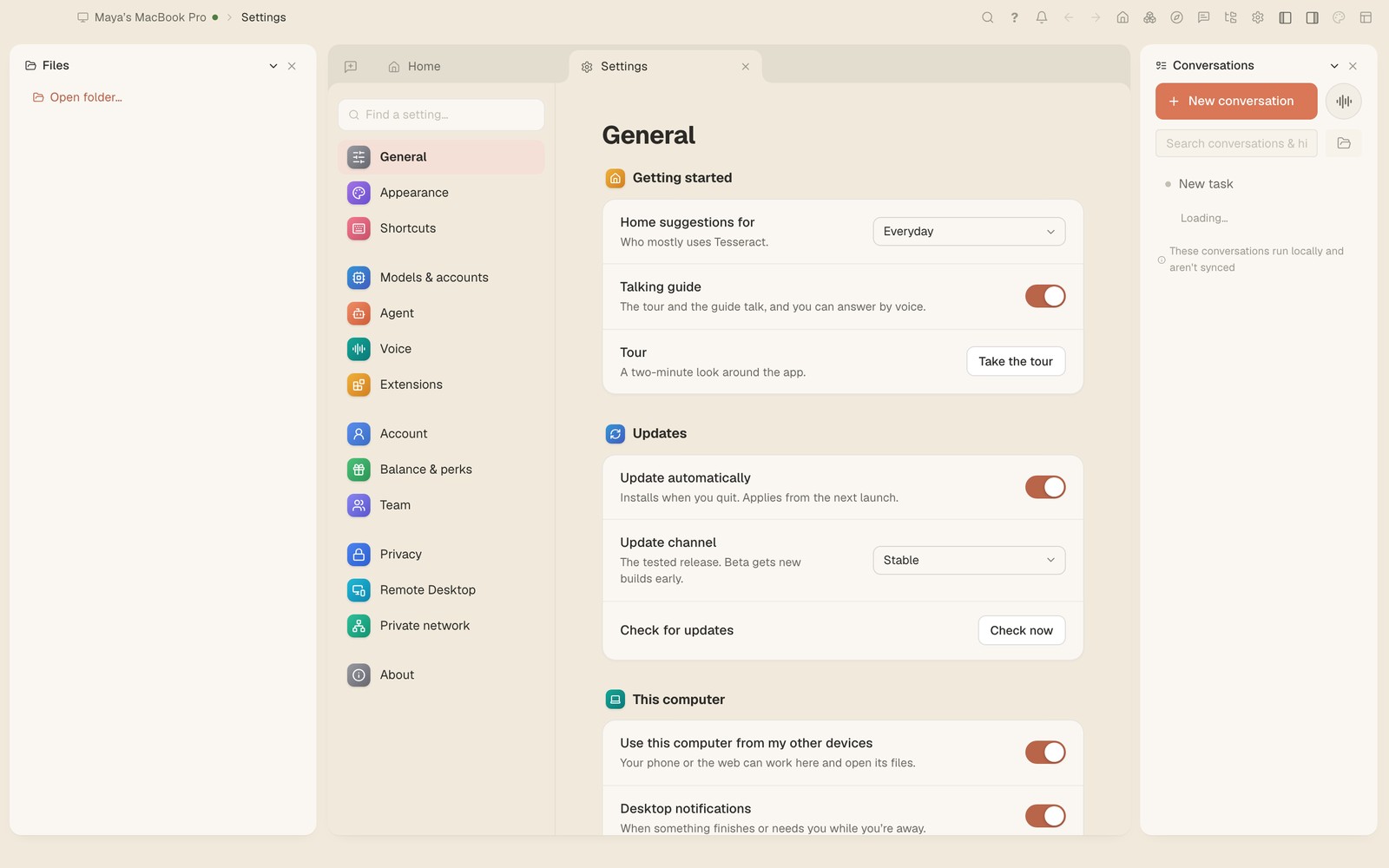
Settings went from 22 pages to 14. Options that worked with only one framework, or did nothing at all, are gone. If you run Claude Code, Codex and OpenCode side by side, a setting you see now means something whichever one a conversation is on.
Every page groups its options in titled cards, with one line of help each. Adding an account asks only three things: where it runs, which framework, and what that pair needs.
A few more changes in 0.11.33 that you will notice:
- A calmer chat. Answers sit in a comfortable reading column, and the work behind each one folds into a single line you can open. The files a reply changed are collected in one card, each with its own Undo.
- Conversations stay in step across your devices. Replies arrive once, in full, wherever the conversation is open.
- Claude Code costs are counted once. Each answer now shows only what it cost, so totals and spending limits read right.
- When your Claude plan runs out, the chat says so and when it resets, and offers to carry on with another framework.
Try it
Download Tesseract for Mac, Windows or Linux at tesseract.dev, then open My Computers and choose Add a computer to bring in the next one.