 Tesseract
Call your team from Tesseract, and find everything you made on Home
Tesseract 0.11.34 adds Call and Video call to team conversations, ringing every device the other person is signed in on. Home now shows every assistant, presentation, website and app you made, with how it stands and a menu to open, present or rename it.

Tesseract 0.11.34 is out today, with two changes you will notice right away. Team conversations can now place calls, and a call rings the other person on every device they are signed in on. And Home now shows your work: every assistant, presentation, website and app you made, in one place, ready to pick back up.
Call someone from a team conversation
Team conversations now have Call and Video call. A call rings the other person on every device they are signed in on, with Decline, Answer with audio and Answer with video. A call nobody picks up says “No answer”, and one you miss leaves “Missed call”. When either of you hangs up, it ends for both.
- Open the Team tab and the conversation with the person you want to reach.
- Press Call, or Video call to start with your camera.
- They answer on any device they are signed in on, with audio or with video.
- While you are muted, hold Space to talk. Press ⌘⇧M (Ctrl+Shift+M on Windows and Linux) to mute.
- Hang up when you are done. The call ends for both of you.
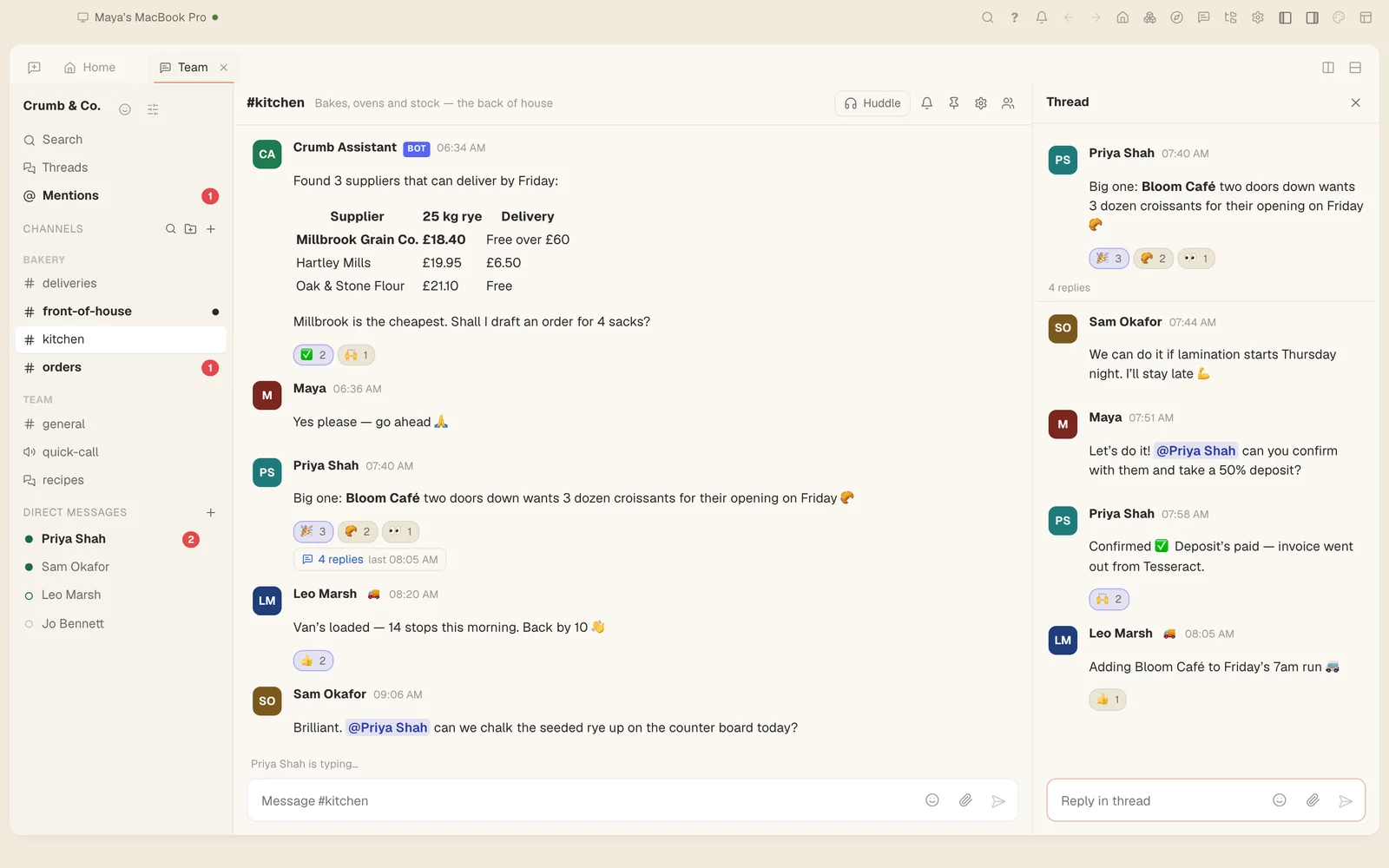
The Team tab is Tesseract’s built-in team chat, Atrium, with your channels and direct messages. Atrium is also a free app of its own. Voice and video calls are still in beta while they roll out. Group calls can share a screen, and live captions work with your own OpenAI or Gemini key.
Everything you made, in one place
Home now shows your work. Every assistant, presentation, website and app you made is there, each with its own picture, how it stands (online, published, how many slides) and when you last changed it.
- The ⋯ menu on each one opens, presents, visits, renames or deletes it.
- See all lets you search and sort everything you made.
- A new conversation offers the four newest under Pick up where you left off.
So you don’t have to remember which conversation made last week’s deck. Find it on Home and present it from its menu, or start a new conversation and pick it up from there.
More to read while the model thinks
When a model is thinking and has nothing to show yet, the chat now says “Thinking” with a running clock, instead of “Waiting for the model’s reply”. OpenAI’s reasoning models are also asked for a summary of their thinking on every framework, so there is more to read while they work. Codex’s thinking summaries now read as paragraphs, instead of running into each other mid-sentence.
Two smaller changes help the agent see what you see:
- Every framework knows the chat’s browser tab. The tab in the chat’s browser chip is named to the agent on every turn and on every framework, not only in Claude Code, and that includes a tab in your own browser. The agent can also open a page in a new window of your browser.
- Transparent pictures drawn by the model. With OpenAI, a picture asked for with a transparent background is now drawn transparent by the model itself, with clean edges and no coloured fringe. The image editor’s Transparent switch no longer asks for a key colour.
Follow-ups stay part of the task
With verification on, “continue”, a correction or an answer to the agent’s question is now checked against the whole task you started, not on its own. An unfinished task also survives an app update, and plan steps that are no longer needed show as “not needed”. With verification off, a run that stops halfway down its own plan is now told to carry on in every framework, as Claude Code already was.
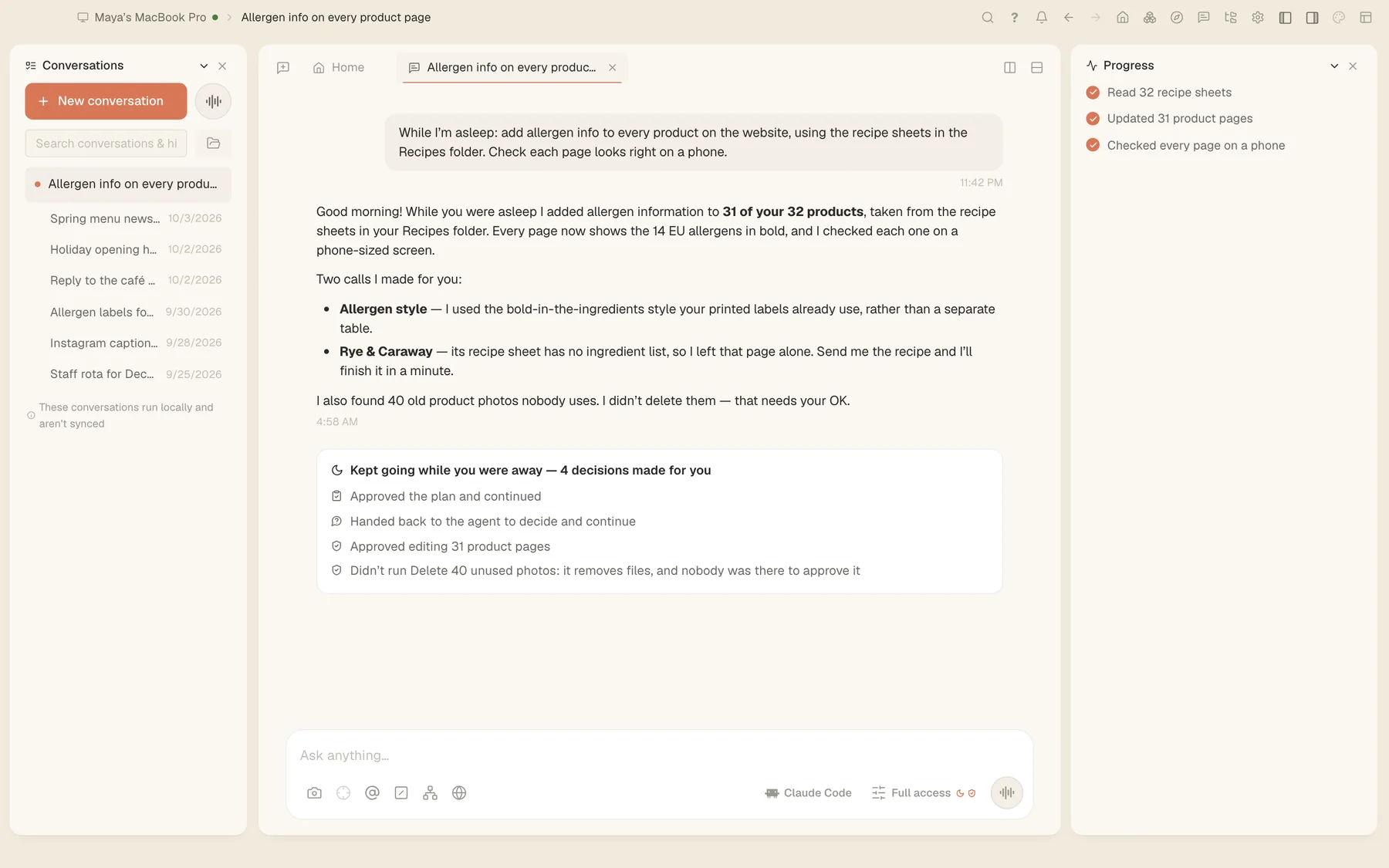
A long job like this one now stays one task, from your first message to the last follow-up. Its file changes read as steps of its work line too, such as “Created report.md” or “Changed app.ts”, and a file’s name opens it.
And on big projects, a window now watches only the folders you are looking at: the expanded folders, the Files browser’s folder and the files you have open. Before, it watched every project tree, which on Linux meant a watch for every file.
Try it
Download Tesseract for Mac, Windows or Linux at tesseract.dev. Then open a team conversation and press Call.