 Tesseract
How the Tesseract apps connect: one system map
Desktop, web, CLI, Companion, Atrium, Remote Desktop and Mesh: which runs agents, what goes through the server, what goes direct, and what syncs.
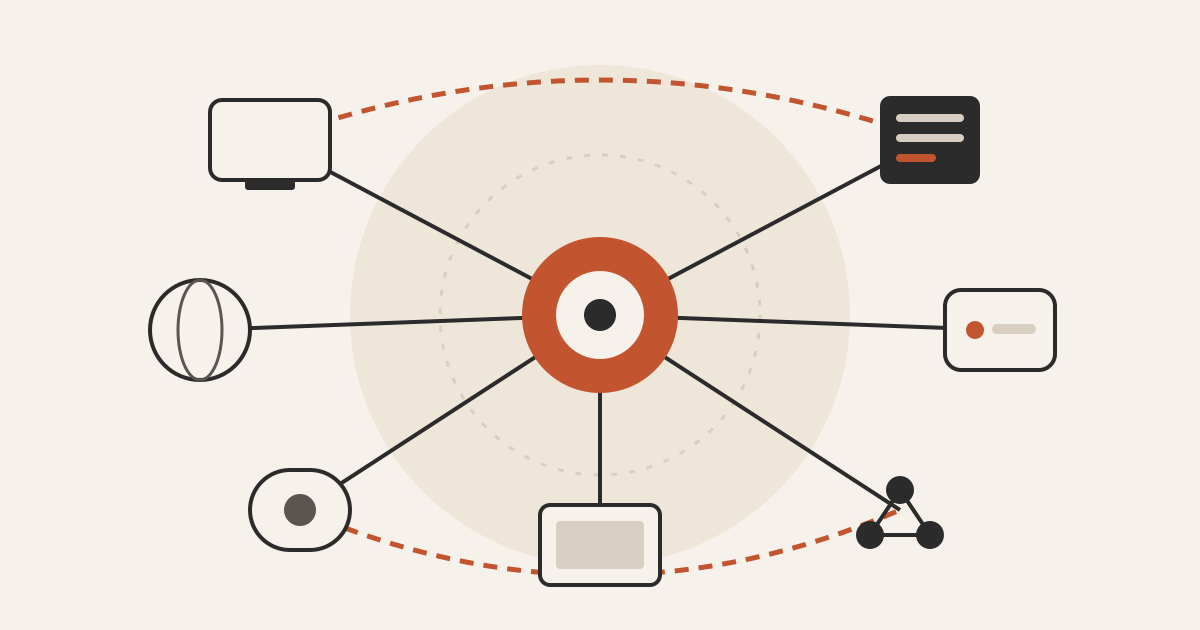
Every Tesseract app dials out to your account, over one connection each. That connection carries commands, conversations and sync. Agents run where a desktop app or tesseract-agent runs. The web app, Atrium and Companion drive those machines. Large file copies, remote screens and Mesh traffic go directly between machines once the server has introduced them.
Tesseract started as one desktop app and grew into a family: a web app, a command-line agent for servers, a browser extension, and team chat, remote desktop and private networking as standalone apps. People ask how the pieces fit, and whether they need all of them. This post is the map. It shows which pieces run agents, which only drive them, what travels through our server, what goes directly between your machines, and what follows your account from device to device.
The map covers what you can download or open today from tesseract.dev.
What are the pieces, and which ones run agents?
The most useful split is between hosts, which run agents and keep conversations, and clients, which show and drive them.
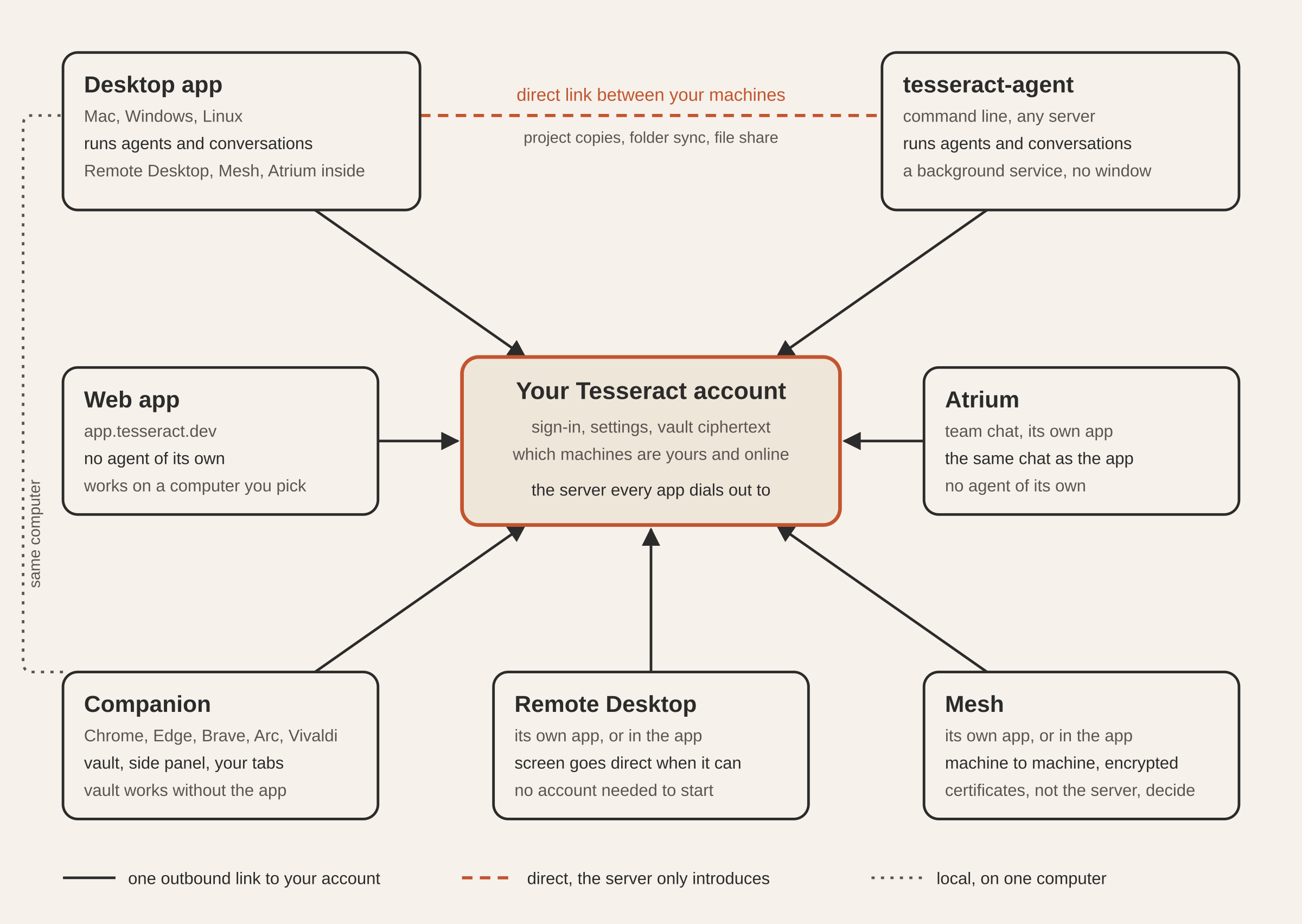
| Piece | Where it runs | Runs agents? | Needs an account? | Talks to |
|---|---|---|---|---|
| Desktop app | Mac, Windows, Linux | Yes | No for much of it; yes to reach other machines | Your account; its own local agent service |
tesseract-agent | Any Mac, Linux or Windows machine with Node 20+ | Yes | Yes, to join your machines | Your account |
| Web app | A browser, at app.tesseract.dev | No | Yes | Your account, then a computer you pick |
| Companion | Chrome, Edge, Brave, Arc, Vivaldi | No | Not for the vault on one computer | The desktop app on the same computer; your account for vault sync |
| Atrium | Its own app on Mac, Windows, Linux, and inside the desktop app | No | Yes | Your account |
| Remote Desktop | Its own app, and inside the desktop app | No | No, to start | Your account to find the other side, then directly |
| Mesh | Its own app, and inside the desktop app | No | To create a network; joining needs only a token | Other machines on the network, directly |
The desktop app contains Remote Desktop, Mesh and Atrium. The standalone versions exist for people who want only one of them, and each carries only its own features.
What sits in the middle?
One server connection per app. Each desktop window, web tab, standalone app and agent host opens a single secure WebSocket to your account’s server and multiplexes everything over it: agent events, machine status, file browsing, terminals, clipboard, presence. Each message carries a channel name, and the server routes it by channel and by the addressed machine.
Two rules keep this manageable:
- Every machine dials out. Your computers and servers connect to us, so you never open a port or set up port forwarding. That’s why
tesseract-agentworks on a server in a cupboard behind a home router. Run AI agents on your own server covers that setup. - The server checks who may reach what. Before forwarding a message to a machine, it checks the machine belongs to the sender’s account, or that a one-time code granted access to it. Anything else is refused and logged.
An idle connection costs almost nothing. A link proves it’s alive with ordinary traffic or a WebSocket ping (every 25 seconds while someone is using the machine, 50 otherwise). Its load figures go out only when they change, or every five minutes, and the machine list is re-sent only when something in it changed. A dropped link redials after 3 seconds, backing off to 5 minutes with jitter, and at once when the network comes back.
How does the web app work with no agent of its own?
The web app at app.tesseract.dev is the same interface as the desktop app, running on a different transport. It has no local agent, so every conversation, terminal and file you open in it belongs to one of your computers, the one you pick. Close the tab and the work carries on there.
The web build reuses the desktop app’s own interface code. About sixty capabilities, including the makers, the Word, sheet, PDF, picture and video editors, and that computer’s keys, plugins and skills, are relayed: forwarded over the server connection to the selected computer’s desktop app. Their calls, events, dialogs and files go through it.
So the web app is a full client for any of your computers that is online.
How do tesseract-agent and your servers join in?
tesseract-agent is the agent without the window. You install it from npm, sign in with a device code, and it runs as a background service: a system service on Linux and macOS, a task that starts at logon on Windows. It registers the machine under your account, and from then on the machine appears next to your laptop, ready to run conversations.
It picks a framework with --engine, and --instance runs several independent agents on one machine. To every client, a server running tesseract-agent and a laptop running the desktop app are the same kind of host. You can start a conversation on either from the web app or from your other computers.
How does Companion reach the desktop app?
Companion is a Chrome extension. Its password manager works on its own, syncing the vault with your account as ciphertext. Its other two parts, the assistant side panel and the agent working in your own signed-in tabs, work with the Tesseract desktop app on the same computer. The Companion page lists what the vault holds.
The extension and the app talk through Chrome’s native messaging: Chrome starts a small helper program that the extension speaks to over standard input and output, and the helper connects to the local agent service. Nothing crosses the network.
When an agent in the app uses the browser, its request goes from the agent to the local service, through the helper, to the extension’s background worker, which acts on a tab. It works on the tab you picked, a tab it opened for itself, or the page a side panel sits beside, never a tab you’re reading unless you gave it that one. The tab shows a “Tesseract agent is controlling this tab” bar while it works. Each open side panel is a chat with the same conversations, frameworks, models and run modes as the desktop app. Install it from the extension page.
Where do conversations live, and how do other devices see them?
A conversation lives on the machine that runs it. If you start a task on your office iMac from your laptop, the agent, its files and its record stay on the iMac. The laptop is a window onto it.
When the same conversation is open on two devices, the second one gets a mirrored stream of what happens: messages, tool activity, what the agent made, its decisions. The server sends the mirror to the account’s other connections and skips the device that started the turn, which has already drawn it. A device that doesn’t have that conversation open simply ignores the stream. What gets mirrored is an explicit allowlist with a reason for each entry, so a new kind of event isn’t mirrored until someone decides it should be.
Other people can be let in too. A one-time code, link or QR code that expires gives someone access to a machine for the channels it grants. Share a computer or hand it over shows how sharing looks in the app.
What syncs across devices, and what stays put?
Each kind of state has a home, so what belongs to one machine stays there: a path to a command-line tool installed on your laptop stays on your laptop, and everything that should follow you does.
| What | Where it lives | How it moves |
|---|---|---|
| Settings: provider keys, chosen framework and model | Your account | Synced to every device you sign in on |
| Machine-local settings, such as where a local CLI is installed | That machine | Never synced |
| Conversations | The machine that runs them | Viewed and driven from other devices |
| Vault | Encrypted on your devices; ciphertext on our servers | Synced through your account |
| Clipboard | Each device, with a 500-item history | Copy here, paste there, through your account |
| A project folder | Two of your machines | Folder sync, both ways, over a direct link |
| Files you send | Up to 2 GB per drop | To your own devices, or to other people with codes and rules |
| Files on your other computers | Where they are | Browsed in the Files view; Finder on Mac, a mounted drive on Windows and Linux |
Folder sync runs between two online machines, and the newest change wins. Drops to other accounts are encrypted on your machine before they leave it. Clipboard history skips password managers and secure fields. The earlier posts on copying between computers and opening files on your other computers cover those two features from the user’s side.
Which connections go direct, and which go through the server?
Everything starts on the server connection, because that’s where machines find each other. Heavy traffic then moves off it.
| Traffic | Path | How it gets through routers |
|---|---|---|
| Commands, conversation streams, terminals, file browsing, clipboard | Through the server | An outbound secure WebSocket |
| Copies and folder sync between your own machines | Direct, machine to machine | TLS over TCP on the local network or an open address; otherwise UDP hole-punching, then QUIC |
| Remote Desktop screen, input and voice | Direct first, a relay as a last resort | WebRTC with ICE |
| Team calls in Atrium | A media server | Its own connection |
| Mesh network traffic | Direct, or a relay that only sees encrypted packets | Several direct attempts first, then a relay |
The reason is speed. We measured a file transfer through the server at about 1.35 MB/s, against about 15.89 MB/s over raw direct TCP to the other machine, with no server bandwidth used at all. For the direct link, the server swaps the two machines’ addresses, a certificate fingerprint and a one-time token that expires in 30 seconds. Then it steps out. The link is TLS with the certificate pinned, and it only pairs machines on the same account.
Most machines sit behind a home or office router, so the UDP hole-punch is the main path. A big copy tries the direct link twice, about 1.2 seconds apart, and otherwise the whole transfer goes through the server. A transfer picks one path at the start and keeps it.
How do Remote Desktop and Mesh fit when they are also their own apps?
Both work inside the desktop app and as small standalone apps for Mac, Windows and Linux.
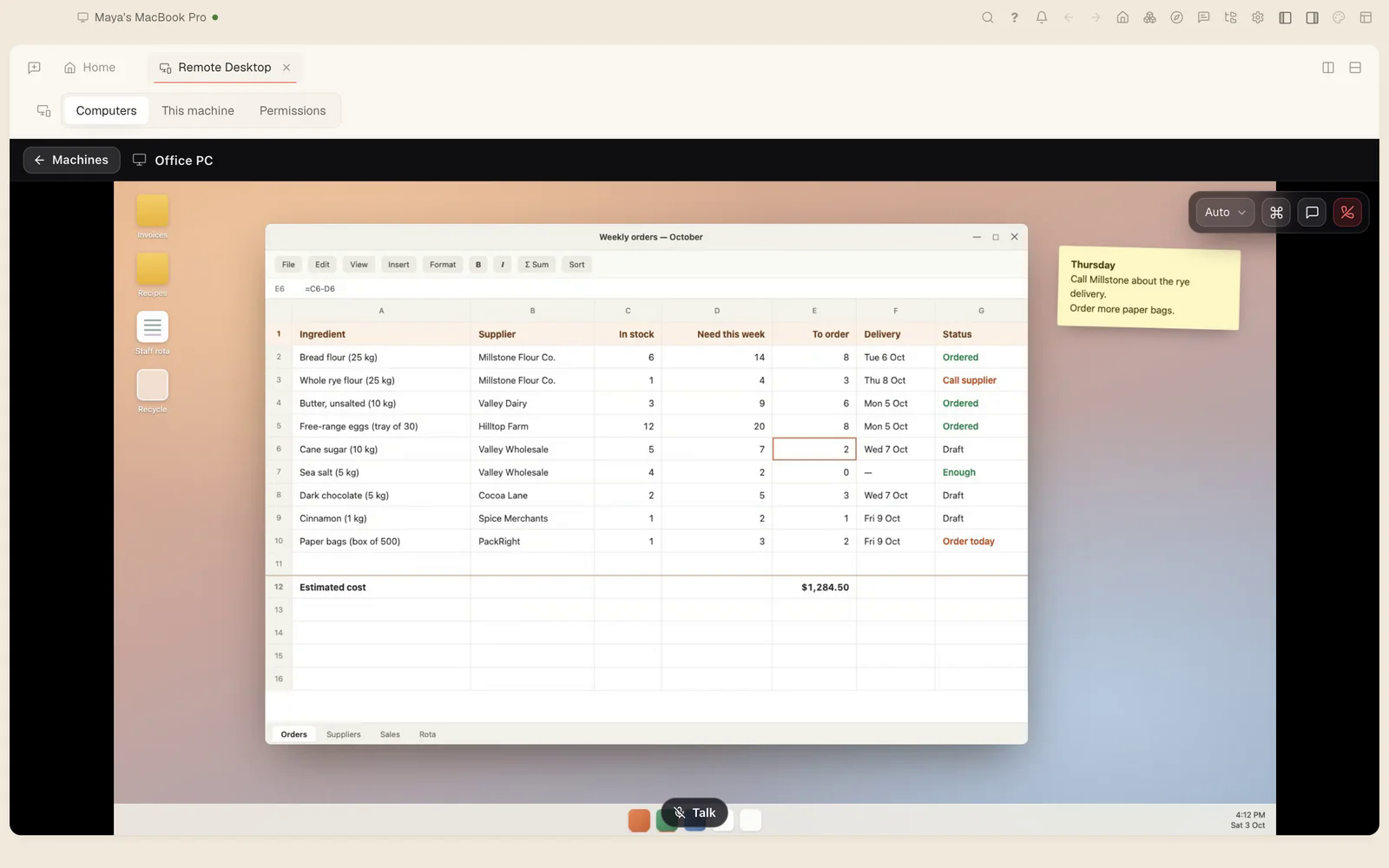
Remote Desktop uses the server only to find the other side and to pass connection details. The screen, input, clipboard and in-session voice travel on one WebRTC connection from the shared computer to the viewer. You get in with a machine’s ID and password, a one-time code that lasts 30 minutes, or a request by email. Up to three people can watch one screen. It works without an account, and signing in adds your own machines in one click. Remote Desktop: reach your own computers is the walkthrough.
Mesh is the one place where our server isn’t trusted. Every machine on a network holds a certificate signed by the network’s own certificate authority, peers set up encrypted sessions with the Noise protocol, and each machine checks the other’s certificate itself. The server can pass hints and carry encrypted packets, but it can’t join, impersonate, authorise or decrypt. Machines reach each other by their real hostnames, and a network holds up to 65,536 machines. Reach your own computers by name explains the network in more detail.
Mesh uses a relay when two machines can’t connect directly, so a network works for every pair of machines. By the usual estimate, 10 to 30 percent of router pairs need one. The relay only ever carries encrypted packets between machines that have checked each other’s certificates.
Questions
Do I need every app? No. The desktop app includes Remote Desktop, Mesh and Atrium. The standalone apps are for people who want just one of them, or for machines where you don’t want the full app.
Do I have to open ports on my router? No. Every machine dials out to your account’s server. Direct links between machines are set up through that connection, with hole-punching when both sides are behind routers.
How do I keep work running when my laptop is closed?
Run tesseract-agent on a machine that stays on. The web app drives it from any browser, and the work carries on there.
Does Tesseract’s server see my Mesh traffic? No. On a Mesh network, traffic goes directly between machines or through a relay that only carries encrypted packets. Certificates signed by the network’s own authority, not our server, decide who may join.
Where is a conversation stored if I start it from the web? On the computer you picked. The web tab is a window onto it.
Try it
Install the desktop app from tesseract.dev, sign in, and add a second machine with tesseract-agent. Then open the same conversation from the web app and watch it follow you.