 Tesseract
Copy on your laptop, paste on your desktop
Tesseract shares your clipboard across your computers, keeps a searchable history of what you copied and sends files up to 2 GB to your other machines.
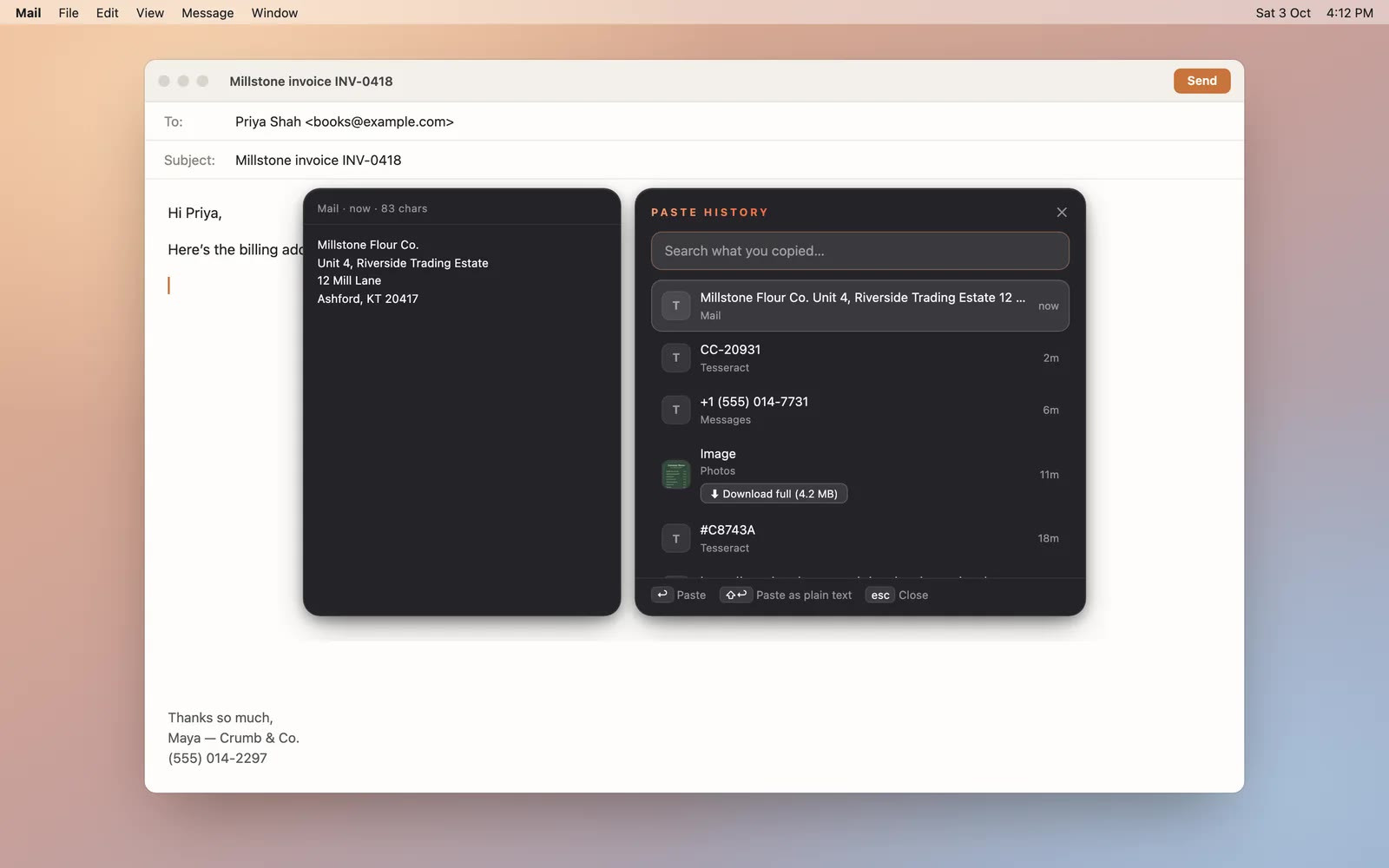
You copied a supplier’s address on the desktop in the shop, and now you are writing the invoice email on your laptop at home. With Tesseract you don’t email it to yourself: copy on one computer and paste on the other, text or images. And if you copied it an hour ago, it is still in your paste history.
What you need
- Tesseract on each computer you use: Mac, Windows or Linux.
1. Copy here, paste there
Copy as you always do on one computer. On the other, paste. Text and images both travel.
2. Find what you copied earlier
Press ⌘⇧V on a Mac or Alt+Shift+V on Windows and Linux to open Paste history. It keeps your last 500 items, with text up to 100,000 characters and images up to 10 MB, and you can search it by what you copied. Pick an item to paste it, or paste it as plain text.
It skips password managers and secure fields, so passwords you copy don’t land in the history.
3. Send the bigger things
For files, send a drop to your own devices: up to 2 GB per drop. You can also send to other people, with codes and rules for what you accept, and drops to other accounts are encrypted before they leave your machine.
Since 0.11.37 you can also just ask the agent: “Send this file to my desktop.” A file for someone else waits in the Send sheet for you to press Send.
4. Keep a whole folder in step
If you move the same project between two machines every day, point both at the same folder and Tesseract keeps the copies in step, in both directions. It skips the files your project’s git ignores and shows the state of every synced folder. Two limits: both machines need to be online, and the newest change wins. More on the page for professionals.
Related
Want to reach those computers by name, too? See Reach your own computers by name, from anywhere. Tesseract is free to download.