 Tesseract
Make a presentation by answering a few questions
In Tesseract 0.11.26, the Make a presentation card starts a short conversation: what it is about, who will watch, how long it runs and which look you like. You get a plan to change, then slides built beside the chat, ready to present or download.

Starting a presentation in Tesseract no longer means writing a prompt. In 0.11.26, out today, the Make a presentation card starts a short conversation instead: a few questions, a plan you can change, and then the slides, built while you watch. When it’s done, the deck stays next to the chat that made it, so changing it is one more message.
A few questions, then a plan
Click Make a presentation on Home and Tesseract asks you four things:
- what it is about,
- who will watch,
- how long it should be,
- and which look you like.
Tap one of the suggested answers, or type it in your own words, in any language. If you’d rather not choose, press Decide for me.
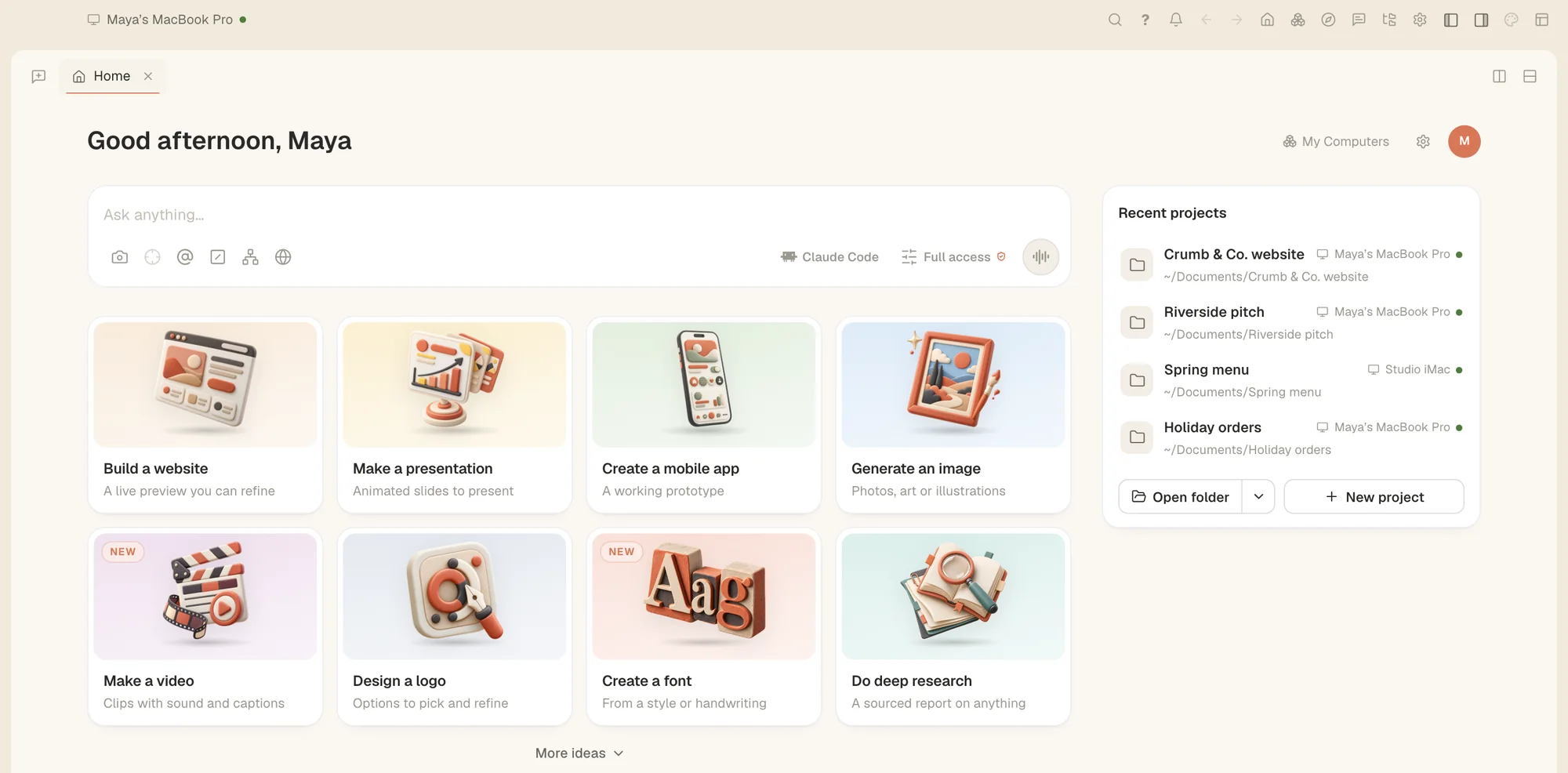
Your answers become a plan, and you get to change it before anything is built. Rename slides, put them in a different order, and trim the ones you don’t need. Then the slides are built while you watch, in a card beside the chat.
Start from what you already have
You don’t have to start from a blank page.
- From a document. Attach a Word file, a PowerPoint, a PDF or your notes, and the outline is written from it. Pictures you attach are placed once the slides exist.
- From one of your own. Pick one of your recent presentations under the first question. The new one keeps its colours, fonts and background and follows its slides in the same order, with new words.
Step by step
- On Home, click Make a presentation.
- If you have a document to start from, attach it. To follow an earlier presentation, pick it under the first question.
- Answer the questions by tapping or typing, or press Decide for me.
- Look over the plan. Rename, reorder or trim slides until it says what you want.
- Watch the slides being built in the card beside the chat.
- Ask for any change in the same chat. The slides update as the agent works.
- Present it, or download it.
When it’s done
The finished slides sit in a card next to the conversation that made them. From there you can:
- present, or present with your notes;
- download as PowerPoint, PDF or a web page;
- change the look in one click. There are six looks, and every slide follows.
Headlines size themselves to fit, in every look. And Present now really takes the whole screen. It used to stay inside the Tesseract window, with the title bar and the tabs still showing.
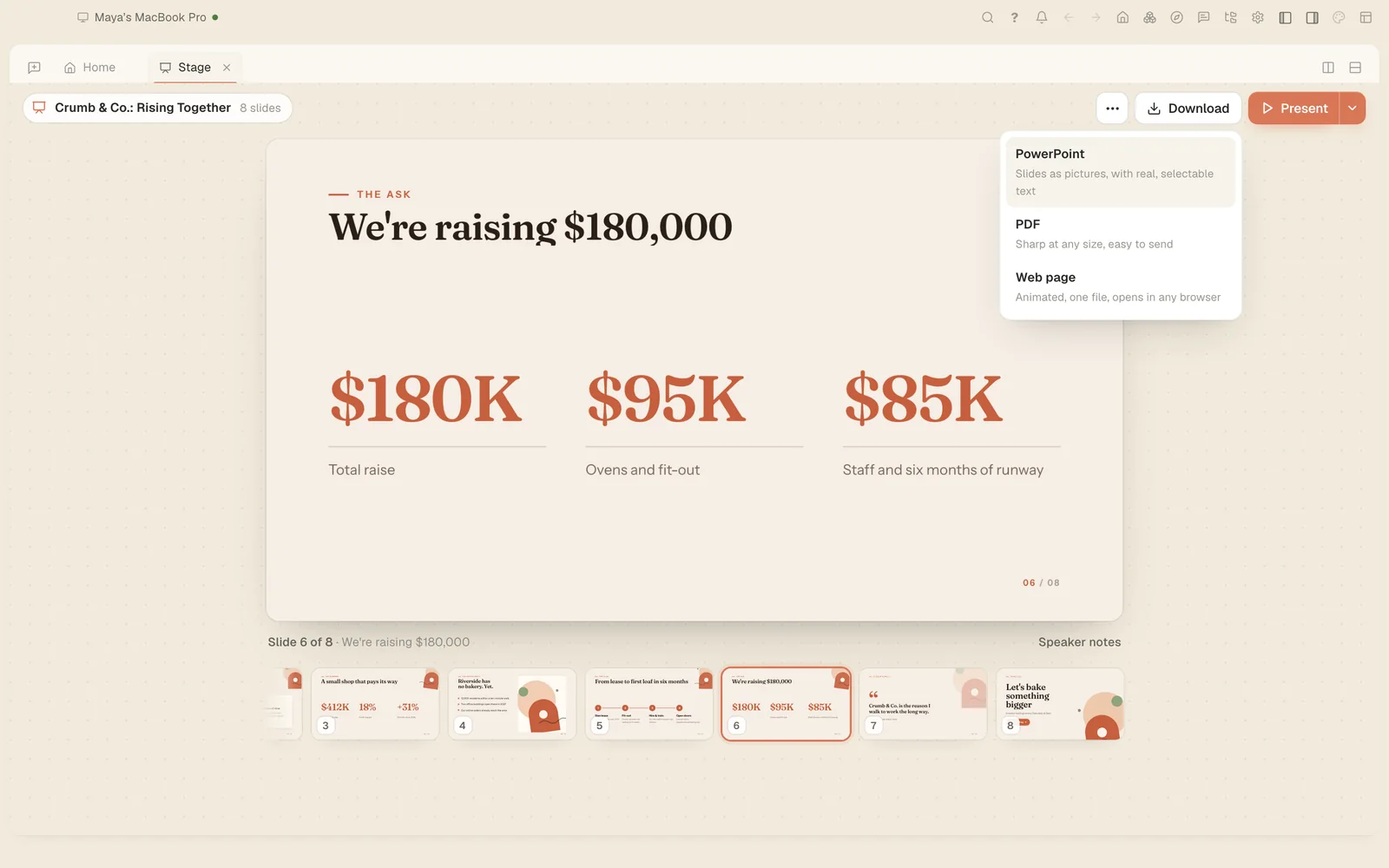
Because the deck stays beside its chat, changes don’t mean starting over. Ask for a shorter version, a different order or a new slide, in the same conversation, and the slides follow.
Also in 0.11.26
A few other things you’ll notice in this release:
- Each conversation runs on its own framework. One conversation can run on Claude Code while another runs on Codex, at the same time. The framework menu next to the message box changes that conversation only, and carries everything said so far across.
- Work carries on after a restart. If Tesseract closes, crashes or restarts while the agent is working, the interrupted turn carries on when the app is back, with a note saying “Picked up where it left off”. This now works on every framework.
- Tesseract for Windows is signed. The Windows app, its installer and the Remote Desktop and Private Network apps are signed by Eightcell Labs, Inc, the company behind Tesseract, so Windows shows a verified publisher. An update is installed only when it carries the same signature.
- A notification that needs you opens the conversation. When a conversation you aren’t looking at is waiting for your approval, your input or a decision, a click on its notification, or its Open button, now opens it.
- Thinking is back in the chat. A Thinking switch sits right under the modes in the sliders menu. With it on, which it is unless you turn it off, the model’s reasoning shows in the conversation as it works, folded away with a click.
- Remote Desktop no longer flickers. The other computer’s screen stays on screen while you move the mouse over it. More on Remote Desktop.
Try it
Tesseract updates itself, or you can download 0.11.26 for Mac, Windows or Linux at tesseract.dev. Then click Make a presentation on Home and answer the first question.