 Tesseract
Every card on Home now opens a guided maker, from images to games
In Tesseract 0.11.30, every starter card on Home opens a maker of its own. The chat asks only what it still needs while pictures, video, a brand, research, data analysis, writing, a mobile app, a game, a custom project or your own skin take shape beside it.
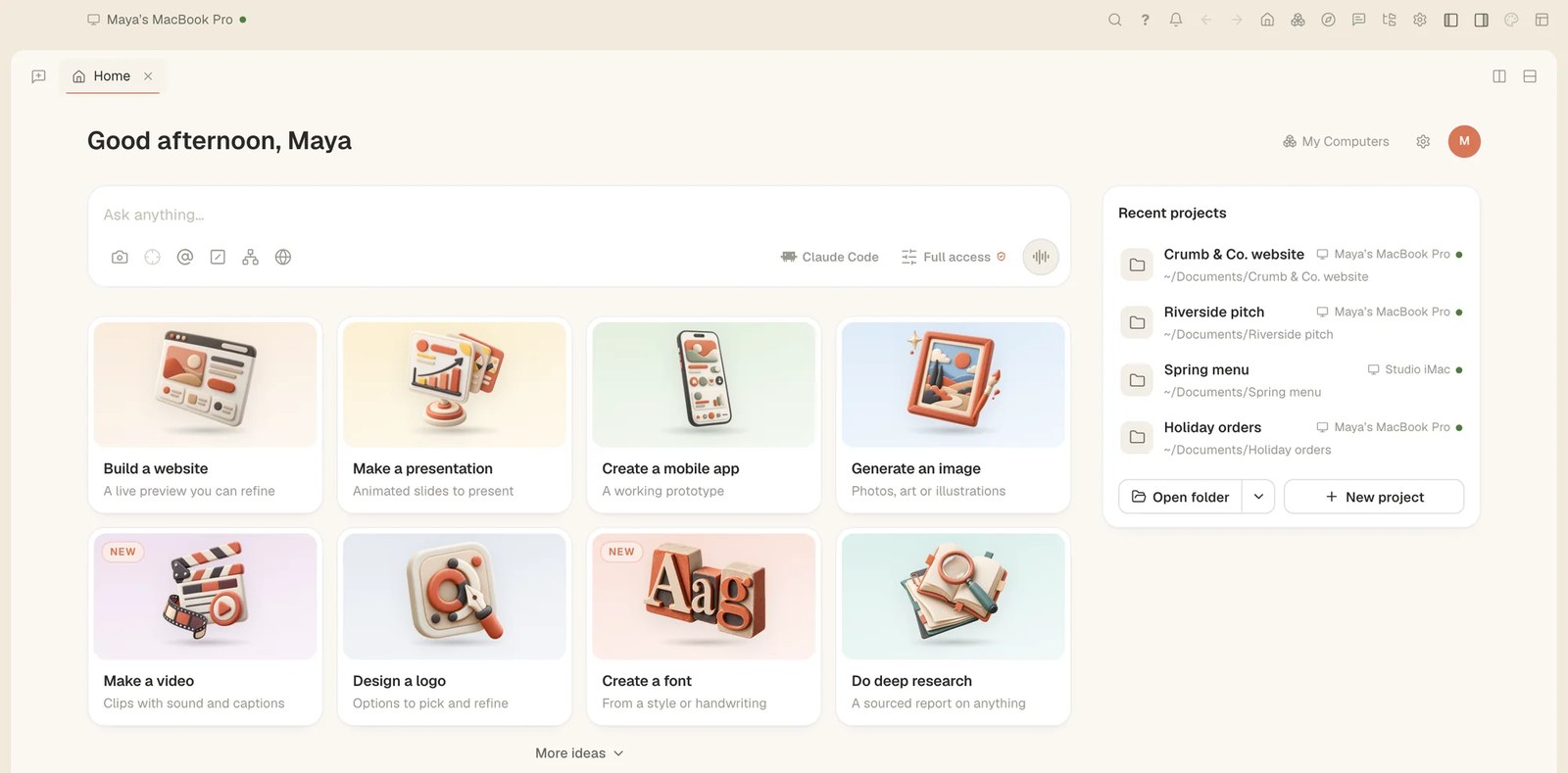
Until now, two cards on Home worked as guided makers: Build a website and Make a presentation. With Tesseract 0.11.30, every starter card opens a maker of its own. The chat asks only what it still needs while the work takes shape beside it, so a picture, a video, a brand or a report starts from a few answers rather than a long request.
How a maker works
You answer a maker’s questions in the chat. Its conversation is a full chat with every control, so you can also ask for any change in your own words.
You don’t have to start from Home. Every maker can also be started from the command palette. And if you ask for a picture, a logo or an app in any conversation, the agent opens that maker right there, or moves from one maker to another, keeping what was said.
Some cards were merged. “Design a logo”, “Create a font” and “Create a brand kit” became Create a brand. “Write a blog post” and “Write an email” became Write something. “Compose music” and “Schedule a task” left Home. The Design Studio tab is gone too, and Build a website takes its place.
The first run now asks who uses Tesseract: a kid or teen, an everyday user, or a tech expert or developer. Home’s cards come in the order you are most likely to want them, and you can change the answer in Settings → General.
Pictures, video and a brand
Generate an image asks what the picture shows and what it is for, then draws three different takes at the exact shape of where it goes, such as an Instagram post, a story, a banner or print. Every change after that is an edit you can go back on, with Compare. Change a part lets you brush over an area and say what it should become, and Also make it for… makes the same picture for other places. When words drawn in a picture come out wrong, press Fix the words or Set them as real text.
Make a video writes the script first, then makes a picture of every shot, then every shot at once on Veo while a rough cut plays. It is put together on your computer with captions, music and the narrator you picked. Use my photos turns your own photos into moving shots, and Your own voice lets you read the lines yourself. Videos are made at the Light quality (Veo 3.1 Lite) unless you choose Standard, or Best with a Google key of your own.

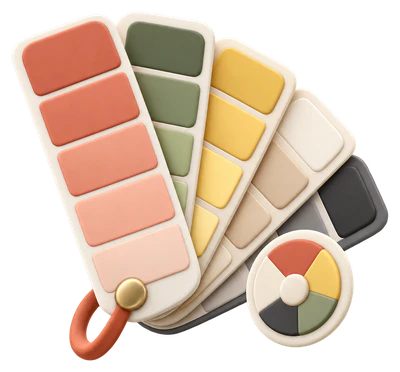
Create a brand makes a logo the way logo makers do it: symbols drawn for what the business does, beside the name set in real type so it is always spelled right. Then try layouts, typefaces and colours without drawing again. Save gives you the whole kit: every logo version as SVG and PNG, an app icon and favicons, a palette with each colour’s job, the typefaces, social media covers, a business card and a one-page guide.
Three more makers sit beside them. Make social posts plans a set of posts with a caption written for each platform and matching pictures. Make a postcard designs both sides and gives you a print-ready PDF. Enhance a photo plans the few fixes your photo needs and shows a before and after.
Pictures need credit or an image key of your own, and the makers say so, with the way to add either.
Research, writing, apps and games
Do deep research shows its plan of sub-questions before anything runs, and you change it by saying so. You watch it tick off the plan and can read its sources. Stop it with That’s enough — write it up, and you get a cited report to save as PDF.
Analyze data takes a spreadsheet, a CSV or a pasted table, or a sample to try. It shows what your data holds before asking you anything. You agree a plan, watch the charts arrive, and get the answer with its key figures, what was changed in your data, how many rows were used, a results workbook and the script to run it again.
Write something handles an email, a letter, a post or a CV. It shows an outline first, then writes a draft you edit directly and change by asking, keeping your own edits. Hand it over with Open in Mail, Copy, or save it as Word or PDF.
Create a mobile app shows your app as a demo you tap through on a phone, made from one of 24 ready-made app designs or drawn from scratch. Create a game asks whether it plays right here in the browser or is a real Unity, Unreal or Godot project. You see its design before anything is built, then play it on the canvas. Create a custom project sets up a folder with the exact name you give, where you choose, with the stack, files and tools you describe. It shows the plan first, checks that it runs, and offers Open it here.

Create my Tesseract skin restyles the app itself. Describe a look or give a picture to take its colours from, and see the app in it in light and dark. Change it back undoes it, and Save to share makes one .tesseract-skin file that anyone can add in Settings → Appearance → Add a skin from a file…. There is also Create a personal assistant, which makes an assistant from your first sentence.
How to start a maker
- Open Home.
- Press a card, such as Generate an image. You can also start it from the command palette, or ask for it in any conversation.
- Answer what the chat asks, in your own words.
- Watch the work take shape beside the chat. Change it by asking, or with the maker’s own buttons.
- Keep the result: save it, export it or hand it over, the way each maker offers.
Try it
Tesseract 0.11.30 is out now and updates itself. Download it at tesseract.dev, open Home and press the card you have been curious about. The blog has more on the website and presentation makers.