 Tesseract
The Remote Desktop app: share and connect, one window
Tesseract Remote Desktop as a small free app: one window to connect out and share this screen, a small download, and how it works next to Tesseract.
Tesseract Remote Desktop is a free app for Mac, Windows and Linux for seeing and controlling your other computers, with no account needed to start. One window does both jobs: Connect reaches another machine, This machine shares this one. Without the AI it is about a quarter of Tesseract’s size, and it works alongside Tesseract.
Reaching your own computers from inside Tesseract, step by step, is in reach your own computers from anywhere. This post covers the standalone app: why it exists, what is in it, and the decisions that make it behave on a computer that also runs Tesseract.
When should you use the standalone app instead of Tesseract?
Use it on a computer where you only want remote access: the shop PC you reach from home, or a relative’s laptop you help with. Both sides need it, so the person you help installs it too. It is a small download that opens on the first try.
From the Remote Desktop page:
- Free, no subscription, no account needed to start. Without an account you can still connect by ID and password and share your own machine. Signing in adds your machine list and requests by email.
- Six downloads. Mac (Apple silicon or Intel), Windows x64 or ARM as a portable app, and Linux x86-64 or ARM as an AppImage. Each one runs straight away, with no installer step. The version on the page as of this writing is 0.11.28.
- Already using Tesseract? It’s built in. The standalone app and Tesseract’s Remote Desktop tab are the same feature.
What are the four ways in?
Every way in needs the other side’s say:
| Way in | What it takes | Best for |
|---|---|---|
| Your own computers | Signed in on both; the machine is in your list | One click, no password to type |
| An ID and a password | The ID and the password from This machine | A machine nobody is sitting at; sharing is on by default and the password is made for you |
| A one-time code | A code read out to you | Helping someone; it lasts 30 minutes, or up to a day if they choose |
| Ask by email | A request they approve in their own app | Each person chooses who may ask: people they know, anyone, or no one |
Once you’re connected, you can view only or take full control of mouse and keyboard. You also get quality presets for fast and slow connections, sound from the other computer, a chat beside the session, Ctrl+Alt+Del, and a choice of display. Up to three people can watch the same screen. On Windows, the lock screen and admin prompts stay with the person at the machine.
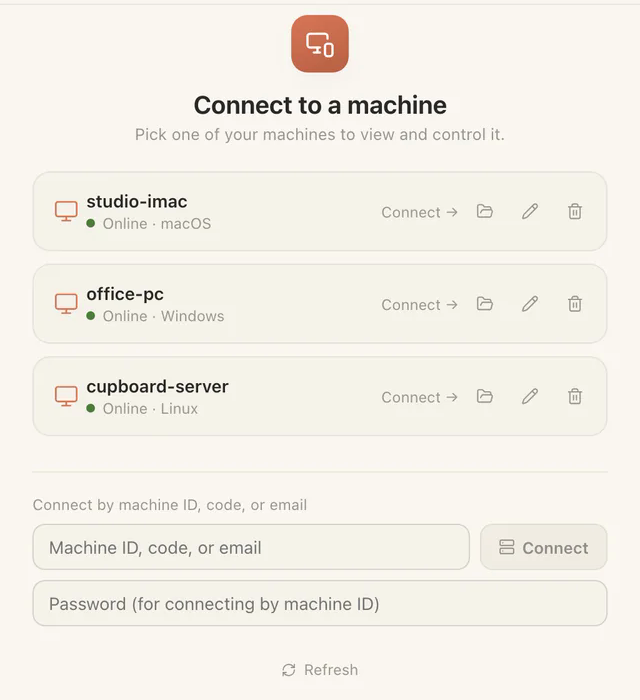
The screenshot shows the Connect view as it appears in Tesseract’s Remote Desktop tab. The standalone app’s Connect tab is built from the same components and lists the same machines.
Why is it one window and not two apps?
Connecting and sharing are two tabs of one app, so you can do either the moment it opens, with no setup question first.
The app opens in the sharing role, because that role does both: it can be connected to, and it can connect out.
When it shares, the app lives in the menu bar or system tray with no Dock icon. Its settings cover signing in, the one-time password, quality, starting at login, and hiding the tray icon.
Why is the app so small?
The app is one small launcher that loads the same core Tesseract uses for remote desktop: screen capture, input, the session engine and the tray. Every improvement to remote desktop in Tesseract arrives here too.
It skips the AI and browser payload: the agent framework’s native command-line tool, the headless browser, the agent SDK, terminals, the archive tool and the image upscaler. That makes the app roughly a quarter of the full app’s size.
What happens when Tesseract is on the same computer?
Both apps can share a screen, but only one should answer for a machine. The two share sign-in and state on disk, and serving is a separate claim on top of that.
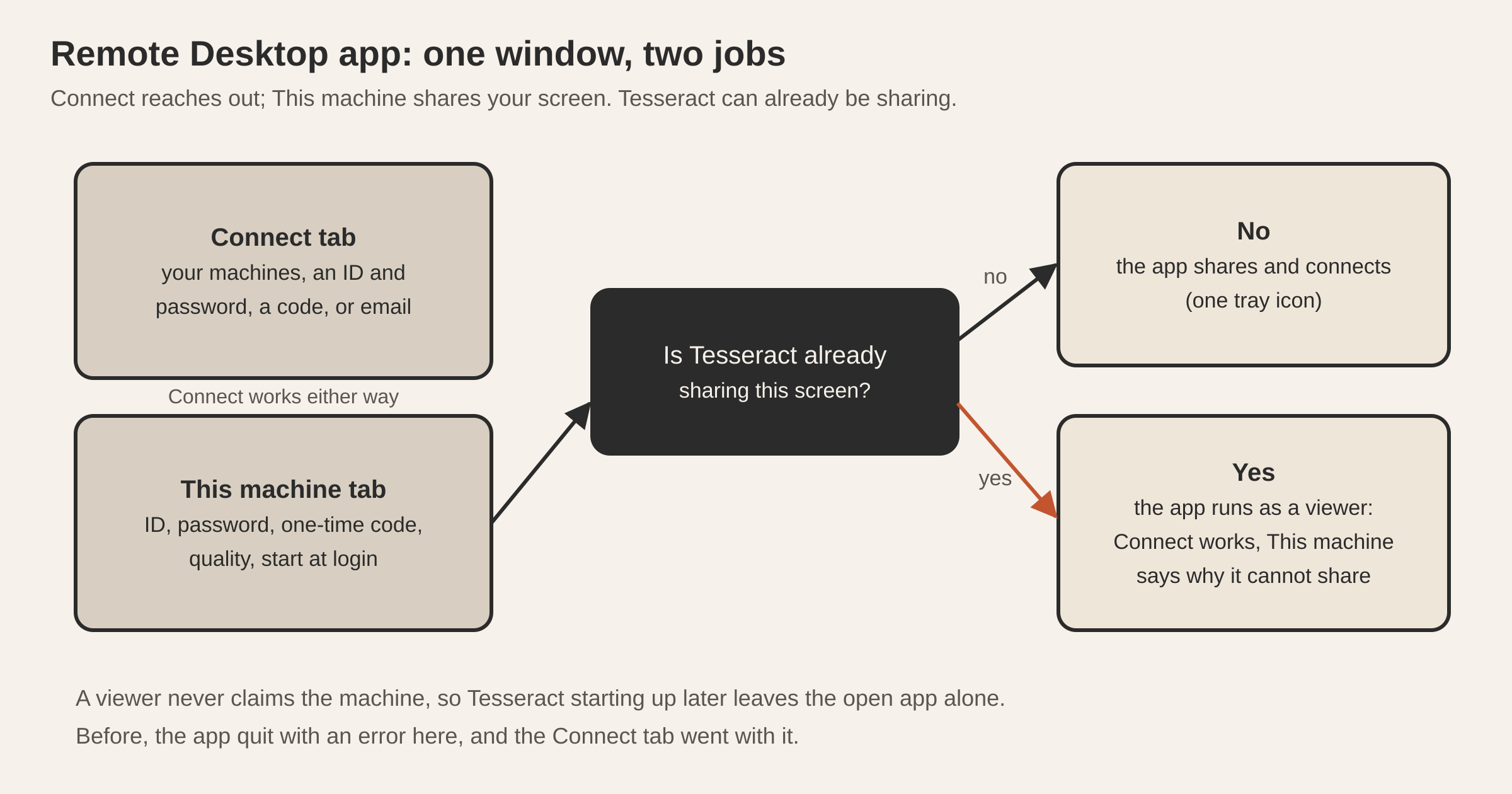
The app checks before it registers anything. If Tesseract is already sharing this screen, the app runs as a viewer: Connect works as usual, and the This machine tab says Tesseract is doing the sharing. “Viewer” is a single fact the app sets once, rather than a condition every part of the app has to work out again.
A viewer never takes the machine’s lock and never registers as a host, so Tesseract and the app run side by side and the window you are looking at stays open.
On the same machines, Tesseract adds more: opening a machine’s files like a folder of your own and running AI agents on it, as what Tesseract does with your computers shows, and telling you who is connected right now when you ask, as in who is connected to your computer.
What small details make it reliable?
It starts cleanly from any terminal or editor. Some terminals and editors set ELECTRON_RUN_AS_NODE (see Electron’s environment variables) for the programs they start, and macOS’s open command passes the caller’s environment straight through. The launcher notices the variable and relaunches once in a clean environment, with a guard so it never loops.
Its log survives a hard kill. Lines are appended to the app’s log synchronously, so a process killed without warning still leaves its last lines on disk. The log rotates at about 2 MB.
The Linux build starts on stock systems. The AppImage uses the static type 2 runtime, so it opens on a stock Ubuntu 24.04 install, on ARM and x64 alike.
Questions
Do I need an account? No, not to start. You can connect by ID and password and share your own machine without one. Signing in adds your list of machines, one-click connections and requests by email.
Can I install it on a computer that already has Tesseract? Yes. If Tesseract is already sharing the screen, the app runs as a viewer: you can connect to other machines from it, and its This machine tab says Tesseract is doing the sharing.
How do I install it? On a Mac you open the disk image, on Windows you run the portable app, and on Linux you run the AppImage. There is no installer step.
How many people can watch one screen? Up to three at once, each with view-only or full control.
What stays private on Windows? The lock screen and admin prompts stay with the person at the machine. They don’t appear in the remote session.
Try it
Download Remote Desktop for your system from the Tesseract Remote Desktop page on both computers, open This machine on the one you want to reach, and connect from the other.