 Tesseract
How a phone app steers AI agents on your computers
Why the Tesseract phone app never runs an agent itself, how it stays connected through sleep and network changes, and which events reach your phone.
The Tesseract phone app is a remote for the agents that run on your own computers. It never runs an agent itself. It lists your projects by computer, lets you talk to the agent working in one, approve its next step or answer its question, and buzzes you only when the agent needs you or has finished.
This post covers the design behind that: why the phone stays a client, how it keeps a live link through sleep, lifts and network changes, and which events reach your phone. The app runs on iPhone and Android.
Why doesn’t the phone run the agent itself?
An agent that writes code needs your files, your tools, your logins and hours of uninterrupted time. Your computer has all of those, and it keeps working while the phone sleeps in your pocket.
So the phone app is what our engineering notes call a roaming client. The work happens on a computer you own: your laptop, a desktop at the office, or a server (see running agents on your own server). The phone connects to that computer through Tesseract’s relay. It sends your words, shows the agent’s answers and carries your yes or no back.
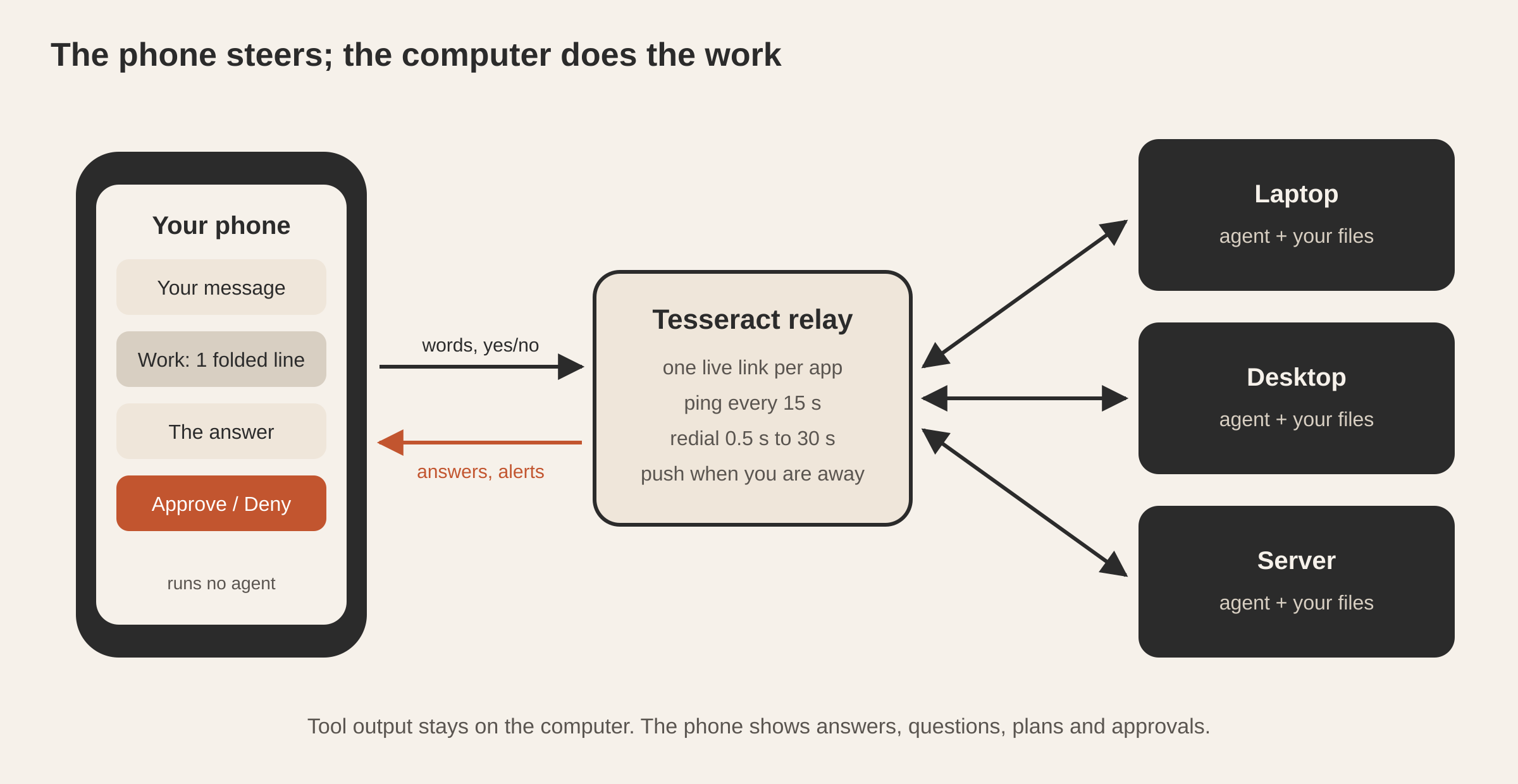
That choice settles a lot of things at once. A task does not stop when you put the phone away, because it was never running there (the same property that lets a task carry on after a restart). Your code never has to leave the computer it lives on. And the app stays small and quick, built around what a remote needs.
What does the app actually show you?
The home screen lists your projects grouped by the computer they live on: the newest five, then “All N projects” with a search. A sheet lists your computers. From Home you can ask something straight away, start a meeting recording, or pick one of the video starters.
Inside a project you get its conversations. A conversation on the phone looks like it does on the desktop, with one deliberate difference: the agent’s work is folded away. Every run of thinking, tool calls and tool results between the things you read becomes one plain line, such as “Ran 5 commands, read a file · 6 steps”. Tap it and you see a list of what was done, one line per step. You never see a tool’s raw output on the phone. That stays on the computer.
The idea behind the app: the phone is for keeping up with the agent while you are away from the computer. It shows what you can act on: the answers, a permission request, a question, a plan to approve. It keeps a long task moving while you are away from your desk: answer the question, approve the plan, read the result, start the next thing.
| On the computer | On the phone |
|---|---|
| Every tool call and its output, live | One folded line per run of work: “Ran 5 commands, read a file · 6 steps” |
| Permission prompts with “Always allow” | The same prompt; a step marked risky never offers “Always allow” |
| Live canvases, charts and tables | Drawn on the phone in a sandboxed frame, one canvas at a time, none in the background |
| The agent’s files and folders | What the agent made, ready to open |
| Run options: model, effort, framework, account | The same options |
Live canvases (an HTML page, a chart, a table the agent draws) are drawn on the phone itself, in a sandboxed frame, one at a time. A run’s canvas lives as a file on the computer, so the phone reads it from there and runs it in that frame.
How does an approval reach you when the phone is in your pocket?
An agent that is blocked on you is the main reason to have the app at all. When it needs a tool approval, asks you a question, or proposes a plan and waits for a yes, the phone gets a notification, and those three kinds go out as time-sensitive. On an iPhone that level is allowed to break through a Focus mode, so “Waiting for your approval” reaches you even when Do Not Disturb is on.
The Tesseract app hears eight kinds of event:
| What happened | What the phone says | How loud |
|---|---|---|
| An agent is blocked on a tool approval | ”Waiting for your approval” | Time-sensitive |
| An agent asks you something | ”A question for you”, with the question | Time-sensitive |
| An agent proposes a plan and waits | ”A plan to review”, with the plan’s title | Time-sensitive |
| A turn finished | ”Finished” | Normal |
| A turn stopped with an error | ”Stopped with an error” | Normal |
| A live preview or build is ready | The preview | Normal |
| The agent sends you a message in its own words | Its words | Normal |
| Someone sent you files while none of your devices was connected | The files | Normal |
The title leads with the computer’s name when the relay knows it, so “studio-imac · Finished” tells you which machine is done without opening anything. Titles never name the agent framework. You don’t need to know whether Claude Code or Codex was blocked to know you are needed.
Two rules decide what doesn’t buzz. First, presence: the relay sends nothing for a conversation you are already looking at, and it holds back bursts. Second, a computer or an agent going online or offline shows on screen, where you see it when you look, instead of buzzing.
Why are there five phone apps instead of one?
The Tesseract phone app used to hold everything: agent chat, team chat, remote desktop and the private network. On October 10 it was split into separate apps: Tesseract (the agents), Atrium (team chat), Remote Desktop, Mesh, and later Violet for personal-assistant users. The reasons are part of the design: app stores prefer one purpose per app, small apps are easier to review and update, and team chat should not mix its notifications with the agents’.
The notification point is the one you feel. Each app registers its push token under its own name, and the server sends each event only to the app that handles it. A team message goes to Atrium, an approval goes to Tesseract, a connection request goes to Remote Desktop. So a DM never buzzes from the agent app, and an agent’s “Finished” never comes from the chat app. On Android each kind of event also has its own notification channel (approvals, agent, files), so you can silence “Finished” and keep approvals loud.
The split also keeps each app light. The video-call engine, the emoji and file pickers and the network tunnel live in the apps that use them. Each app asks only for the permissions its own features need.
How does the phone stay connected through sleep and network changes?
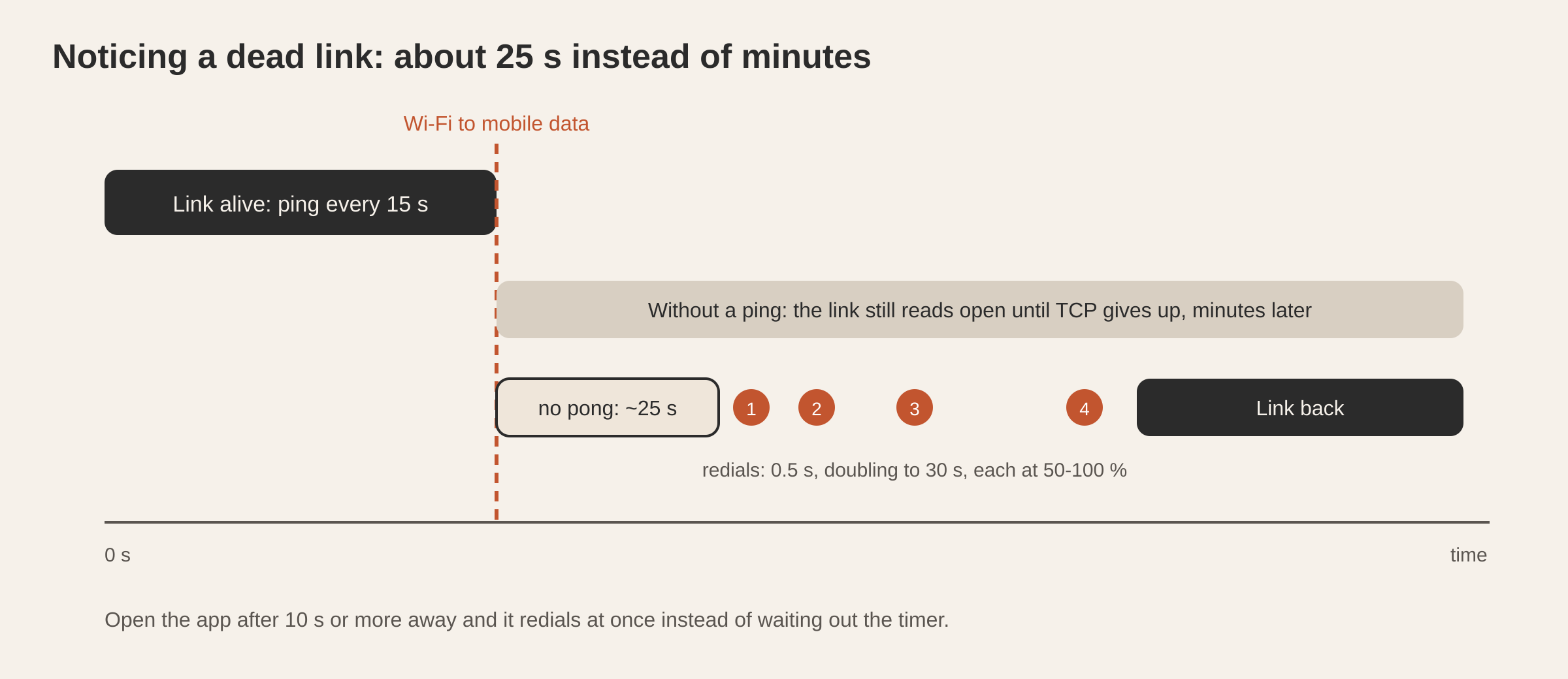
A phone changes network, sleeps and gets suspended in the background, and a quiet link can read as open until TCP gives up, which can take minutes. Tesseract’s phone apps notice within seconds and redial, so the agent’s answers keep arriving.
Every link from every Tesseract phone app to the relay follows one rule, the one mobile messengers use:
| Setting | Value | Why |
|---|---|---|
| Ping | every 15 s | A dead link is noticed and closed within about 25 s, not minutes |
| Connect timeout | 10 s | A dial that hangs is abandoned and retried |
| Redial delay | 0.5 s, doubling up to 30 s | Fast when the drop was a blip, gentle when the network is gone |
| Jitter | each delay at 50 to 100 % of its value | Thousands of phones that lost the same Wi-Fi don’t all redial on the same tick |
| Backoff reset | once a link has held 10 s | A flapping link doesn’t reset to fast redials every time it opens |
| Back in front | redial at once if down, or if the app was away 10 s or more | Opening the app never shows stale state while a timer counts down |
The ping is the WebSocket protocol’s own ping and pong, set through Dart’s WebSocket ping interval, so it costs a few bytes and no application code. The last rule is the one people notice: you unlock the phone, open the app, and it redials the moment it comes to the front, so the screen shows the current state.
In outline, the redial loop looks like this (a sketch of the rule, not the app’s source):
var delay = const Duration(milliseconds: 500);
const maxDelay = Duration(seconds: 30);

Duration nextDelay() {
  final jittered = delay * (0.5 + random.nextDouble() * 0.5); // 50-100 %
  delay = delay * 2 > maxDelay ? maxDelay : delay * 2;
  return jittered;
}

void onLinkHeld10s() => delay = const Duration(milliseconds: 500);
What happens to your login when the network is bad?
The app keeps you signed in through offline stretches and proxy errors. A session ends on an explicit answer from the server, or when the relay says the token was revoked.
Sign-in on a phone is asynchronous: a profile request, a socket handshake and a probe can all be in flight when you sign out and sign in again as someone else. Every piece of that work is tied to the session that started it, so a late answer for an old session is ignored and the new login stays. Writes to the phone’s secure storage run as whole operations in order, so a slow sign-out finishes before the next login is saved.
Changing the server in Settings signs you out on the phone first, before it contacts the new server. The app keeps one credential slot, not one per server, so the old token is removed before the new address is saved. Queued work never crosses from one account or server to the other.
What else does the phone do for your computers?
The phone can also be a device of your account, not only a remote.
- Clipboard sync is on by default: text you copy on another device lands on the phone, and what you copy on the phone goes out when the app is in front. The copy on one computer, paste on another post explains the desktop side.
- Browse this phone is off by default. Switched on, the phone shows up among your account’s computers, and they can browse its files plus “Photos” and “Videos” folders built from its library. It works like opening files on your other computers, and the phone is reachable whenever the app is awake.
- The password manager is turned on per phone in Settings. When it is on, the phone holds your vault, syncs it live with your other devices, fills passwords through the system’s AutoFill on iPhone and Android, keeps one-time codes and masked emails, and can approve a locked desktop’s unlock request with Face ID. A master password is optional.
- The meeting recorder records a meeting or a conversation between people. The computer writes it down as it goes, one line per speaker’s turn, labelled “Speaker 1:” until a name is said, and then the assistant writes notes. You can start it from Home or by asking the assistant to record the meeting.
- The presenter remote turns the phone into the remote for a talk running on one of your computers. It shows what a speaker needs: the slide number, the title, your notes in large type, what comes next, and the controls. The mute control shows the state the computer has confirmed.
- Create video and an effects gallery start a video from a prompt, a style and an optional first frame. The video arrives in the conversation like any other answer.
Questions
Does the agent keep working if I close the phone app? Yes. The agent runs on your computer, not on the phone. Closing the app, locking the phone or losing signal changes nothing for the task. You get a notification when it finishes or needs you.
What do I need besides the phone? One of your computers, or a server, signed in to the same account. The agent runs there, and the phone steers it.
Where do team chat messages buzz? In the separate Atrium app. The server sends chat notifications only there. The Tesseract app hears agent events and file drops.
Which languages does the app support? English plus 62 translated languages, with right-to-left layouts for languages that need them.
How do I get started? Install the Tesseract app on your iPhone or Android phone and sign in with your account. The web app reaches the same agents from any browser.
Get the desktop app on tesseract.dev and put your first agent to work. The phone app plugs into the same account.