 Tesseract
Can an AI-era vault replace your password manager?
What Tesseract's vault stores, who can read it, how its AI reads forms without seeing your data, and how it fills on every device you use.
For most people, yes. Tesseract’s vault keeps logins, passkeys, two-factor codes, cards, addresses, bank accounts, IDs and notes. It fills them in Chrome, Edge, Brave, Arc and Vivaldi through the Companion extension, and in the desktop app. On a Mac it is also a system AutoFill provider, so it fills in Safari and in apps that use macOS AutoFill. Set a master password and nobody at Tesseract can open it.
Can a vault replace your password manager? Here is what it replaces, where it fills, and how the “intelligent” part works without the AI seeing your secrets. For one narrow case, the agent signing in to a site for you, there is already a short how-to: let the agent sign in without seeing your password. This post looks at the whole vault.
What does the Tesseract vault hold?
The vault keeps one item schema, and the desktop app, the browser extension and the account server all use it. The desktop app shows these lists: Logins, Passkeys, Payments, Secure Notes, Personal Info, IDs, Bank accounts, Authenticator, Wi-Fi, Licenses, SSH Keys and Dev Secrets. Collections are shareable folders that hold items.
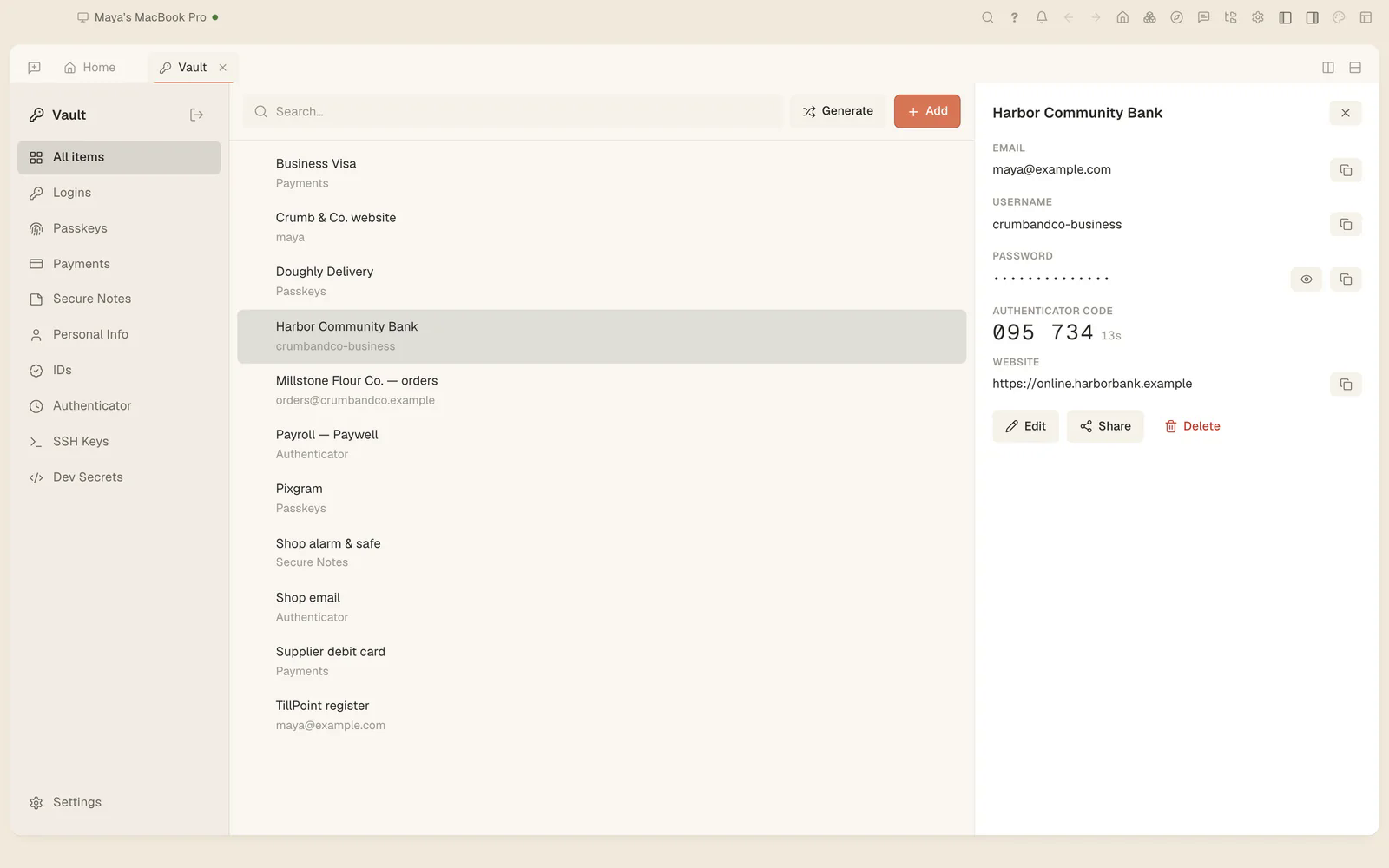
Two-factor codes sit next to the login they belong to, so you don’t keep a separate authenticator app. You can add a code by scanning its QR code with your computer’s camera, or bring your codes over from Google Authenticator. A generator makes passwords. Passkeys are created on sites and used from the vault.
| Kind of item | In the vault | Fills on web forms |
|---|---|---|
| Logins and passwords | Yes | Yes, after you pick one |
| Two-factor codes (TOTP) | Yes, beside the login | Yes |
| Passkeys | Yes | Yes, on sites that offer them |
| Cards and bank accounts | Yes | Yes |
| Names, addresses, phone numbers | Yes, as Personal Info | Yes, on any form that asks |
| ID documents | Yes | Yes |
| Secure notes, Wi-Fi, licences | Yes | You copy them where you need them |
| SSH keys and developer secrets | Yes | You copy them where you need them |
There is no paid plan and no limit on items or devices.
Where does the vault work?
It’s the same vault in three places:
- The Tesseract desktop app on Mac, Windows and Linux, as a Vault tab.
- Companion, Tesseract’s free browser extension for Chrome, Edge, Brave, Arc and Vivaldi. The Companion page describes it, and the install page has it from the Chrome Web Store or as a zip.
- Any other device you sign in on, through your Tesseract account.
Companion’s password manager works on its own. With the desktop app installed, the extension also gives you the assistant side panel and the agent working in your tabs. The vault works without an account too: you can use it on one computer, offline. Signing in is what syncs it between devices.
Inside the extension, the decrypted vault key lives only in the memory of the extension’s background service worker. Chrome stops idle service workers (Chrome’s lifecycle rules), and the vault treats that as its auto-lock. When the worker is evicted, the key is gone, and the next fill asks you to unlock. You can unlock with your fingerprint or face instead of typing.
Who can read your vault?
This is the question a password manager has to answer plainly. Tesseract’s answer depends on one choice you make.
| No master password (the default) | Master password set | |
|---|---|---|
| Encrypted before it leaves your device | Yes | Yes |
| Stored on our servers as | Ciphertext | Ciphertext |
| Where the vault key lives | On your devices and on our servers | Only on your devices, derived from your password |
| A new device unlocks | By itself, when you sign in | When you type the master password |
| If you forget everything | Your account still opens it | Only your recovery key opens it, and nothing else does |
The privacy policy says the same. The default keeps a copy of the vault key on our servers so a new phone or laptop unlocks without you typing anything. A master password makes the vault zero-knowledge: only your devices hold the key. The app always shows which of the two you are on.
When you set a master password, the key comes from your password through Argon2id, a slow, memory-hard key-derivation function (RFC 9106). Items are encrypted with AES-256-GCM (NIST SP 800-38D). The app then shows you a recovery key to save. Setting a master password later re-wraps the vault key and deletes our copy, and the server refuses to keep a copy from then on.
We run Argon2id at its production cost in our own tests too, so the tests check exactly what you run.
How does a secret move from saving to filling?
The diagram below follows one password from saving to filling, and shows what the AI model and the agent may see.
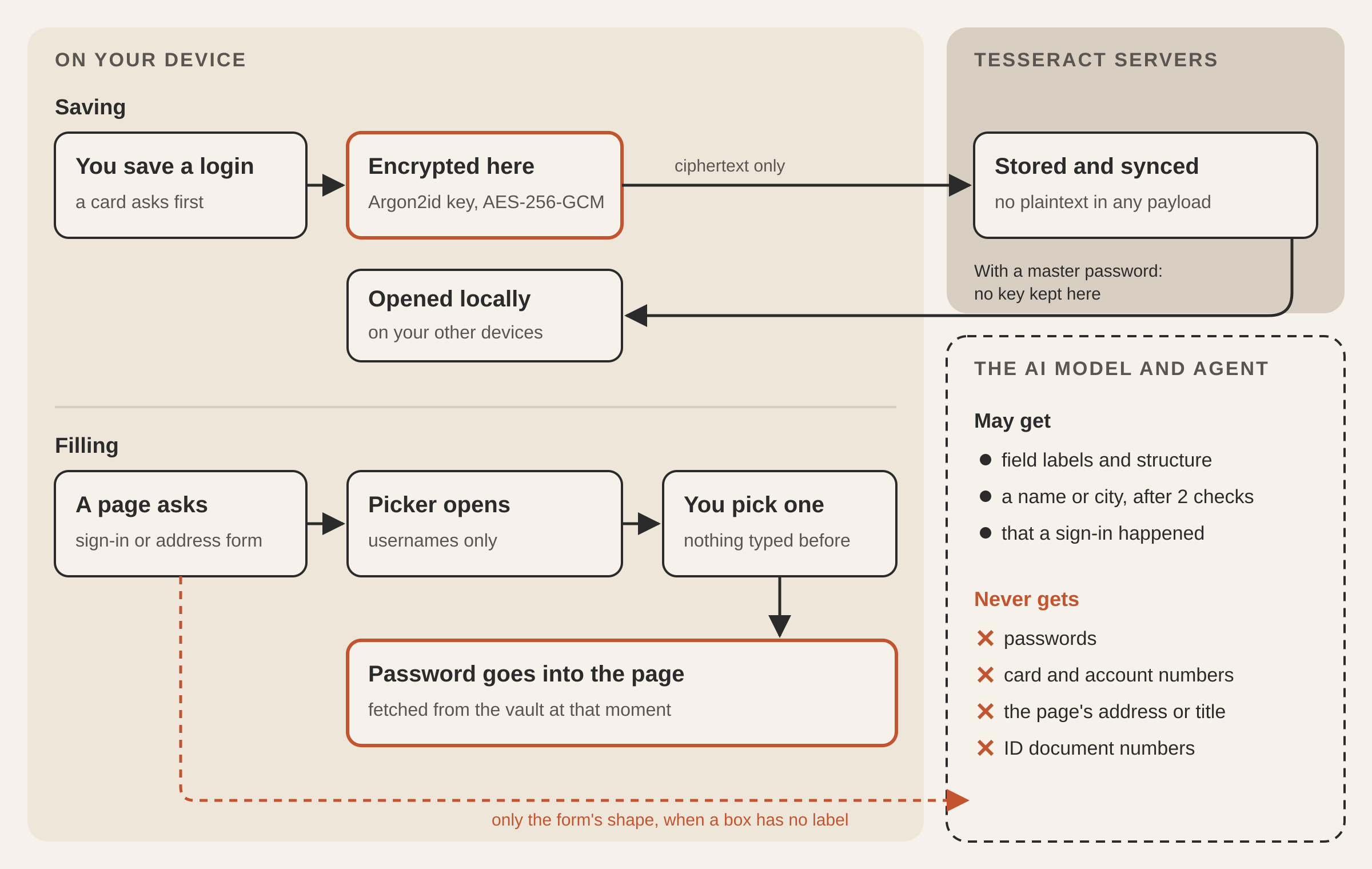
Three things in the diagram matter more than the rest.
The server only ever sees ciphertext. Each item reaches the server with an id, a timestamp, a deletion marker and opaque encrypted bytes. Our tests check that plaintext never shows up in any request, response or log, with or without a master password.
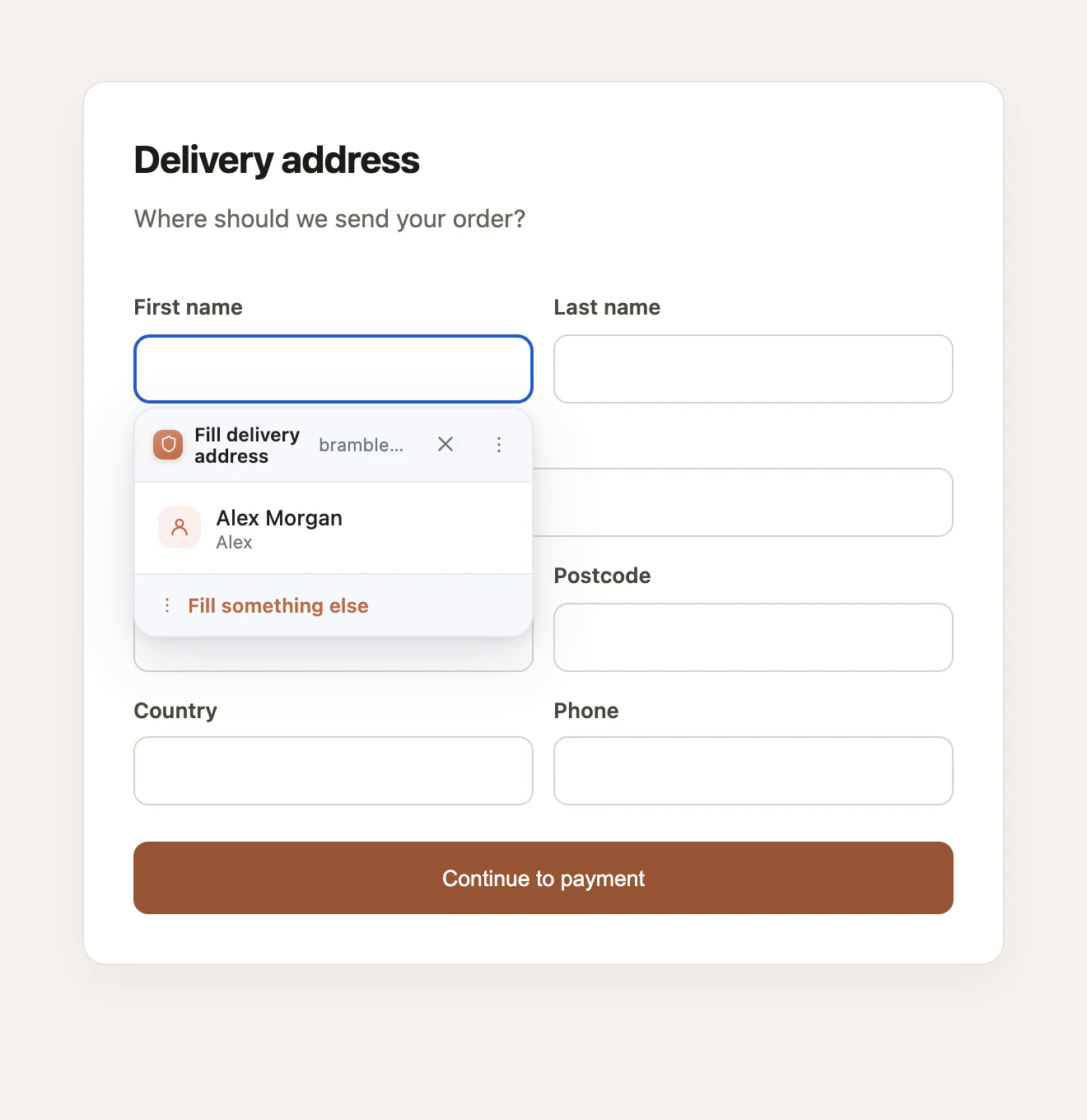
The picker shows usernames, not passwords. When you click a sign-in box, Companion’s inline picker lists the matching logins by username. The password is fetched from the vault only after you pick one, and nothing is typed before that.
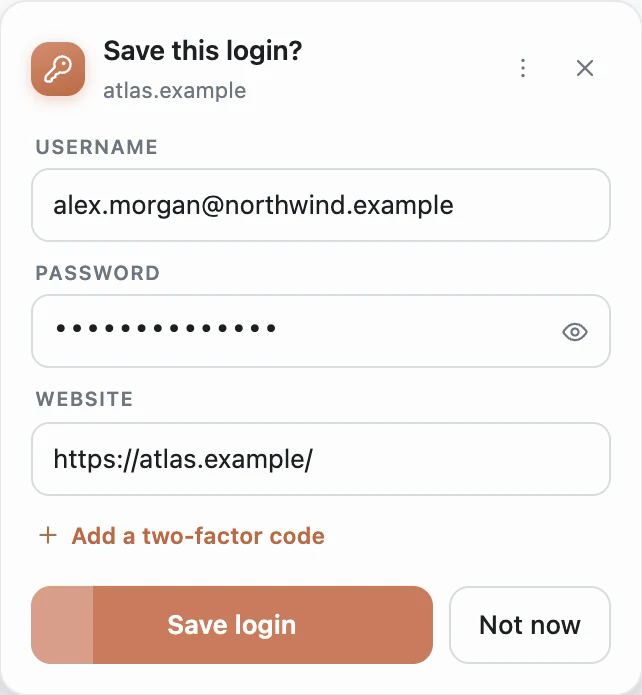
Saving asks first. When you submit a new sign-in, a card asks whether to save it, with the username, the hidden password and the site already filled in, and an option to add a two-factor code.
What makes the vault intelligent?
Most password managers recognise forms from the field’s HTML attributes: type="password", autocomplete="email", a name like postcode. That works on well-built forms. Real forms also have a box called f7, a field labelled only in German, and a checkout form where “Company details” is written in a <fieldset> legend rather than on the input.
Companion handles those forms in two steps.
- Rules first. Most forms are labelled clearly enough, and Companion fills them with no model involved.
- A model for the boxes it can’t name. It writes an outline of the form and asks a model what each box is for. The outline keeps the structure, the tag names, a short allowlist of describing attributes (
name,id,type,placeholder,autocomplete,aria-label,patternand a few more), and the words a person can read on the form: labels, legends, option text, and HTML comments, which are often the only place a developer said what a box is for.
The outline drops every value, every data-* attribute, scripts, styles, classes, and anything not on the allowlist. Because it drops by allowlist rather than blocklist, attributes nobody has thought of yet are dropped too. Text areas are described but never opened, because their contents are whatever the person already typed. The page’s address and title are never sent.
How much the outline helps was measured on 2026-10-29, on ten ambiguous fields sent to the classifying model:
| What the model was given | Fields named right | Mean confidence |
|---|---|---|
| The field’s own attributes | 5 of 10 | not recorded |
| The field’s and its neighbours’ attributes | 8 of 10 | 0.92 |
| The outline described above | 9 of 10 | 1.00 |
The gain comes from what attributes can’t say. Two fields that the attribute-only reading refused, or named at 0.53 confidence against a 0.9 bar, came back at 0.99 from the outline, because the outline included the legend “Company details” and a comment reading “apartment / suite / unit”.
What may the model see, and what can it never see?
Reading a field’s label and reading what’s inside it are two different promises. The outline carries no values at all. Sometimes, though, a value is the only clue: a box nobody labelled holds something that is plainly a name, or a city, or a country. To save such a box under the right heading, Companion may send that one value, and only if it passes two gates:
- The field’s kind is on a short allowlist where the value helps: names, a city, a region, a country, a company, a job title. A field the classifier couldn’t name never qualifies.
- The value doesn’t look like a secret. Long runs of digits, card-shaped numbers, IBAN-shaped strings and anything from a password box are held back whatever the field is called.
Sensitive fields are spotted by meaning, not by English words, so a field named “Bestätigungscode” and a card number in a box called f7 are both caught. Companion uses the same classification it fills with, which works in any language and ignores what the box was named. A box the classifier calls a card number, a security code, an IBAN, an account number or a document number has its value withheld. The two gates check each other, so a card number stays out of every request, even in a field or format nobody has seen before.
What does Companion remember about you, and where?
The vault keeps the items. A password manager also builds up habits about which login and which address you use where. Companion keeps those habits in the browser’s own storage and never sends them to our servers.
- Corrections. When you use “Fill something else” on a box, Companion remembers what that box really is, for that form on that site, so it doesn’t ask again. A pile of entries like “on this site, the third box of the checkout form is a postal code” amounts to a browsing history. The field model never receives the URL, and storing the same thing on a server afterwards would undo that.
- Order. The picker offers what you used on this site last, then what you choose most often everywhere. It’s per site because people use a home address at one shop and a work address on an expenses tool. On a site you haven’t visited before, it falls back to how often you pick something, so one odd choice doesn’t reorder every list.
- The username from a two-step sign-in. When a site asks for the account on one screen and the password on the next, Companion remembers the identifier from the first step, for that tab, for up to ten minutes, and puts it into the save card next to the password.
- Sites by hostname. Logins and codes are matched by hostname, with a short list of suffixes such as
.co.ukunder which two hosts are different companies, so each site gets only its own logins. - One identity, not one per shop. An address you type at checkout is saved as one record, not filed under that shop, because the next shop will ask for the same address. It asks to save only when it sees at least three recognised parts, so a single email on a sign-in form never pops up a card.
- Newsletters left alone. A one-box “enter your email” form looks the same whether it’s a passwordless sign-in or a newsletter signup. Companion tells them apart by the words on the form. Anything that says it’s a mailing list is treated as one. Anything that says it signs you in is treated as a sign-in. Anything that says neither is left alone.
How does the agent use the vault without seeing it?
Tesseract is an AI agent that works on your computer and in your browser, so the vault also has to serve a reader that is not you. The rule is the same everywhere: the agent can use your secrets, but it never receives them.
- Signing in. When a task needs a login, Tesseract types the vault’s password into the page itself. It’s masked in everything the browser tells the agent about that page. The sign-in how-to walks through it.
- Saving a new login. The agent can open the vault’s new-item form with the site, username and name filled in. You type the password and press Save. If the vault is locked, the form opens once you unlock it.
- Shares. The agent can list what you shared from the vault (how many items, to whom, when it expires, never the items) and take a share back. Sharing items out is never the agent’s job. It stays on the vault screen, for you.
- Your clipboard. Tesseract’s paste history skips password managers and secure fields, so a password you copy doesn’t end up in it.
How does sharing work?
There are two ways to share. To share with someone who has a Tesseract account, an item is sealed to the public keys of the recipient’s devices, so only those devices can open it. To hand a login to someone once, you make a link or a QR code. The decryption key sits in the part of the link after the #, which browsers don’t send to the server (RFC 3986, section 3.5). Our tests check that the key never reaches us.
The privacy policy also lists a breach check: the password manager can check a password against known leaks by sending only a partial, irreversible hash of it, never the password.
Can it replace your password manager?
Here is the claim against the facts.
| Your password manager does | Tesseract’s vault |
|---|---|
| Stores logins, cards, identities, notes | Yes, plus passkeys, 2FA codes, IDs, bank accounts, Wi-Fi, licences, SSH keys and dev secrets |
| Fills in Chrome and Chromium browsers | Yes: Chrome, Edge, Brave, Arc, Vivaldi |
| Fills in Safari and Mac apps | Yes, as a macOS AutoFill provider (macOS 14 or later), after Touch ID |
| Fills on iPhone and Android | Yes, built into the Tesseract phone app as system AutoFill |
| Zero-knowledge encryption | Yes, with a master password |
| Imports your existing vault | Dashlane, 1Password, Bitwarden or Chrome |
| Exports | An encrypted file or a spreadsheet |
| Shares with family or a team | Yes, from the Tesseract app, plus one-time links and QR codes |
| Lets an AI agent use logins without seeing them | Yes, which is the part a password manager alone doesn’t do |
| Costs | Free, no item or device limit |
So, can it replace your password manager? Yes. Set a master password and the vault holds everything your password manager holds, fills it in your browser, on your Mac and on your phone, and keeps it readable only by you. It also lets an agent sign in for you without ever seeing the password, which a password manager alone can’t do.
To move over, import your current vault, check a few logins, then set the master password and save the recovery key somewhere outside the vault.
Questions
Is the vault really free? Yes. There is no trial, no paid plan and no limit on items or devices. It’s part of Tesseract, which is free to use.
Where does the vault fill in my passwords? In Chrome, Edge, Brave, Arc and Vivaldi through the Companion extension; in Tesseract’s own browser; on a Mac in Safari and other apps through macOS AutoFill, after you turn Tesseract on under System Settings → General → AutoFill & Passwords (macOS 14 or later); and on your phone through the Tesseract phone app’s system AutoFill.
What happens if I forget my master password? Your recovery key opens the vault. Keep it somewhere safe: we never hold your key, so the recovery key is yours alone.
What does the AI see when it reads a form? The model reading a form gets its structure and labels, never passwords, card, bank or document numbers, and never the page’s address or title. A plain value like a name or a city is sent only when the field’s kind is on a short allowlist and the value doesn’t look like a secret.
Can I use the vault without a Tesseract account? Yes, on one computer, even offline. An account is what syncs it to your other devices.
Who shares my passwords, me or the agent? You. The agent can list your shares and take one back. Sharing items out stays your action on the vault screen.
Try it
Add Companion from the extension page, import your current vault, and set a master password before you rely on it. The vault is also in the Tesseract desktop app, free to download for Mac, Windows and Linux.