 Tesseract
The Tesseract CLI: commands, MCP server and mesh
What tesseract-agent does beyond hosting: installing without npm, browser sign-in, model accounts, connectors, an MCP server for Claude Code and Codex.

The Tesseract CLI, tesseract-agent, is a command-line program for Mac, Linux and Windows, free to install. It makes a computer an agent host for your account, manages its model accounts and connectors, joins it to your private network, and serves Tesseract to Claude Code, Codex, Cursor or VS Code as an MCP server.
Setting up a server as an agent host, step by step, is in run agents on your own server. This post is a map of the rest: how it installs on machines without npm, how it signs in without a password, the command groups, and the newest one, mcp serve.
What is tesseract-agent?
It is the headless counterpart to the Tesseract desktop app’s “share this machine”. It runs the same agent runtime, without the desktop window. Installed on a server, it shows up in your Tesseract apps, and your laptop, phone or the web app can run agents on it even when nothing else is open.
It is published on npm as tesseract-agent. The latest version as of this writing is 0.12.1, and it needs Node 20 or newer.
How do you install it on a machine without npm?
There are three ways in, and they all end in the same place:
# macOS / Linux
curl -fsSL https://tesseract.dev/cli.sh | sh

# Windows (PowerShell)
irm https://tesseract.dev/cli.ps1 | iex

# anywhere with Node 20+
npm i -g tesseract-agent "--allow-scripts=tesseract-agent,ffmpeg-static,node-datachannel,@homebridge/node-pty-prebuilt-multiarch"
The two scripts bring their own runtime, so a fresh cloud image, a build box or an appliance needs nothing installed first. If a usable Node 20+ is there, they use it. If not, they download the official runtime from nodejs.org, check it against the published SHA-256 checksums, and keep it private to Tesseract. They use no system package manager and no system Node, and need no root on Mac or Linux and no admin prompt on Windows. The scripts are served at a plain, stable address, so you can read them before you run them.
The --allow-scripts list in the npm command names the packages whose install steps the agent needs: its process supervisor and network helpers, ffmpeg, the WebRTC add-on, and terminals. npm now warns about install scripts it wasn’t told to allow (see npm’s config docs). The installer scripts pass this list for you.
Why three command names?
tesseract-agent, ts (the same program, shorter) and tm (short for tesseract-agent mesh, so tm status is tesseract-agent mesh status).
They are small generated scripts rather than symbolic links, for two reasons. npm’s own command shims find node on your PATH, which may not be the runtime the package was installed with. And tm has to insert an argument, which no symlink can do.
Each script carries a marker, the same one the desktop app writes when it installs these commands. That way the two installers recognise each other’s files and neither quietly overwrites someone else’s. This matters most for ts: a widely installed Linux toolset ships its own ts, and the installer leaves that one alone. On a machine that already has the desktop app, all three commands come with the app, pointed at its own copy so they can never fall behind it. The installer scripts see that and stop.
How does it sign in without a password in the terminal?
tesseract-agent login uses a browser sign-in. It prints a link and a QR code in the terminal. You open the link on any device, sign in with Google or email, and paste the one-time code it shows back into the terminal. The CLI then holds a long-lived, renewable device token, stored as a file only your user can read. No password is ever typed into the terminal.
After you sign in, the CLI brings the machine online. If no agent is running, it installs and starts the background service, waits until the machine is registered on your account, and confirms with your account’s email that it now shows in your Tesseract apps.
Two other ways in:
tesseract-agent join <code>joins the machine to the account that made the code, from My Computers → Add another computer in the app.--installalso starts the agent.tesseract-agent login --token <device-JWT>skips the browser, for automation and containers.
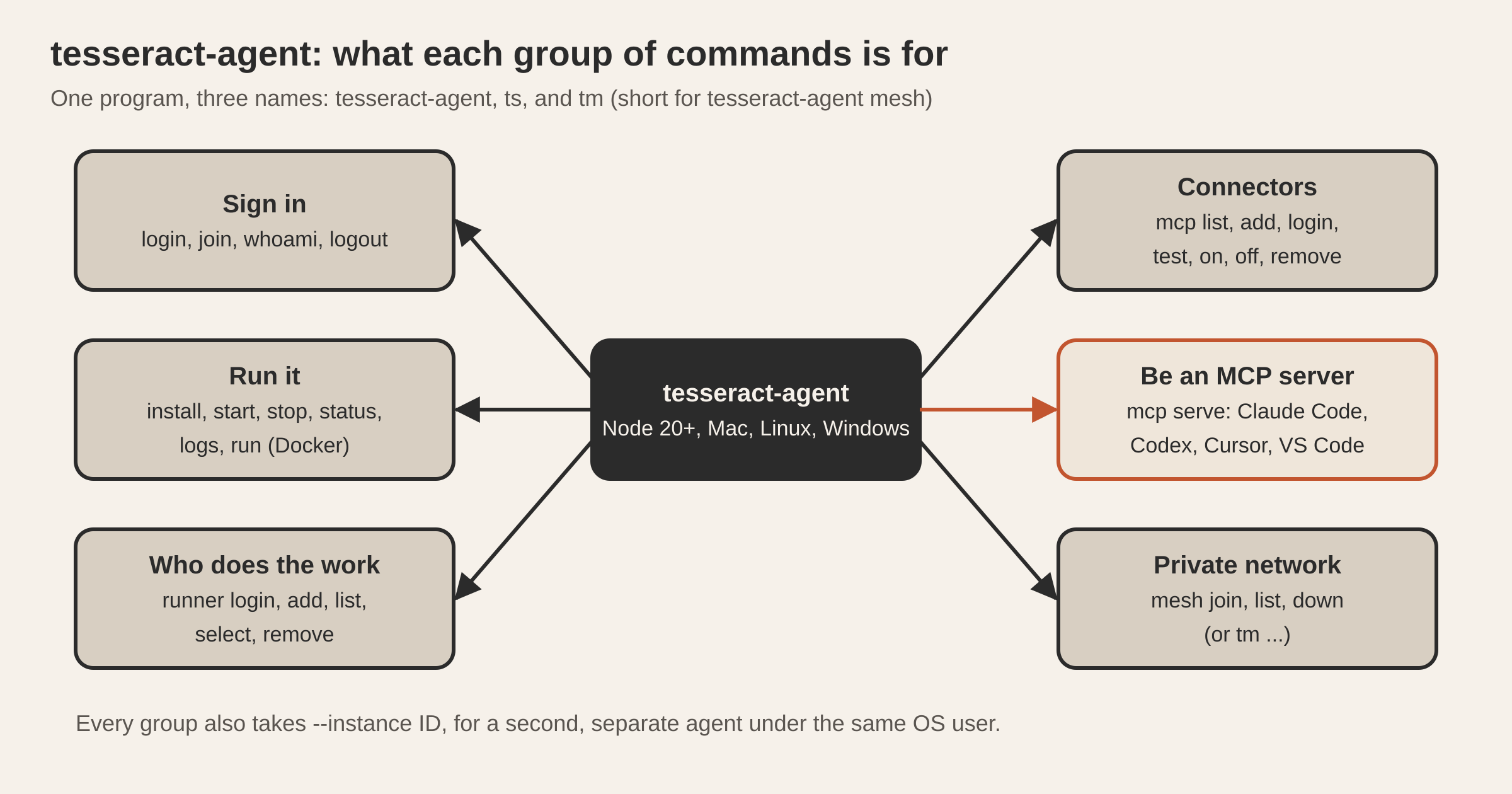
What are the command groups?
| Group | Commands | What it is for |
|---|---|---|
| Sign in | login, join, whoami, logout | Put this machine on your account; logout revokes it and wipes local state |
| Run it | install, uninstall, start, stop, restart, status, logs, run | A background service on launchd (macOS), systemd --user (Linux) or Task Scheduler (Windows); run in the foreground for Docker |
| Who does the work | runner login claude, runner add, runner list, runner select, runner remove | The framework and model accounts the agent uses, with automatic rotation |
| Connectors | mcp list, add, login, test, on, off, remove | This machine’s MCP servers, when no app manages them |
| Be an MCP server | mcp serve | Tesseract inside Claude Code, Codex, Cursor, VS Code or Claude Desktop |
| Private network | mesh join, mesh list, mesh down (or tm ...) | Put a headless machine on your private network |
| Housekeeping | assist install <framework>, crash-reports on/off, terms, --version | Install a framework’s CLI, set crash reporting, accept the terms |
In Docker, use tesseract-agent login --token "$TESSERACT_TOKEN" && tesseract-agent run as the entrypoint. Crash reports carry the error, its stack trace, the CLI version and the OS, never file contents; tesseract-agent crash-reports off, TESSERACT_CRASH_REPORTS=0 or DO_NOT_TRACK=1 turns them off.
status --json prints one object, with version, signed in or not, the device, and whether the service is installed and running, for scripts. Its shape only ever gains fields.
How does the agent choose a model account?
run --engine <id> picks the framework: Claude Code by default, or Codex, OpenCode, Gemini CLI, Qwen Code, Kimi, Cursor, Hermes, OpenClaw and the others Tesseract supports. The framework’s own command-line tool has to be on the machine, and tesseract-agent assist install <framework> installs it.
A runner config pairs a framework with a provider and its credential. Add several, and the agent rotates between them when one hits a rate limit, a quota or an auth error:
tesseract-agent runner login claude      # add a Claude subscription
tesseract-agent runner add --engine opencode --provider openrouter \
  --secret '$OPENROUTER_API_KEY' --model <model> --select
tesseract-agent runner list
A secret written as $VAR is read from the environment when the agent runs, so it never goes to disk. Changes apply on the agent’s next turn, without a restart. Rotation is careful about side effects. A turn that failed before producing any output or calling a tool is replayed once on the next healthy account. A turn that already did something isn’t replayed, and the next turn moves on instead, so nothing runs twice.
How do you use Tesseract from Claude Code or Codex?
tesseract-agent mcp serve makes Tesseract an MCP server over standard input and output. Add it the way you add any local MCP server:
claude mcp add tesseract -- tesseract-agent mcp serve
codex mcp add tesseract -- tesseract-agent mcp serve
In a JSON config, such as Claude Desktop’s or Cursor’s:
{"mcpServers": {"tesseract": {"command": "tesseract-agent", "args": ["mcp", "serve"]}}}
The other app then gets two things:
- The agent on this machine, as three tools:
tesseract_ask,tesseract_replyandtesseract_conversations. The running Tesseract agent answers them, with its own frameworks, accounts and memory. - Your connectors, each tool exactly as you set it in Tesseract. A tool you set to ask first is confirmed in that app, or doesn’t run.
--no-agent or --no-connectors serves only one half.
Scoping is the default. The other app’s model sees and continues only the conversations started from apps like it, not your others. --all-conversations changes that on purpose: the app then sees the title of every Tesseract conversation on this computer and can write into any of them. Nothing the app asks can turn that on. Only the command you configured can.
How do you run more than one agent on one machine?
The default boundary is the operating-system user: each user gets their own state, service and device, and they never conflict. For a second agent under the same user, give it an instance id:
tesseract-agent login   --instance work2
tesseract-agent install --instance work2
tesseract-agent status  --instance work2
The instance gets its own state folder, its own service name on each OS, and its own device identity. It appears as a separate machine in your apps. install warns you if an agent is already running for that instance, and --yes skips the prompt in scripts.
What did we measure?
Windows agents start with the computer. install registers the scheduled task to start with the computer, as the same user without a sign-in and without storing a password, whenever the session is allowed to (an administrator’s session, which is what reaches a server over SSH). Otherwise it uses a sign-in task. We checked it after a reboot with nobody signed in: the agent started and registered on the account.
Adding a server from the app takes about 80 seconds. In Tesseract, My Computers → Add a computer → Over SSH runs these same steps on a server for you. On a fresh Ubuntu 24.04 machine, the installer fetched Node, installed the CLI and joined the account in 80 seconds. A second run found everything in place and did nothing. On a fresh Windows Server 2022 machine, the same flow took about six minutes.
Questions
Is tesseract-agent the same agent as the desktop app’s? Yes, the same agent runtime without the window. A machine running it appears in your Tesseract apps like any other computer of yours.
Can Claude Code use my Tesseract connectors without seeing my other conversations?
Yes, that is the default. mcp serve shows the other app only conversations started from apps like it. --all-conversations is the explicit switch that widens it.
Do I need Node installed first? Not with the installer scripts. They use an existing Node 20+ if there is one, and otherwise download a checksum-verified official runtime for Tesseract’s own use.
How do I remove a machine from my account?
tesseract-agent logout revokes the machine’s device token and wipes its local state. uninstall removes the background service.
Does it work on a headless server for the private network too?
Yes. tesseract-agent mesh join <TOKEN> (or tm join) puts the machine on your network and keeps it up as a background service. See a private network for your computers.
Try it
Install it on any machine with curl -fsSL https://tesseract.dev/cli.sh | sh (or the npm command), run tesseract-agent login, then add tesseract-agent mcp serve to the coding agent you already use. The desktop app is on tesseract.dev.