 Tesseract
Open a file on your office computer from your laptop
Tesseract's Files view browses every computer you own as if its folders were local. Open, preview, edit and move files on the office iMac from home.
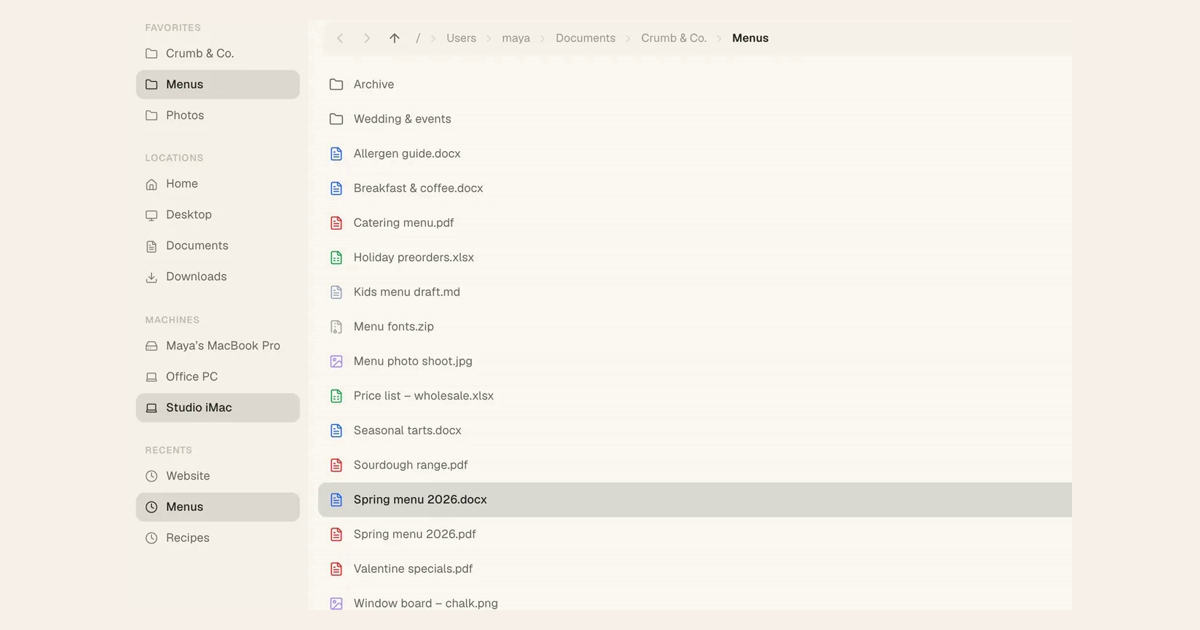
It’s Sunday evening, and the spring menu you need to send is on the iMac at the bakery. In Tesseract you don’t drive over or start a remote session for one file. The Files view browses every computer you own as if its folders were on your laptop: pick the iMac under Machines, open the file, and edit, preview or move it from where you are.
What you need
- Tesseract on both computers, signed in to your account.
- The other computer added to My Computers: there, choose Add a computer and use the one-time code it gives you on the other machine. The code works once, for 15 minutes.
- The other computer turned on and online. My Computers shows which ones are.
1. Pick the computer under Machines
Open Files. The sidebar lists your computers under Machines, below your favourites and usual folders. Choose the one you need and browse its folders the way you browse your own.
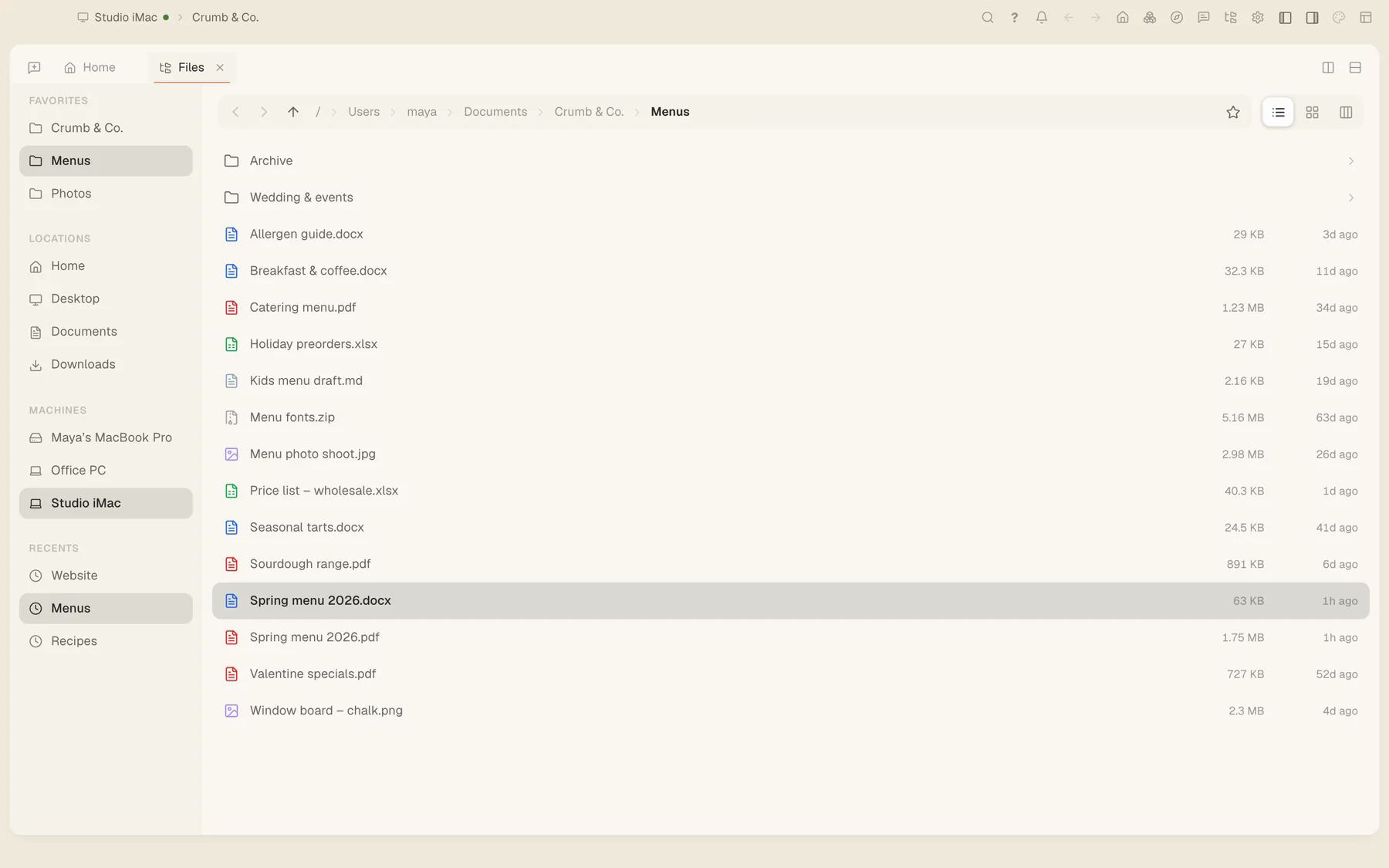
Another computer’s files open in a window of their own. Your conversations stay on the computer they belong to, so looking around the iMac doesn’t move your work there.
2. Open, preview and edit
Open a file the way you would a local one:
- Word, Excel and PDF files open in Tesseract for a quick edit, without another app.
- Archives such as zip, 7z and rar open like ordinary folders.
- Moving files on the iMac works from your laptop too.
3. Or use your own file manager
You don’t have to be in Tesseract at all. On a Mac your other machines appear in Finder. On Windows and Linux they appear as a mounted drive.
More ways to work across your computers
- The same folder on both computers, all the time. Use folder sync instead. It keeps a project folder in step in both directions and skips the files git ignores, with the newest change kept. More in copy on one computer, paste on another.
- You need the screen, not the file. For an app on that computer, or a dialog waiting for a click, open Remote Desktop, one click from the computer’s row in My Computers.
- A machine with no screen. A server can join My Computers from the command line, and its files show up the same way.
The professionals page lists everything else your computers can do together.
Try it
Download Tesseract on both computers, add the second one in My Computers, then open Files and pick it under Machines.