 Tesseract
How Tesseract's agent works in your own browser
Tesseract Companion connects Chrome, Edge, Brave, Arc or Vivaldi to the app: how the bridge works, which tab the agent uses, and what keeps it visible.
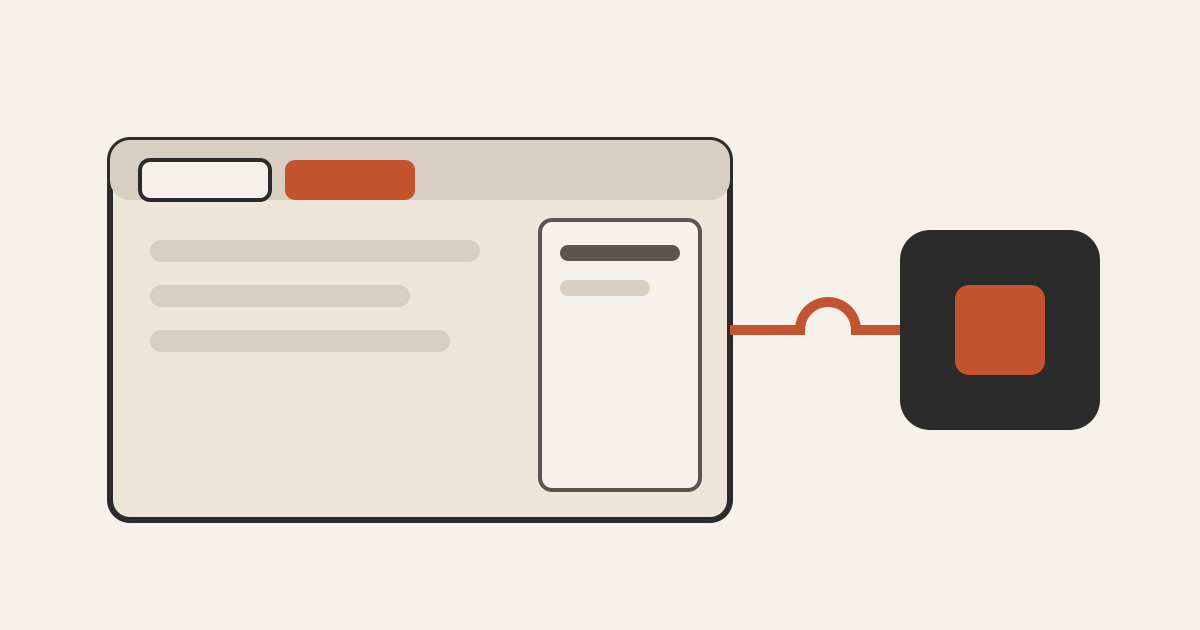
Tesseract Companion is a free extension for Chrome, Edge, Brave, Arc and Vivaldi that lets the Tesseract app’s agent work in your own browser, on sites you’re already signed in to, and adds a Tesseract chat to the side panel. It reaches the app through a small helper the browser starts, and a bar marks every tab the agent controls.
The same extension is also a password manager. That side of it is covered in let the agent sign in without seeing your password and on the Companion page. This post is about the agent side: why an agent needs your real browser, how a request travels from the app to a tab, which tab it lands on, and what stays visible to you while it works.
Why does an agent need your own browser?
A browser the agent starts for itself is empty. It has no sessions, so every site wants you to sign in again, every time. Your own browser already has the sessions: your email, your bank’s portal, the admin page of your shop. Companion gives the agent that browser, so the work happens where you are already signed in.
From the extension page:
- Your own tabs. The agent can open pages, click and type in the browser you already use. You pick the tab it works in with the globe button in the Tesseract message box.
- A side panel. You can open the Tesseract assistant beside the page you’re reading and ask about it.
- Which browsers. Chrome and the browsers built on it: Edge, Brave, Arc and Vivaldi.
How do you install it?
You need the Tesseract app installed on the computer and opened at least once, so the browser can find it. Then:
- Add Companion from the Chrome Web Store. In Edge, allow extensions from other stores when it asks.
- In Tesseract, press the globe button in the message box. Your browser’s windows and tabs are listed there. Pick one, and the agent works in it.
For a browser your workplace manages, the extension page also offers a zip (version 0.11.56, 3.3 MB). You unzip it somewhere it can stay, turn on Developer mode at chrome://extensions, and choose Load unpacked. The store copy updates itself. Use one of the two.
How does a request reach your tab?
The Tesseract app’s local server accepts no connections from browser pages or extensions, by design. That is a standard defence against web pages reaching into local apps. So Companion uses Chrome’s native messaging: the browser starts a small helper program and talks to it over standard input and output, and the helper talks to the app on the same computer.
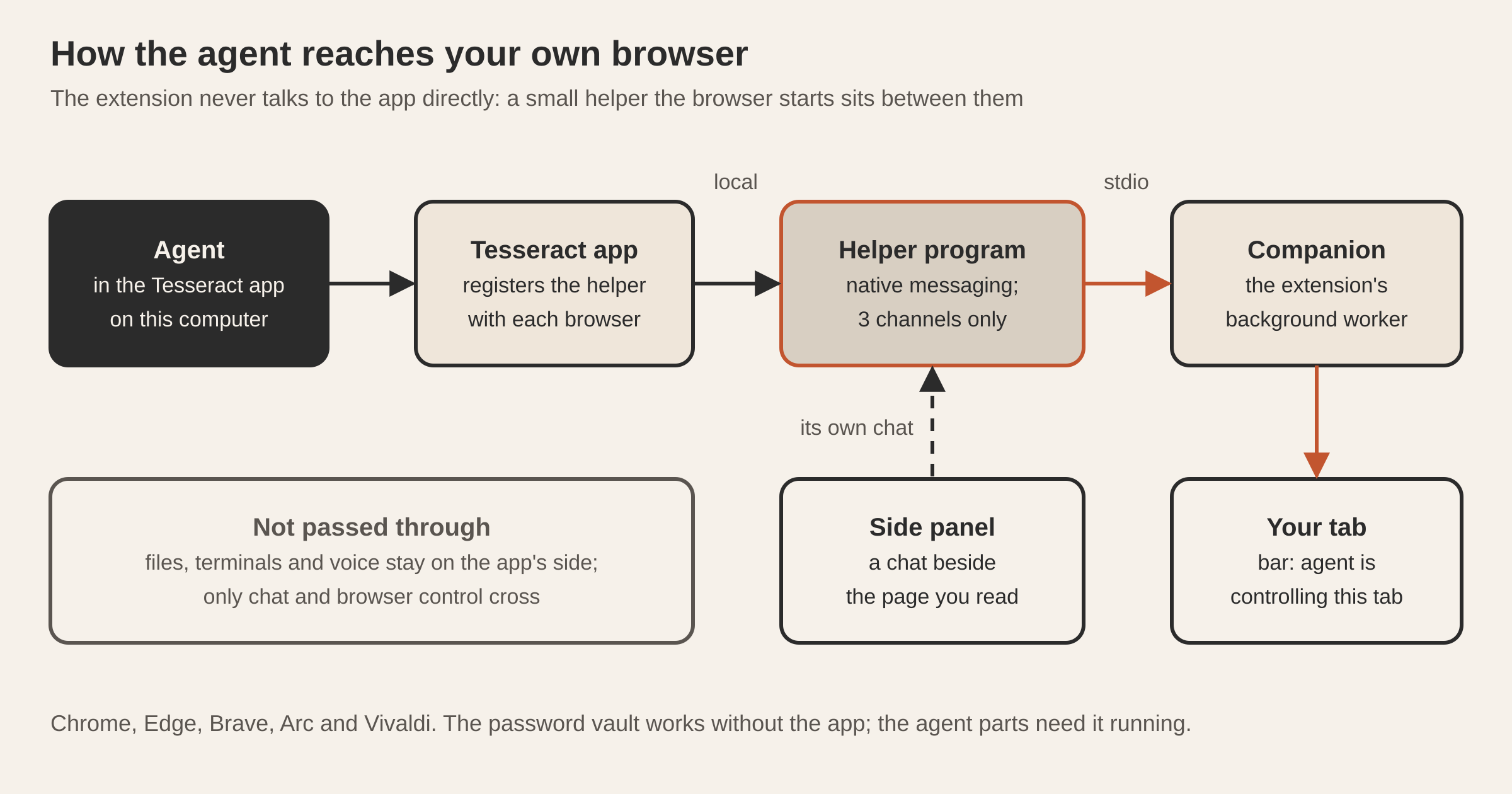
Three details make this work without any setup from you:
- Registration is automatic. When Tesseract starts, it registers the helper with every Chromium-family browser installed on the computer. There is no separate install step. The registration lets only Companion’s own extension IDs, the store copy and the zip copy, start the helper.
- The helper passes three channels and nothing else. One carries the side panel’s chat. One carries the agent’s browser requests. One carries browser events (console, network and debugger events) back to the app. The app’s local connection also carries files, terminals and voice, and none of that can be reached from the extension. Anything else is refused.
- Only the browser itself can be driven. A side panel is a chat, not a browser. Its helper never announces itself to the app as one. Only the extension’s background worker does, and only after saying which browser it is.
The agent sends requests the same way whether they start in the desktop app or in a side panel’s chat, and one guarded piece of code inside the extension handles both.
Which tab does the agent use?
This is where the design is most careful, because the tab you are reading is yours.
| The request… | Runs on |
|---|---|
| Names a tab you picked in the app (globe button) | That tab |
| Comes from a side panel | The page the panel is open beside |
| Names a tab the agent opened itself | That tab |
| Names no tab | The agent’s own tab, opened for it |
The app removes any tab number the agent made up on its own. An agent that was given no tab never takes over the tab you’re reading. Its own tabs sit in their own tab group, so you can always see where it works. The agent can only close tabs it opened.
It opens web pages (http and https) and blank pages only. It never opens javascript:, data:, file:, chrome: or view-source: addresses, or the extension’s own pages.
What keeps the agent visible while it works?
- A bar on the tab. Every tab the agent controls shows a “Tesseract agent is controlling this tab” bar and a badge. Both come down when the app goes away.
- Chrome’s own bar for deeper control. Most actions (open, read, click, type, take a picture of the visible tab) need nothing special. Actions that go through Chrome’s DevTools Protocol, such as running script on the page, real key presses, cookies or a full-page screenshot, attach Chrome’s debugger. Chrome then shows its own “started debugging this browser” bar.
- Cancel means no. If you click Cancel on Chrome’s debugging bar, that tab refuses debugger actions for 10 minutes, or until it closes. The agent is told to ask you first. Other tabs, and actions that don’t need the debugger, keep working.
- One switch. “Let Tesseract control this browser”, under More in the extension’s popup, is on by default. Turn it off, and the connection to the helper closes, every debugger session detaches, and side panel requests are refused too.
The work is always visible, and you can stop it with one switch.
How does it stay connected?
Extensions built on Chrome’s current platform run their background code in a service worker, which the browser stops when it’s idle (see Chrome’s service worker lifecycle). Companion works with that rather than against it:
- The worker opens its link to the helper when the browser starts.
- If the helper isn’t there yet, for example because the app isn’t running, the worker retries with backoff from 1 second up to 60 seconds. A once-a-minute alarm wakes it to try again after it has gone to sleep. The alarm is cleared once the helper answers.
- An open link keeps the worker alive, and the helper follows the app through restarts.
- Between wake-ups the idle worker stops. That is also what locks the password vault: its key lives only in the worker’s memory.
The password manager works on its own, with or without the app.
Questions
Can the agent see my passwords when it uses my browser? The browser control and the password vault are separate parts of the extension. How the agent signs in with a saved login without seeing it is explained in let the agent sign in without seeing your password.
Which tab does the agent use if I don’t pick one? Its own. With no tab named, it opens and uses its own tab, in its own group, and that tab wears the “controlling this tab” bar.
How do I stop it? Turn off “Let Tesseract control this browser” in the extension’s popup, under More. To refuse deeper control on one tab, click Cancel on Chrome’s debugging bar.
What else do I install besides the extension? The Tesseract app, opened at least once. It registers the helper with your browsers by itself.
Are the Web Store copy and the zip the same? Yes. It is the same extension, and either one works with the app. The store copy updates itself.
Try it
Install Tesseract from tesseract.dev, add Companion from the extension page, and press the globe button in the message box to give the agent a tab.