 Tesseract
How an AI agent edits Word and Excel files in Tesseract
Tesseract's Word and spreadsheet editors run every click, key and agent request through one command table. How that works, what it saves, and how it checks itself.

Tesseract opens .docx and .xlsx files in its own Word and spreadsheet editors, and the agent works in them the way you do. Every ribbon button, key, menu item and agent request runs through one command table, so each change is one undo step you can see. Saves are atomic, and a save never drops formatting without asking you first.
This post explains how the two editors are built so that an agent can use them, why we refused the shortcut most AI document tools take, and what each save actually does.
What problem do AI document tools usually get wrong?
The common way to let a language model edit a Word file is to give it the file. The model reads the XML inside the .docx, or a Markdown copy of the text, writes a new version, and a library turns that back into a document. It works for a paragraph of text. It quietly fails for everything else people keep in office files: styles, tracked changes, comments, headers, footnotes, tables that cross pages, number formats, conditional formats, named ranges and formulas that depend on other formulas.
The deeper problem is that you cannot see what happened. The model hands back a whole new file. To review it you have to compare two documents, and an undo means going back to the old file. The model’s edit and your own edits live in different worlds.
We wanted the opposite. The agent should change a document the same way a person does: select something, run a command, see the result on the page, undo it with one keystroke. That meant the editors had to be built for it from the start, rather than having an AI feature added on top later.
How does the agent work inside the editors?
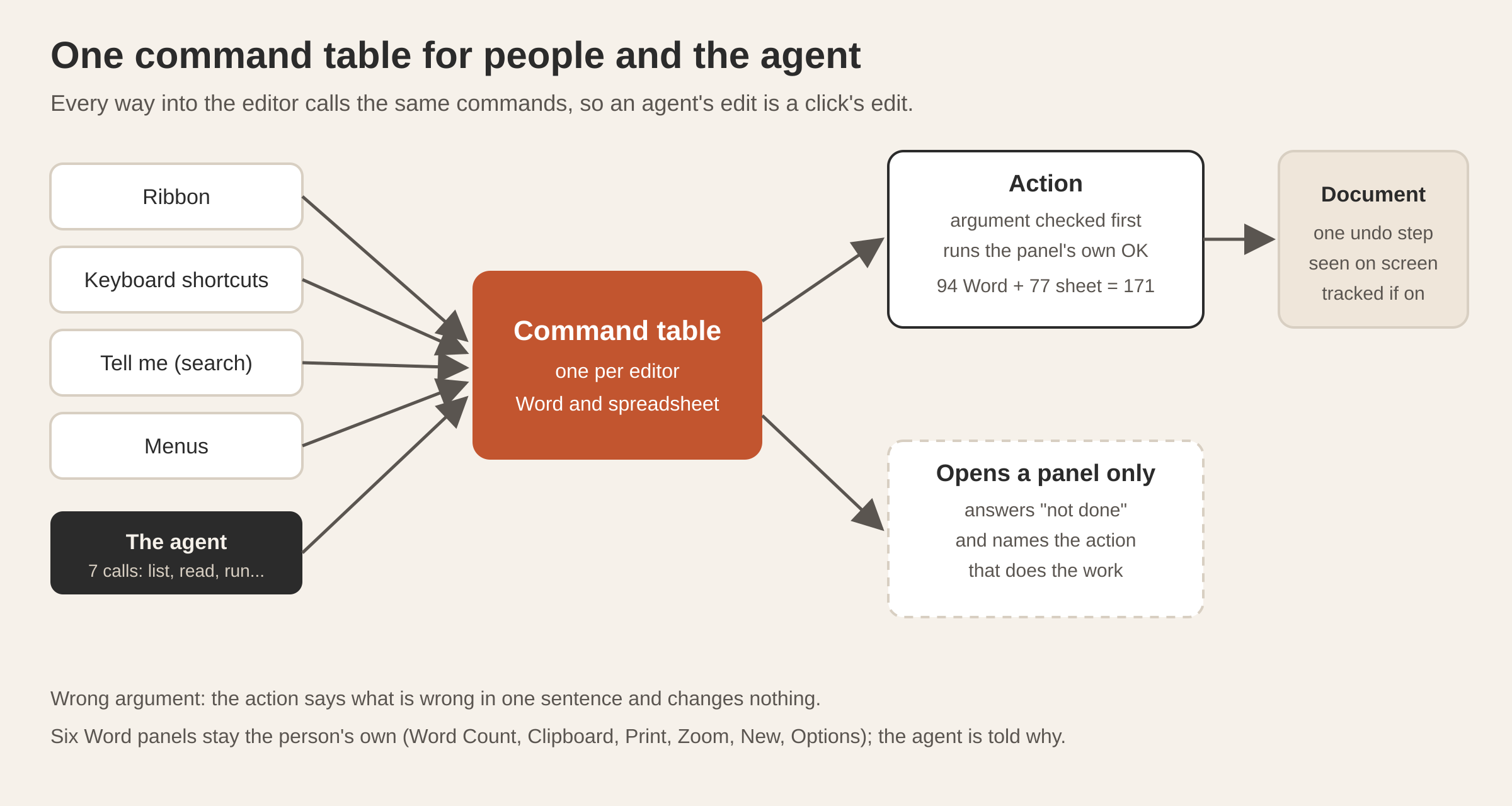
Both editors have one command table. The ribbon reads it to draw its buttons, the keyboard handler reads it for shortcuts, “Tell me” (the command search) reads it to find things, the menus read it, and the agent reads it too. There is no second, AI-only route into the document.
When the agent wants to do something, it has seven calls: list the open documents, list an editor’s commands, run a command, read the document, select, type and save. Without a file named, it means the document open in its own conversation card, or else the one in front of you.
Behind the commands sit actions: 94 for Word documents and 77 for workbooks, 171 in all. An action takes a checked argument. Ask for a sort and you pass the range and the keys; ask for a paragraph format and you pass the indents and spacing. If the argument is wrong, the action says what is wrong in one sentence and changes nothing. If it is right, the action runs the same Apply code the matching side panel runs when you press OK.
Two rules make this safe to watch:
- Every action is one undo step. However many edits an action makes inside the editor, Ctrl+Z takes all of them back at once.
- A panel that only opens does nothing. If the agent runs a command whose only job is to open a dialog, the editor answers “not done” and names the action that does the work. The agent is never left believing it changed something it did not.
Why doesn’t the agent just rewrite the file?
Because a rewrite throws away the things that make an office file worth keeping. When a change goes through the editor’s own controller, the document model stays whole. Track Changes, if it is on, records the agent’s edit as a tracked change, exactly as it would record yours. Restrict Editing applies to the agent as it applies to you.
It also means you and the agent share one document. The agent’s change is made by the editor on your screen, so you see it happen, and it sits in the same undo history as your own edits.
There is one more benefit that matters for review. The agent can read the document as structure, not only as text: each block with its index, style, paragraph properties, list and section break, and the runs inside it with their formatting. It can ask for one part in detail: sections, styles, comments, revisions, headers, notes, fields, bookmarks, tables, pictures, the table of contents. So “make every Heading 2 in section 3 small caps” can be done precisely, not by guessing from the text.
How does the agent check its own work?
Text alone does not tell you whether a page looks right. A table can be intact in the model and still spill across a page break in an ugly place. So the Word editor has an action that renders a page as a picture, laid out by the editor’s own pagination. The agent can look at the page it just changed before it tells you it is done.
For workbooks, the agent reads cells three ways: as they are shown (with their number formats), as raw values, or as formulas. That distinction matters. A cell that shows “12%” holds 0.12. An agent that only sees the shown text will write the wrong number back.
What happens when a file is saved?
Saving is where document tools lose people’s work, so we were strict about it.
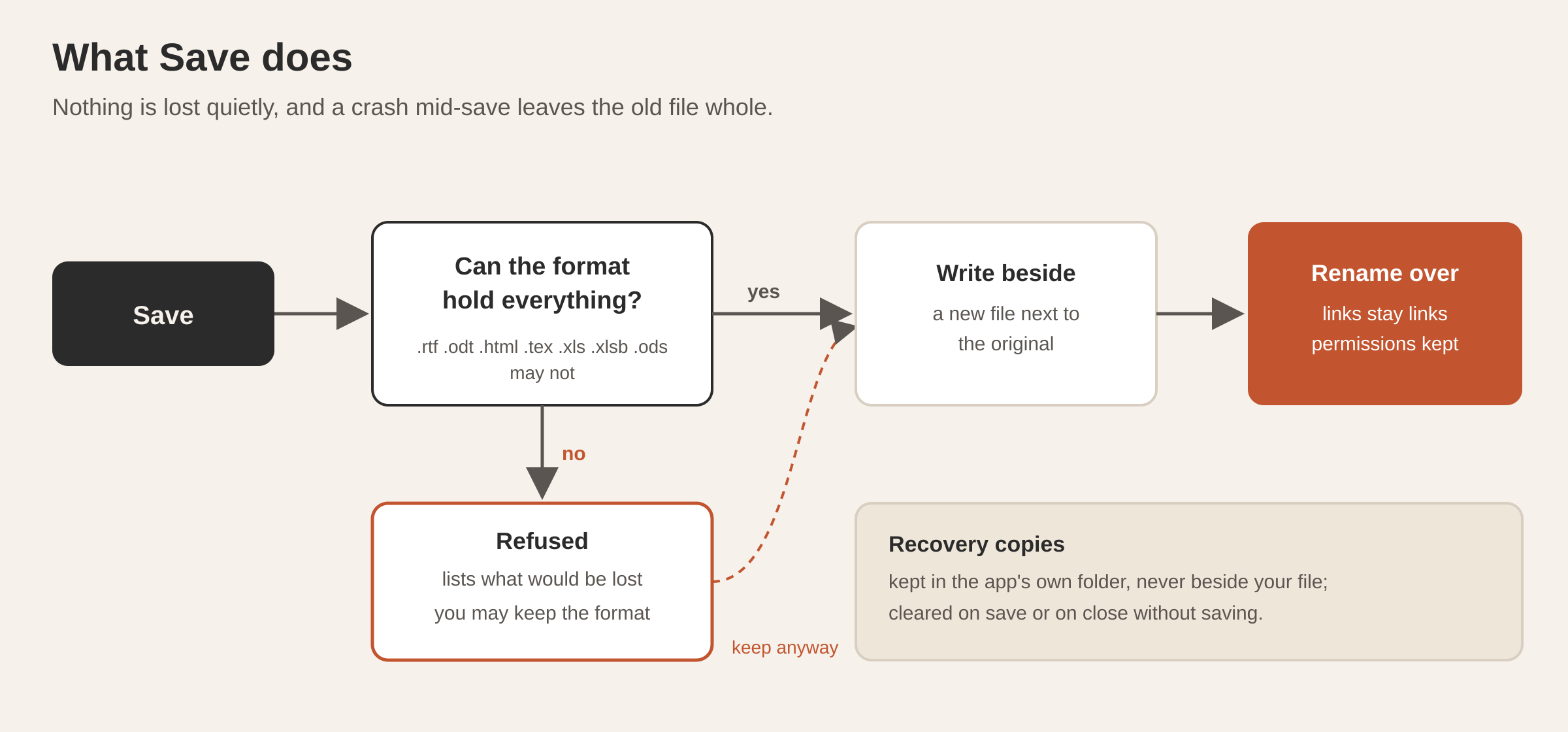
A save never writes in place. The new file is written beside the old one and then renamed over it. If the app is killed in the middle of a save, the old file is still whole. A symbolic link stays a link, and the file keeps its permissions.
A lossy save is refused, not silently degraded. Saving to .rtf, .odt, .html, .tex, Word 2003 XML, .xls, .xlsb or .ods can drop things the document holds. In those cases Save lists what would be lost, the same list the Compatibility Checker shows, and stops. You can choose to keep the format anyway. If nothing would be lost, Save keeps the file’s own format without asking.
Recovery copies live in the app’s own folder, never beside your file. They are cleared when you save or close without saving. AutoSave keeps every saved file that is in a format that holds everything.
Passwords work as you would expect: Encrypt with Password can set, change or remove one, and an encrypted file is saved encrypted again.
Which formats do the editors read and write?
The Word editor opens .docx, .docm, .dotx and .dotm, legacy .doc and .dot, .rtf and .odt, and shows HTML, Markdown, text, TeX and XML files as documents. The spreadsheet editor opens .xlsx, .xlsm, .xltx, .xltm, .xls, .xlsb, .ods, .ots and Apple .numbers, as well as CSV, TSV, SLK, DIF and PRN, and can read the tables on a web page, each as its own sheet.
| Editor | Reads | Writes |
|---|---|---|
| Word | 15 formats, including .docx, .doc, .rtf, .odt, .md, .html, .tex | 13 formats, including .docx, .rtf, .odt, .md, .html, .epub |
| Spreadsheet | 19 formats plus tables from web pages, including .xlsx, .xls, .xlsb, .ods, .numbers, .csv | 18 formats, including .xlsx, .xls, .xlsb, .ods, .csv, .json, .html |
The standard behind .docx and .xlsx is Office Open XML, published as ECMA-376. Both editors read and write it with their own code, so tracked changes, comments and fields are part of the document they edit rather than something a converter has to carry across. Every Word document, legacy .doc files included, opens in the one editor.
The editors also fit in the narrow card beside the chat. Below 560 pixels the spreadsheet ribbon folds and side panels lie over the sheet, and both editors are built to stay usable down to 360 pixels wide. Proofing covers grammar in 8 languages and a thesaurus in 9; spelling uses the system checker on macOS and the browser engine’s dictionaries on Windows and Linux, and Read Aloud uses your system’s voices.
How is the spreadsheet engine checked against Excel?
The spreadsheet editor runs its own calculation engine, with about 520 worksheet functions in 16 categories, formulas in 16 languages and R1C1 references. An engine like that is only useful if it gets the same answers as the one people already trust.
The check we use is simple. A workbook saved by Excel keeps Excel’s result beside every formula. Our checker opens such a file with those saved values, calculates every formula again with our engine, and compares: numbers within a relative tolerance, errors by kind, text and true/false exactly. Each mismatch names the cell, the formula, both values and the functions involved. It is also marked as primary when none of the cells it reads mismatch too, so the likely cause stands out from the downstream noise. Mismatches add up by function and by signature, for example “number became #SPILL!”.
Some functions cannot be compared, and the checker leaves them out and counts them: RAND, NOW, TODAY, INFO and CELL(“filename”), and anything that reads a cell using them. So does a file that asks to be fully calculated on load, which is what libraries that do not calculate tend to write.
After calculating, the checker writes the workbook back and inspects the package the way Excel does before it offers to “repair” a file: every part has a content type, internal targets exist, relationship ids are unique, no kind of relationship the source had has gone missing. Then it reads the file again and compares it category by category: sheets, values, formulas, number formats, merges, names, tables, conditional formats, validations, charts, comments, links and PivotTables.
The keyboard follows Excel’s too. Ctrl+arrow over hidden rows, frozen panes, F8 to extend a selection and typing straight after Enter each behave as Excel users expect, and each rule is pinned to a test.
Can I use the editors without opening the app?
Yes. The same Word and spreadsheet engines run on the command line as tesseract-office, which comes with the tesseract-agent package. It can inspect, read, change, recalculate, check and convert files, and run any command the two editors have.
tesseract-office cat report.docx --markdown
tesseract-office replace contract.docx "ACME Ltd" "ACME Group" --track --author Legal -o contract-v2.docx
tesseract-office run --in book.xlsx --cmd 'sheet.sort={"keys":["Total desc"]}' --out book.xlsx --print A1:C5
tesseract-office check corpus/ --oracle --json
The second line is a good example of why the engine matters. Replace All runs through the text, then the headers, footers, footnotes, endnotes and comments, as Word’s own does, and with --track each replacement becomes a tracked change under the author you name. The output is a document a lawyer can review change by change.
Run headlessly, a workbook runs on the editor’s controller with no window, and a document on the Word controller with no view. A change is still what a click makes: one undo step, with Track Changes and Restrict Editing applied. What a window was needed for comes back in words: a dialog or a message the editor would show becomes the answer.
Every file path stays inside a root folder (the current one by default). .., absolute paths outside it and links that lead out are refused, and on Windows so are device names such as CON, NUL and COM1. A run with several outputs checks all of them before writing the first, so a bad path leaves nothing half done.
Asked with tesseract-office mcp, the same 37 tools are served as an MCP server over standard input and output, following the Model Context Protocol 2025-06-18 specification. Any agent that speaks MCP can then open, read, edit and save Word documents and workbooks. Read-only tools are marked as such, so a client need not ask before a read. Closing a file with unsaved changes is refused unless forced.
Questions
Does the agent see my document if I don’t ask it to? The editors themselves make no model calls and use no paid service. When the agent works in a document, it uses your conversation’s own model, as for any other request.
Can I undo what the agent did? Yes. Each action the agent runs is one undo step in the same history as your own edits, so Ctrl+Z takes back exactly one of its changes.
What happens when I save as .odt or .xls? If that format can’t hold something in the document, Save lists it first. You can keep the format anyway or save as .docx or .xlsx.
Do my formulas give the same results as in Excel? The engine is checked against the results Excel saved in real workbooks: every formula is recalculated and compared, and each mismatch is traced to the cell most likely causing it. Functions that change on every calculation, such as RAND and NOW, are left out of that comparison.
Can another AI tool use these editors?
Yes, through the tesseract-office command line or its MCP server, which offer 37 tools for opening, reading, editing, checking and saving documents and workbooks.
The editors ship in the desktop app alongside the rest of the agent: see what Tesseract makes, how the same command-first approach builds slides in how an AI agent builds a PowerPoint deck, and how the guided makers end in these editors in every card on Home opens a guided maker. The agent works the same way on every framework, as everything the agent can do on every framework explains.
Download Tesseract and open a .docx or .xlsx you already have, then ask the agent to change something in it.