 Tesseract
Editing video with an AI agent: Tesseract's video editor
Two video editors in one app: AI Edit for quick fixes to one clip, and a full timeline for a whole edit. The agent runs the same actions you click.
Tesseract has two video editors. AI Edit opens any video file for quick work on one clip: trim, adjust, reframe, a text overlay, a transcript with speakers, burned-in captions. The timeline handles a whole edit: tracks, transitions, titles, colour, a mixer, multi-camera and editing by transcript. In both, the agent runs the same actions as the buttons.
This post covers what each editor does, how they work underneath, and how the agent fits in. Making a video from a sentence is a different tool, the video maker introduced in Every card on Home now opens a guided maker. This post is about editing video you already have.
Why two editors instead of one?
Most video jobs are small. Cut the first three seconds, turn a landscape clip into a 9:16 one for a phone, add a line of text, burn in captions, export. A full timeline is too much for that. You’d have to make a project, import the clip, place it on a track and set up an export just to trim one file.
Other jobs really are edits: several clips in order, a title, a dissolve, music under a voice, colour matched across shots. Those need tracks and a playhead.
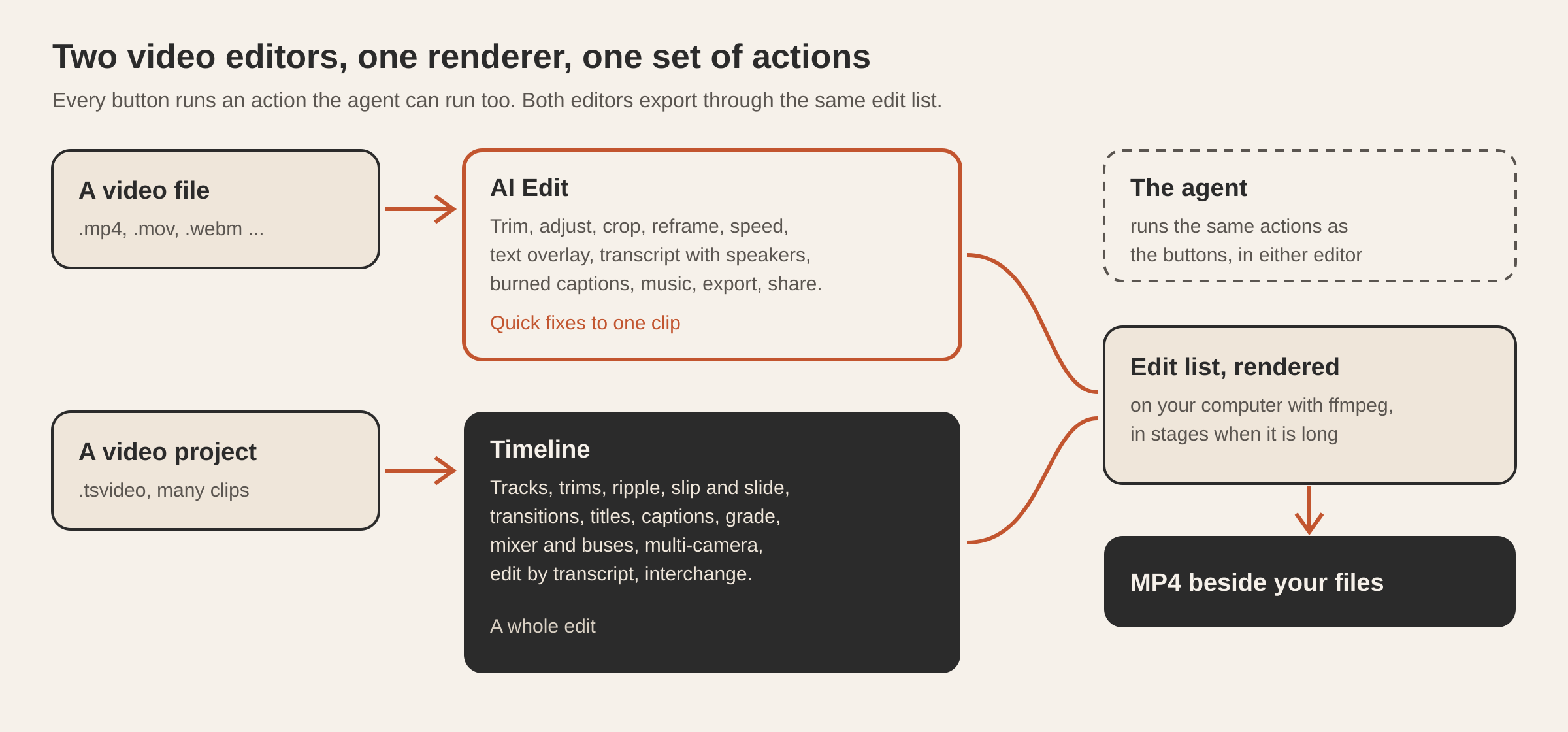
So the two editors are split by what you open:
| You open | You get | Good for |
|---|---|---|
| A video file (.mp4, .mov, .webm and the like) | AI Edit: one clip, panels for Adjust, Text, Audio and Export | Trims, reframes, captions, a quick export or share |
| A video project (.tsvideo) | The timeline: tracks, a program monitor, a media bin and inspectors | A real edit with many clips, sound, titles, colour and transitions |
A new, empty timeline comes from the Video editor button in Home’s Create row. The video maker also leaves its finished cut as a timeline project, so a generated video can be edited the same way as filmed footage.
What can AI Edit do to a single clip?
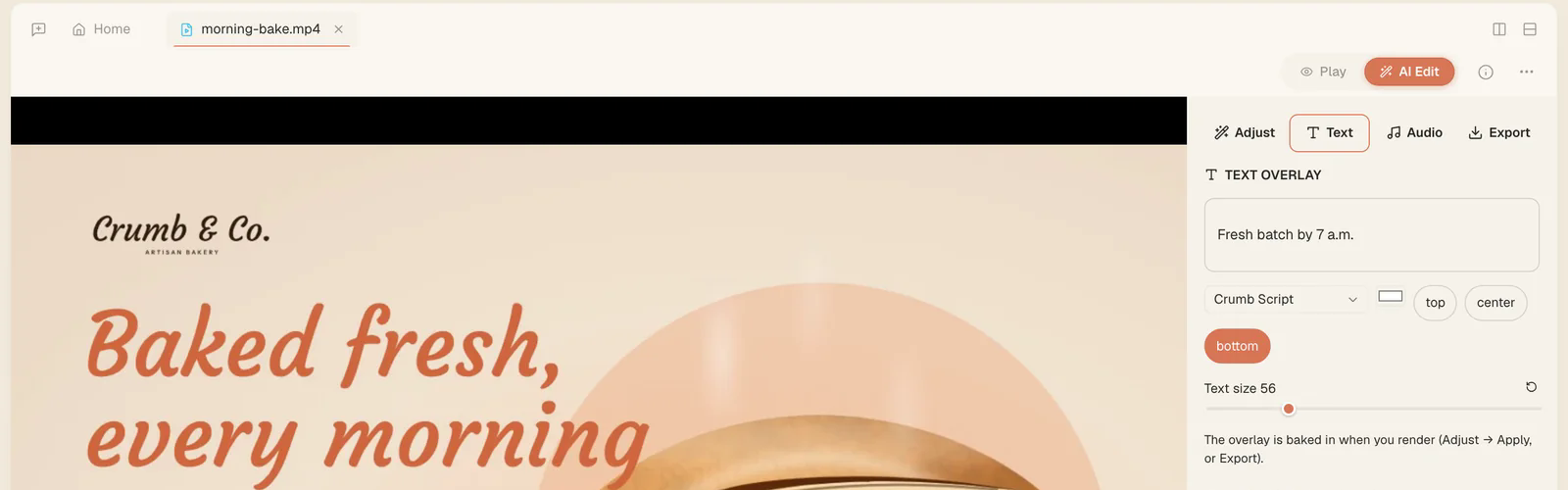
AI Edit puts the video on the left and four tabs on the right.
- Adjust: brightness, contrast and saturation sliders. Speed from a quarter to four times. Black and white, sepia, invert, blur, sharpen and vignette. Horizontal and vertical flips, quarter-turn rotation, a crop by percentage from each edge, and a one-click reframe to 16:9, 9:16 or 1:1. Set In and Out at the playhead to trim, step frame by frame, then Apply & render.
- Text: an overlay in any installed font, colour and size, at the top, centre or bottom. It’s drawn as an image and baked in at render. Transcribe + diarize writes a transcript split by speaker (rename a speaker and every line follows), and + Chapters adds YouTube-style chapter marks. Burn the captions in, in an animated or a clean style, or copy them as SRT or VTT. A click on any transcript line jumps the player there.
- Audio: Shift the voice’s pitch by up to 12 semitones either way, mute the original sound, or export the sound alone as MP3 or WAV. After transcribing, each speaker gets a button that exports only that person’s voice.
- Export: render and save where you choose. The share buttons open TikTok’s, YouTube’s or X’s upload page and reveal the file so you can drop it in.
Under the tabs, Ask AI passes anything the panels don’t cover to the agent, with the clip’s path attached.
Nothing here touches the original file. Every render writes a new file and opens it in a new tab.
How does transcription stay in time on a long video?
Captions are only useful if they land on the right words, so long recordings get special care.
The sound is sent for transcription in five-minute chunks that overlap by 20 seconds. Five-minute chunks keep the timing tight and local to the chunk, and the overlap means no sentence is lost at a seam.
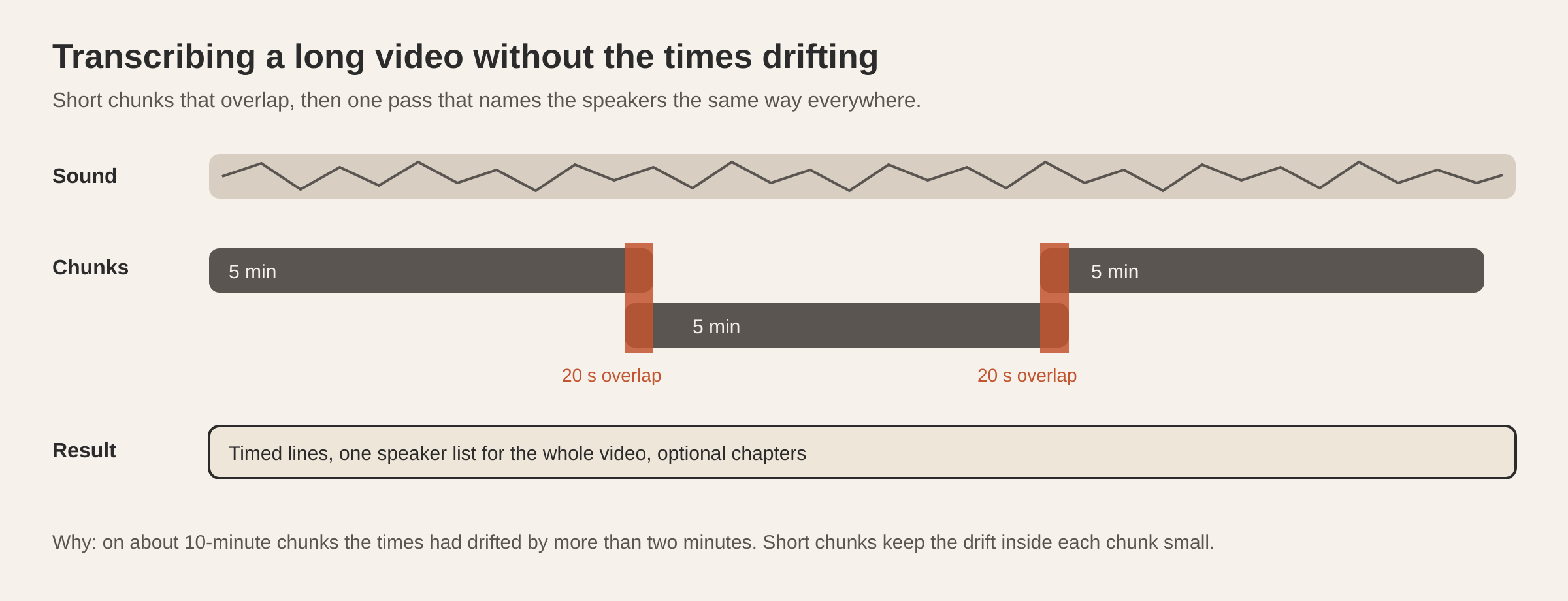
Each chunk gets its own speaker labels, so “speaker 1” in one chunk isn’t necessarily “speaker 1” in the next. One more pass over the merged transcript makes the labels agree across the whole video. Where the conversation gives a name away, for example when someone is thanked by name, it uses that name instead of a number. Chapters come from a second pass over the merged text.
Speaker isolation uses the same timings. It keeps a speaker’s stretches and silences everything else, without separating sources. That makes it predictable, and the result lines up exactly with the original video.
What does the timeline add?
The timeline is a real editor, closer to a desktop editing suite than to a phone app. In brief:
- Editing. Video and audio tracks with show, mute and lock. Clips are moved and trimmed by dragging with snapping. There are razor, ripple delete, ripple trim, roll, slip and slide edits, speed changes and speed ramps, frame holds, nested sequences, a media bin, markers, and a source monitor for three-point editing with I and O. Undo treats a drag as one step.
- Picture. Transitions at cuts (cross dissolve, dip to black, and a library of GPU wipes and dissolves). Clips on higher tracks become picture-in-picture with position, size and opacity keyframes. There are blend modes, a clip effects rack with keyframes, Warp Stabilizer, and titles that animate in and out.
- Colour. Exposure, temperature and tint, lift, gamma and gain per channel, RGB curves, a 3D LUT from a .cube file, HSL secondaries, and colour keyframes. The scopes show waveform, parade, histogram and vectorscope.
- Sound. Clip gain, fades and volume keyframes drawn on the waveform. A mixer with level, balance, mute and solo per track, and up to eight buses with EQ, compressor, reverb and limiter, plus sends. Strip Silence cuts the quiet parts of a clip, and markers can be placed on the hits of a clip’s sound.
- Multi-camera. Line up one clip per camera by their starts, or by their sound. Cut between angles by clicking the camera grid or pressing 1 to 9 while it plays.
- Editing by transcript. Transcribe the media and the Transcript panel shows the timeline as paragraphs by speaker. Select words and press Delete to cut them from every unlocked track, with captions, titles and markers moving along. Pauses longer than a set length, or filler words like “um” and “uh”, go in one step. Captions can then be built from the transcript (42 characters, two lines, a new caption at each pause or change of speaker).
- Captions and interchange. A captions lane burns into the export or is written as SRT, WebVTT, TTML, DFXP, SCC, MCC or EBU STL. Whole timelines go in and out as CMX 3600 EDL, FCPXML, Final Cut Pro 7 / Premiere XML, OpenTimelineIO, AAF and OMF. After an import or export, anything a format can’t carry is named.
The 0.11.43 release notes list the newest of these: nested sequences, bins, frame holds and speed ramps, rolling, slip and slide edits, blend modes, keyframed clip effects, transitions at cuts, Warp Stabilizer, and markers on the hits of a clip’s sound.
How does the agent edit video?
Every control in both editors runs an action from one table, and the agent calls the same table. When you press Apply & render, the button calls the render action. When you ask “trim the first three seconds and make it 9:16”, the agent runs the trim and reframe actions on the open editor, and you watch the panel change.
So the agent can do anything the editor can, and you can always check what it did, because its changes show up in the same controls you would have used. A coverage test checks that each editor’s actions can be reached through that table.
The timeline works the same way. The agent can make edits, trims and retiming, set effects, grade, mix and multi-camera cuts, work with nests, bins, transcripts and captions, and import, export and render. It can also read the timeline, including the scopes as numbers (levels per channel, luma in eight bands across the picture, the strongest vectorscope colours). That lets it check whether two shots match, not just apply a grade and hope. For the wider idea of the agent working in Tesseract’s own windows, see Ask the agent to arrange your Tesseract window.
How is the video rendered?
Both editors describe the result as an edit list: which media, which stretches, in what order, with what effects, overlays, captions and sound. That list is rendered on your computer by ffmpeg, which ships with the app. The renderer is the same for AI Edit, the timeline and the video maker, so a cut looks the same whichever editor made it.
Large timelines are rendered in stages. The picture is split at cuts, overlays and premixed sound are done in separate passes that each stay within ffmpeg’s limits for a single graph, and a final pass joins them. In our own test, an edit with 60 segments, 20 overlays and 12 tracks rendered in about 11 seconds. Effects with no equivalent in ffmpeg (GPU effects, transitions other than a dissolve, blend modes) are rendered frame by frame with the same code the monitor uses, so the export matches what you saw.
One measured example: a deliberately shaken test clip went from an average change of 38.6 between consecutive frames to 2.4 in the export after Warp Stabilizer.
Questions
Can I use the video editor in the web app? Yes. The makers and editors also work in the web app, run by the computer it is connected to.
Does editing change my original video? No. AI Edit renders to a new file and opens it in a new tab. A timeline project refers to your media and exports a new MP4.
Can I move an edit to Premiere or Final Cut? Yes. The timeline exports FCPXML, Final Cut Pro 7 / Premiere XML, CMX 3600 EDL, OpenTimelineIO and AAF, and names anything the chosen format can’t carry.
Can I remove “um” and long pauses automatically? Yes. Transcribe the media, then remove filler words or pauses longer than a length you set from the Transcript panel in one step. Every unlocked track is cut to match.
Can I just tell the agent what to change? Yes. Ask in the conversation or in the Ask AI box. The agent runs the editor’s own actions, so you see each change in the panels and can undo it.
Try it
Open a video file in Tesseract and switch to AI Edit, or press Video editor in Home’s Create row for a new timeline. Download Tesseract for Mac, Windows and Linux, or see everything it makes at tesseract.dev.