 Tesseract
Clean up a recording in Tesseract's audio editor
Trim, de-noise, even out and bring a recording to a loudness target in Tesseract's audio editor, by hand or by asking the agent. The original stays untouched.
Open a recording in Tesseract and switch it to Edit to get an audio editor. You can trim it, turn down a cough or a hum in the spectrogram, set gain, fades and volume keys, run a noise gate, EQ, de-esser, compressor and reverb, add any of 49 effects, and bring it to a loudness target. You can also ask the agent to do it. The original file is never changed.
This post explains what the editor does, the order it works in, and how it keeps your file safe. It’s about editing sound files you already have. Voice messages and voice rooms in team chat are a separate feature, covered in Team chat now catches you up, translates and takes your voice.
What does a recording usually need?
Most recordings people want to share have the same handful of problems. The start and end have dead air or someone saying “is it on?”. One part is loud and another quiet. There’s a hiss or hum under the voice, a cough in the middle, harsh “s” sounds. And the whole file is too quiet next to everything else people listen to, or so loud it clips.
Each problem has a standard fix: trim, gain and automation, a gate, an EQ, a de-esser, a compressor, and loudness normalisation with a limiter. The work is in applying them in the right order and checking the result. That’s what the audio editor is built for, whether you do it yourself or ask the agent.
How do you open it?
Any common sound file opens in it: WAV, MP3, M4A, FLAC, OGG, AAC, Opus, AIFF and WMA. Open the file in Tesseract and switch it to Edit, or press Audio in Home’s Create row and choose a recording or a song. The editor shows the waveform with a ruler, play and stop on the space bar, and zoom around the playhead or the pointer.
It handles an hour of stereo at 48 kHz in one go.
In what order is the sound processed?
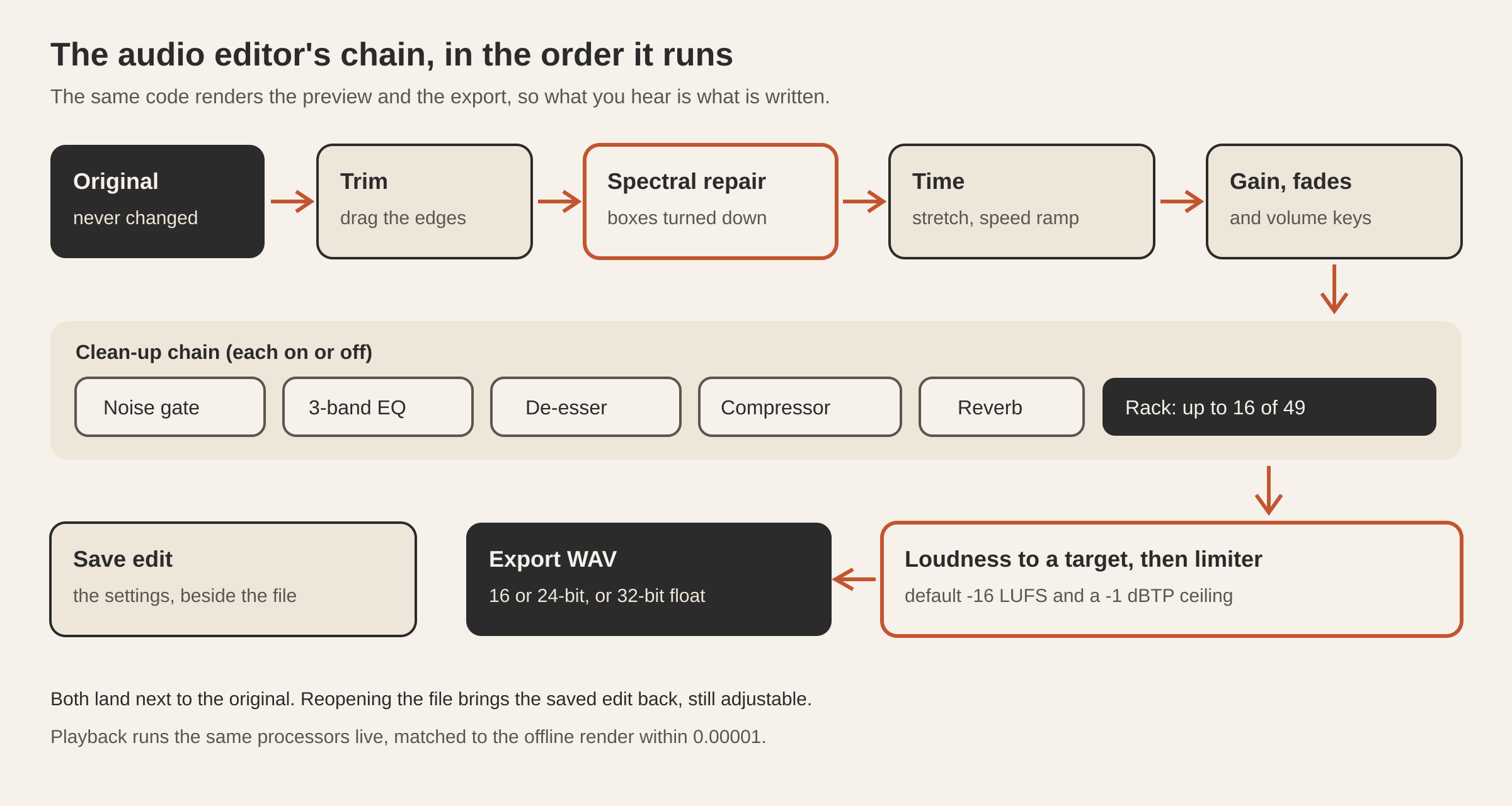
Order matters in audio. The same compressor sounds different before and after an EQ, and normalising before limiting gives a different peak. The editor runs every step in one fixed order:
- Trim, by dragging the edges of the waveform.
- Spectral repair on what’s left after trimming (more on that below).
- Time: stretch the clip longer or shorter with its pitch kept, or a speed ramp like a tape stopping or starting, where the pitch follows the speed.
- Gain, volume automation and fades. Click the lane under the waveform to add a volume key, drag it to move it, double-click to remove it. Fades have five shapes (linear, equal power, exponential, logarithmic and S-curve), and each fade is at most half the clip, so the two never overlap.
- The clean-up chain: noise gate, 3-band EQ, de-esser, compressor (threshold, ratio, make-up gain) and reverb. Each has its own on/off switch.
- The effects rack: up to 16 effects from a library of 49, in any order, each with its own settings and switch. The library covers de-noise, de-hum, de-reverb, Enhance Speech, an automatic click remover, a pitch shifter, chorus, flanger and phaser, delays, multiband and tube compressors, graphic and parametric EQs, filters, convolution reverb, a vocal enhancer, a mastering chain and more.
- Loudness, then the limiter. Integrated loudness is measured and the sound is brought to a target, -16 LUFS by default. A true-peak limiter then holds a ceiling, -1 dBTP by default. With the limiter off, normalising stops before the true peak would pass -1 dBTP, so turning the level up never makes the file clip.
How does spectral repair remove a cough?
Some noises can’t be cut out because they sit on top of speech: a cough under a word, a phone ringing, a short hum. A spectrogram shows the sound as time across, pitch up and loudness as colour, and those noises show up as shapes you can see.
Drag a box around one and the editor turns down only that stretch of time and that range of frequencies, by an amount you choose. It works on a short-time Fourier transform (Hann windows overlapping by 75 %), and every sample outside the box’s reach stays exactly as it was. The preview and the export use the same repair, so what you hear when you play is what gets written.
How do you know the result is right?
Three tools tell you before you export.
- The loudness readout. Integrated loudness in LUFS, true peak in dBTP and loudness range in LU, measured the way ITU-R BS.1770 and EBU R 128 define them. The measurement was checked against the EBU’s published test levels. It also shows how much gain the loudness step applied.
- Check health. A single press looks for clipping (and in how many places), a DC offset, silence at the start or end, channels out of phase, and a level that’s far too low. A healthy file gets one line with its peak level.
- Live playback. Changes are heard straight away. Playback runs the same processors as the export, live in a Web Audio worklet, matched to the offline render within 0.00001, block by block. An edit with spectral repair boxes plays from the render, so you hear the exact repair.
Is your original file safe?
Yes. The editor never writes to the file you opened. There are two ways to keep your work, and both put a new file next to the original:
| Action | What it writes | What it is for |
|---|---|---|
| Save edit (Cmd/Ctrl+S) | A small file of settings beside the original | Reopening the recording brings the edit back, every control still adjustable |
| Export WAV | The edited sound as a new WAV beside the original | The finished file to share or use elsewhere |
Export comes as 16-bit or 24-bit PCM with optional dither, or 32-bit float. It can also be Broadcast WAV with a description and originator written into the file, which some radio and archive workflows expect. Closing with unsaved changes asks first.
Can the agent edit audio for you?
Yes. The editor has a table of actions, and the buttons and the agent both use it. The agent can read the edit and its loudness (and, if asked, a summary of the peaks along the file), set the trim, gain and fades, switch steps of the chain on and set them, add and order rack effects, place volume keys and spectral repair boxes, undo, and export.
So you can say “trim the silence at the start, take out the hum, and bring it to -16 LUFS” and watch the controls move as it works. Every change it makes is a normal edit in the editor, which you can see, adjust or undo. It’s the same idea as the agent working in Tesseract’s other editors, described in Ask the agent to arrange your Tesseract window.
What about sound in videos?
Sound under a picture is edited in the video tools. The video timeline has its own mixer with per-track levels, balance, mute and solo, up to eight buses with EQ, compressor, reverb and limiter, Strip Silence, and volume keyframes on each clip. AI Edit on a video file can generate a music bed, shift the voice’s pitch or export the sound on its own. The audio editor is for a sound file by itself: a podcast take, a voice memo, an interview, a song.
Questions
Is my original file kept as it is? Yes. Save edit writes a small settings file beside it, and Export WAV writes a new WAV beside it. The original is left as it was.
What loudness should a podcast be? The editor starts at a -16 LUFS target with a -1 dBTP ceiling. If the place you publish asks for a different level, set that as the target.
Can I remove a cough without cutting the words around it? Yes. Draw a box around the cough in the spectrogram, and only that time and frequency range is turned down. Every sample outside the box stays exactly as it was.
Can I just ask the agent to clean up a recording? Yes. Open it in the audio editor and say what you want. The agent changes the same controls you would, and you can adjust or undo each change.
Which files can it open? WAV, MP3, M4A, FLAC, OGG, AAC, Opus, AIFF and WMA, with an hour of stereo at 48 kHz handled in one go.
Try it
Open a recording in Tesseract and switch it to Edit, or press Audio in Home’s Create row. Download Tesseract for Mac, Windows and Linux, or see what else it makes at tesseract.dev.