 Tesseract
How Tesseract makes a skin for the whole app
Describe a look or attach a picture, and Tesseract designs a theme for the app, keeps its text readable, makes its sounds and puts it on.
You describe a look, or attach a picture to take its colours from, then answer two questions: light or dark, and how far the skin goes. Tesseract shows the app in light and dark before anything is made. Then it fetches the typefaces, draws the wallpaper and stickers, makes the sounds on your computer, and puts the finished skin on.
That is the skin maker, which opens from the “Create my Tesseract skin” card on Home. This post explains how it works: how a sentence becomes a design, how the design is kept readable whatever colours it asks for, and how a whole theme with pictures, fonts and sounds becomes one file.
What does the skin maker actually change?
A skin changes the look of the whole app, not just one window. It can hold:
- Colours: a main colour for buttons, links and selections, an accent, and a page colour for light mode and another for dark.
- Type: one typeface for everything you read, and a second for headings and names.
- Corners: sharp, soft or round.
- A wallpaper behind the chat.
- Things floating by: up to three small stickers or shapes drifting behind the conversation.
- Sounds: for sending a message, receiving one, a finished task, an error, and the intro.
- An intro: a short flourish when the skin goes on.
You choose how far it goes. “Just colours and type” is the calm option: nothing moves and nothing plays. “With a wallpaper” adds the picture behind the chat. “The works” adds the floating things, the sounds and the intro. Each question also offers “You choose”, which leaves that decision to the maker.
| Option | What you get | Needs picture credit? |
|---|---|---|
| Just colours and type | Colours, two typefaces, corners | No |
| With a wallpaper | The above, plus a wallpaper behind the chat | For a drawn wallpaper; otherwise a gradient |
| The works | The above, plus floating stickers, sounds and an intro | For drawn stickers; otherwise shapes |
A skin changes colours, type, sizes and the layers behind the chat, and every panel and button keeps working exactly as you know it.
How does one sentence become a design?
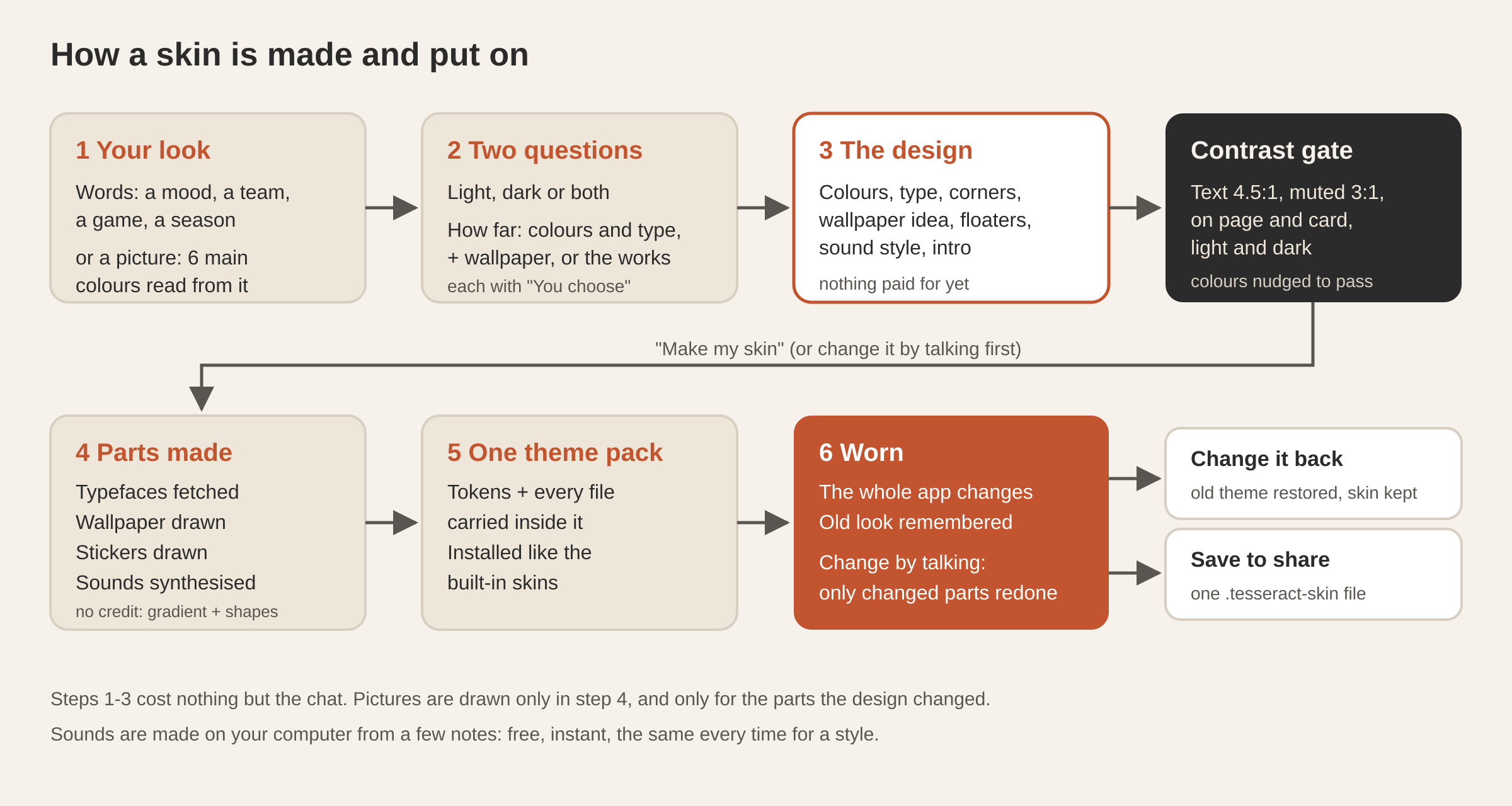
The conversation runs in five steps.
- The look. You write anything: “deep space, dark blue with stars and little planets”, “my football club, red and black”, “a calm forest”. The conversation’s own model reads that into a short brief: your wish in your words, a name for the skin, and light/dark or extent only if you mentioned them. The instruction it gets is to leave open what you left open, and to never invent a wish you did not state. A greeting or a “test” is recognised as not a brief, and you get some examples to try instead.
- Only what is still open. If your sentence already said “dark” or “with sounds”, those questions are skipped. Otherwise you get “Light, dark — or both, following the app?” and “How far should it go?”.
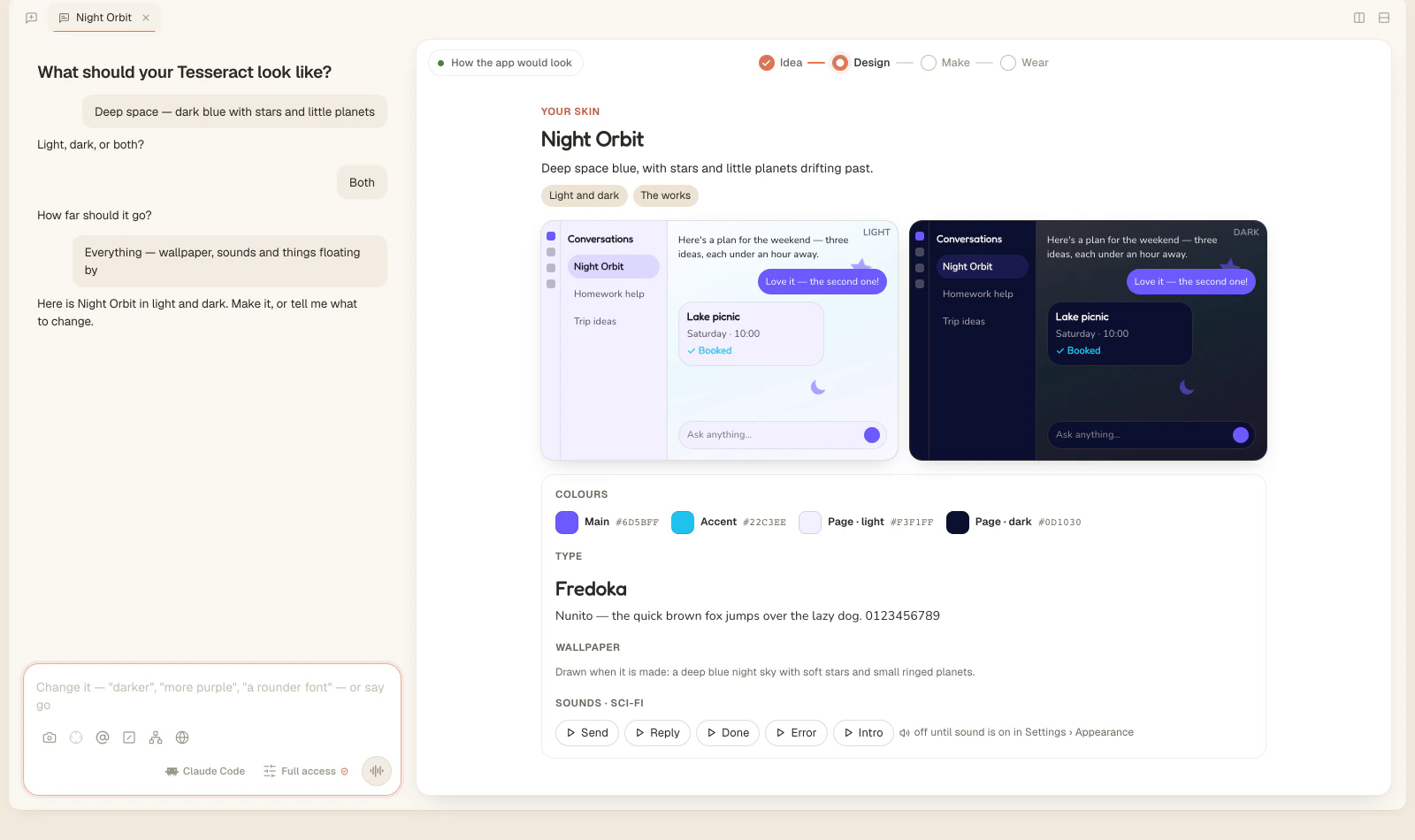
- The design. One structured request returns the full design: name, one-sentence summary, four colours, two typefaces, corners, what the wallpaper shows, up to three floating things, a sound style and an intro. The card beside the chat shows a small copy of the app in light and in dark, wearing those colours, fonts and corners, with buttons to play each sound. At this point nothing has been drawn or paid for.
- Making it. When you say “Make my skin”, the parts are made and saved in the skin’s own folder in your Documents. Then the skin is installed and put on.
- Wearing it. The whole app changes. Tell it “darker”, “a rounder font” or “no sounds” and the skin is changed and put on again.
At any step you can type instead of tapping. Each message is read by the model as a single structured answer: does it pick light or dark, ask for a change, say go, or say “take it off”? The maker never matches keywords. That is why “I don’t like it” while the skin is on takes it off, and “more purple” while the design is showing changes the design.
How does a picture become a palette?
You can attach a photo, a poster or a game cover in place of words, or as well as them. Tesseract keeps a copy in the skin’s folder and reads its main colours on your computer:
- The picture is shrunk to a 64 × 64 sample, small enough to process quickly but still holding the picture’s colours.
- The pixels are grouped into up to six colours with k-means clustering. The starting points are chosen spread out: the first pixel, then each next one the farthest from those already picked. So the same picture always gives the same palette.
- After twelve rounds, colours that are almost the same are merged into one. Each colour keeps its share of the picture.
The design request then gets lines like “take the colours from their picture: #1d2a5b (41%), #6d5bff (18%) …”. The model picks the main colour, accent and page colours from that list, so the result is a palette based on the picture, not a guess at it.
How do the colours stay readable?
This is the main problem with a theme designed by AI. Ask a model for “pastel and cute” and you can get pale pink text on a pale pink page. Ask for “neon” and you can get a button label nobody can read. A theme for the whole app has to work on every screen, in both modes.
So no colour the model picks reaches the app unchecked. The design goes through the same theme builder the app’s own design packs use, and that builder enforces contrast targets from WCAG, the web’s accessibility guidelines (success criterion 1.4.3 sets 4.5:1 for normal text):
| What is checked | Against | Minimum ratio |
|---|---|---|
| Main and secondary text | The page and the cards, in light and in dark | 4.5 : 1 |
| Muted text (hints, timestamps) | The page and the cards, in light and in dark | 3 : 1 |
| Text on the main colour (button labels) | The main colour, in both modes | 4.5 : 1 |
| The main colour itself | The dark page | 2 : 1 |
When a colour falls short, its lightness is moved a small step at a time toward the target, darker on a light page and lighter on a dark one. The hue stays the same, so a purple stays purple. As a last step, the builder can use black or white, whichever reads better. Shadows are always neutral grey, because a coloured shadow looks like a box drawn around every panel.
The model can be bold with colour because the builder makes sure the result stays readable.
What keeps the model’s answer in bounds?
Besides contrast, the design is checked against what the app can actually display before anything is made:
- The body typeface must come from a list of twelve that work for reading long text in an app, including Inter, Nunito, Lexend, Atkinson Hyperlegible, IBM Plex Sans, Lora and Comic Neue. Each comes with a short description for the model. The heading typeface comes from a larger set of display faces.
- Colours must be real hex values.
- Anything else outside the allowed set falls back to a safe default: Inter for body text, soft corners, a sparkle for a floater, soft sounds, a “rings” intro.
The typefaces are fetched into the skin’s folder as soon as the design is shown, in two weights for body text and one for headings. This costs nothing, so the preview already shows the real fonts before you decide.
How are the wallpaper, stickers and sounds made?
The wallpaper is drawn by the image model at 1536 × 1024. The prompt asks for a background, not an illustration: small motifs scattered unevenly with plenty of empty space, soft and low in contrast, in the skin’s colours, with nothing large in the middle and no text, letters, logos or interface. In the app, a veil of the card colour covers it at about 80 % opacity, so the conversation in front stays readable in both modes.
The floating things start as names (“a ringed planet”, “a soccer ball”, “a maple leaf”). Each is drawn as a sticker with a transparent background, then shrunk to 160 pixels, since it is shown at around 26–52 pixels. A skin shows at most twelve at once. Each drifts, floats or twinkles over 12–22 seconds at half opacity, and the first kind stays near the edges.
Drawn pictures use credit on your Tesseract balance or an image key of your own. With neither, the skin is still complete: the wallpaper becomes a gradient of the skin’s own colours under a stronger veil. Each sticker becomes a simple shape (a star, a heart, a planet, a leaf and others) in the main or accent colour. The maker tells you which version it made.
The sounds are made on your computer, with no model involved. Each style is a short list of notes: soft uses sine-wave bells, playful uses rising triangle-wave bubbles, retro uses square-wave arpeggios like old 8-bit games, and sci-fi uses sine sweeps with a little vibrato. Each note gets a quick attack and an exponential fade so nothing clicks, and is written out as a 16-bit mono WAV at 22,050 Hz. Five clips are made: send, receive, task done, error and intro. They are free, instant and identical every time for a given style. The skins that come with the app make their sounds the same way.
What happens when you say “Make my skin”?
The parts go into the skin’s folder, and the design is written out as one description. Then that description is assembled into a theme pack: the colours as design tokens, plus every typeface, picture and sound embedded inside the pack itself. The wallpaper is stored as a JPEG of at most 1,920 pixels, because a drawn picture is several megabytes as a PNG.
The pack is installed as the same kind of declarative theme extension the built-in skins are, replacing any earlier version of the same skin. Then it is switched on. Before that, Tesseract remembers which theme and which light/dark setting you had, so “Change it back” can restore exactly that.
Changes made later are cheap. If you ask for a different sound style once the skin is on, only the sounds are made again. The wallpaper is redrawn only when its description, the main colour or the page colour changed. The stickers are redrawn only when the floaters or the colours changed. Everything else is reused.
How do you take it off or share it?
- Change it back restores the app’s previous theme and light/dark setting. The skin stays installed, and you can put it on again from its conversation or at any time in Settings › Appearance.
- Save to share saves the skin as one
.tesseract-skinfile and shows it in your file manager. Anyone with Tesseract adds it in Settings › Appearance › “Add a skin from a file…”. - Your work on Home lists the skins you have made next to your decks, sites and pictures, and each one reopens its conversation.
A skin file from someone else is treated as untrusted. When it is added, it is limited to what a skin made in Tesseract can contain: a name, colour and size tokens, and fonts, pictures and sounds embedded in the file. Nothing is loaded from anywhere else, and a file over 40 MB is refused. Safe Mode in the app menu turns off extension themes at any time.
Questions
Does making a skin cost anything? The questions, the design and the preview use only the conversation. Typefaces and sounds are free. Only a drawn wallpaper and drawn stickers need credit or an image key, and a skin without them still works.
Can I go back to how the app looked before? Yes. “Change it back” restores the previous theme and light/dark setting exactly. The skin stays installed, so you can put it on again later from Settings › Appearance.
How does a skin keep text readable? Every text colour is checked against the page and the cards in both modes, to 4.5:1 for normal text and 3:1 for muted text, and adjusted until it passes.
Can I give my skin to a friend?
Yes. “Save to share” makes one .tesseract-skin file. They add it in Settings › Appearance › “Add a skin from a file…”, and it goes on straight away.
Can I change a skin after it is on? Yes. Say what to change in its conversation (“darker”, “no sounds”, “add stars”). Only the parts the change affects are made again, and the skin is put on again.
For an overview of all the makers, see every card on Home now opens a guided maker, what Tesseract makes, and where your finished work appears in Your work on Home. To find out when picture credit is needed, read do you need an AI subscription.
Download Tesseract and open “Create my Tesseract skin” on Home.