 Tesseract
Present a deck live: notes, a phone remote and an AI
How Tesseract runs a live talk: a presenter view with notes and a timer, your phone as the remote with no pairing, and an assistant that moves slides.
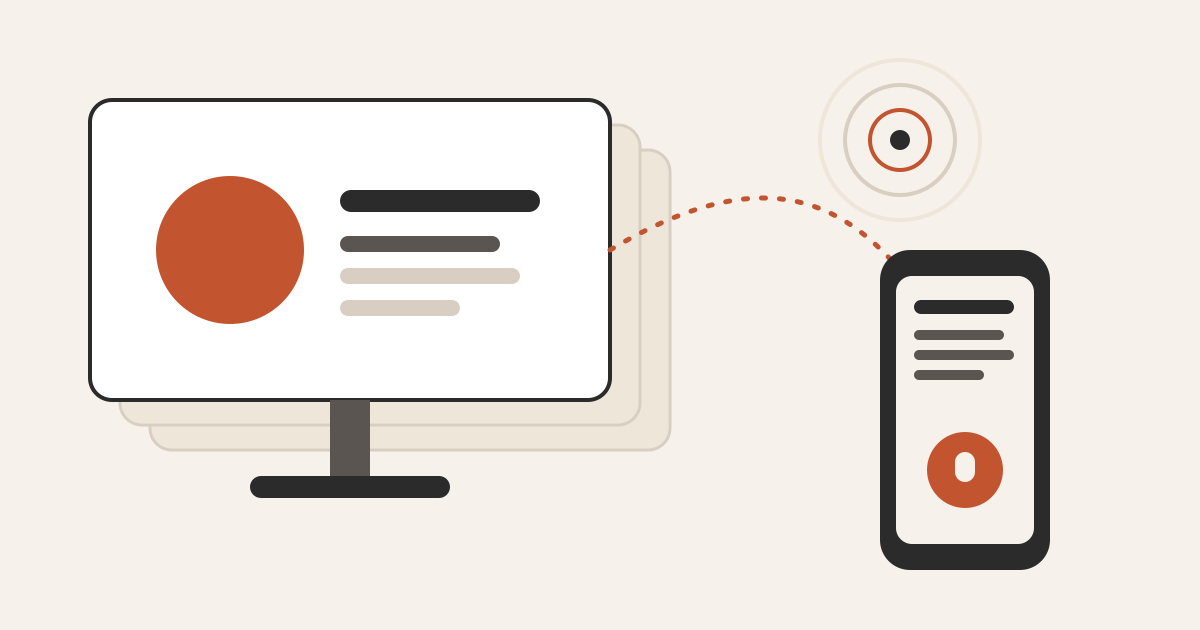
To present a deck in Tesseract, open it in the Stage tab and press Present: full screen, or with your speaker notes, the next slide and a timer beside it. Your phone, signed in to the same account, becomes the remote with no pairing code. An optional live assistant listens to the talk and moves the slides for you.
Our earlier posts covered how a deck is researched, planned from a few questions and built into a real PowerPoint file. This one covers what comes after that: the twenty minutes when you stand in front of a room. It explains what you see, how the phone and the laptop stay in step over busy conference wifi, and how the assistant knows when to keep quiet.
What happens when you press Present?
A deck made with the presentation maker opens in Stage, the app’s slide engine, in the card beside the chat or in its own tab. Present has three modes:
- Inline. The slides cover the window, and Esc brings the app back.
- Full screen. The slides take over the whole screen.
- Presenter view. The slides with a 360-pixel side panel: your speaker notes for the current slide in large type, then “Up next” with the next slide’s title and summary.
At the bottom is a control bar. It has previous and next, the slide count (“7 / 18”), the current slide’s title with the next one’s dimmed beside it, zoom at 1×, 2× or 3×, the elapsed time, the assistant’s switch and indicator, and End.
The keyboard works the way presenters expect. Right arrow, Space, Page Down or Enter go forward; Left arrow or Page Up go back; Home and End jump to the first and last slide; a number key 1–9 jumps to that slide; B or the full stop blanks the screen; Esc ends the talk. If a slide has build steps, next walks through them before it moves on. Going back lands on the previous slide fully built, as in PowerPoint and Keynote, rather than replaying its reveals. Every way out of full screen, whether Esc, F11 or the window’s own button, ends the talk cleanly on the laptop and the phone.
You can also ask in the chat. “Present my pitch with notes” starts the same presenter view. The agent can start a talk full screen or with notes, report the state of a talk, and end it.
What does the presenter view show, and why only that?
The side panel holds two things: the notes and what comes next. The control bar adds the title of the next slide, because a presenter who knows what is coming can land the transition instead of being surprised by their own deck.
The notes deserve a word. Decks from the presentation maker are written notes-first. Each slide’s talk track (about 130 words for a slide in a live talk) is written before its visual. So the presenter view shows a script you can speak from.
To rehearse, present to yourself in presenter view: the timer starts when the talk goes live, so you can see how long each section takes, and “Up next” shows where a transition feels abrupt. If you plan to use the phone remote or the assistant, rehearse with them on. The phone shows which computer it is driving, and the laptop shows how many phones are connected, so you walk on stage knowing everything is in place.
How does your phone become the remote?
The phone remote is part of the Tesseract phone app. In the phone app, open the account menu, then Presenter remote. It lists your computers that run the desktop app, online ones first, and you tap the one your talk is on. The page says what to do in plain words: “Pick the computer your talk is on. Your phone shows your notes and moves the slides.” An offline computer stays in the list, marked “Offline — turn it on to present from it”.
There is no pairing code. The phone and the computer are signed in to the same account, so the phone joins the computer’s talk through the account’s own relay connection. If you open the remote before pressing Present, it says “Open a presentation on your computer and press Present”, and it picks up the talk by itself once you do.
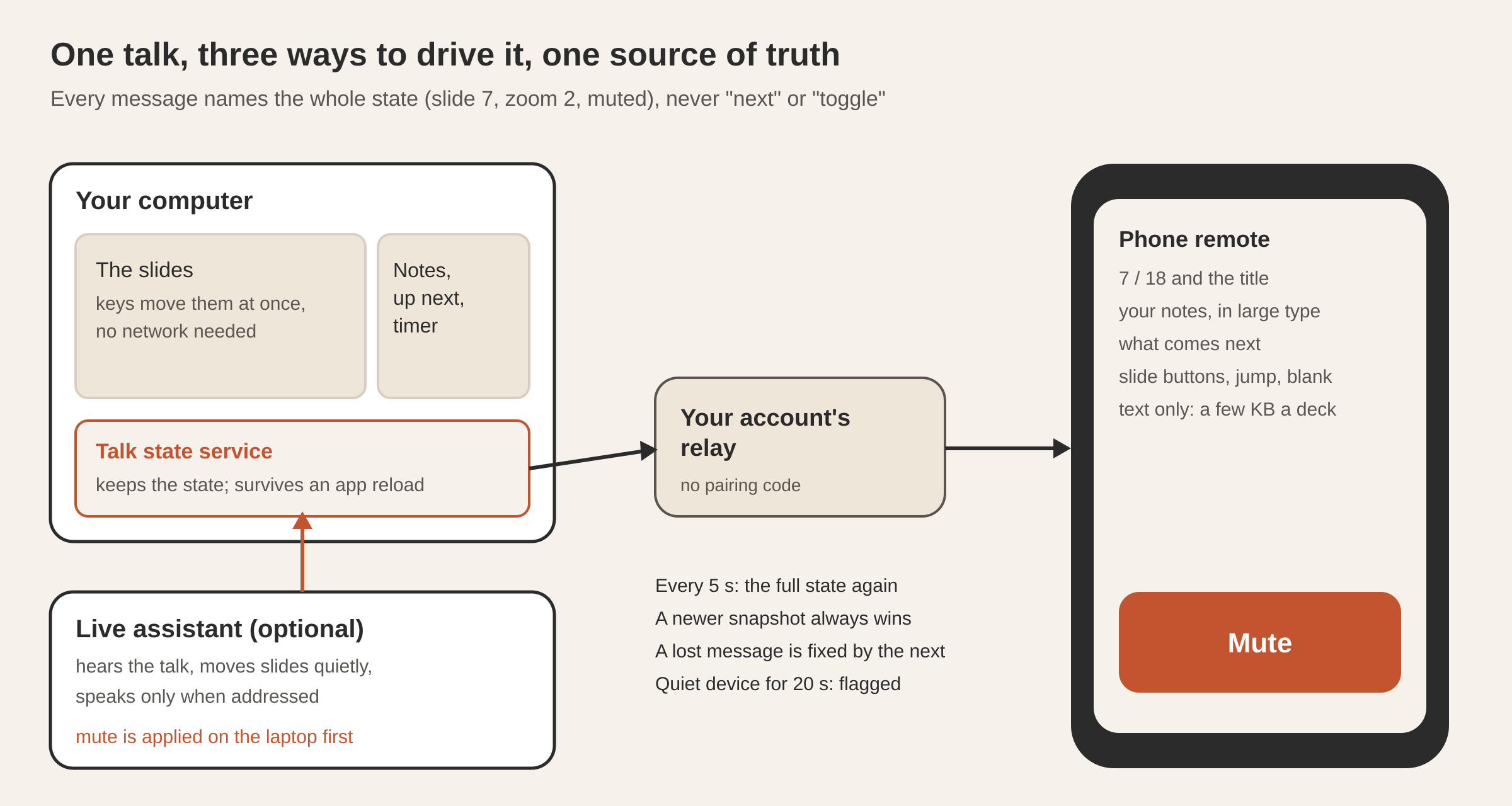
The phone is a presenter view built for a glance. A deck is designed at 1920×1080, which is a thin strip on a phone held upright, and you are looking at the room. So the remote shows what you need at a glance: the slide number, the title, your notes in large type, what is next, the slide buttons, jump to a slide, blank the screen, the timer and the assistant’s controls. That is text only, a few kilobytes for a whole deck, which matters on a crowded network.
When no phone is connected, the laptop’s control bar shows one quiet line for the first eight seconds of the talk (“Use your phone as the remote…”), then just a dim phone icon. That keeps a projected screen clean.
Why does every message carry the whole state?
This is the main design decision. A talk runs over conference wifi, with a phone that goes to sleep, a relay that can drop, and a desktop app that might reload. If the phone sent “next” and the message was lost, the two devices would disagree for the rest of the talk. A lost “toggle mute” is worse.
So the presentation protocol has no “next”, no “previous” and no “toggle” anywhere. Every command names a target (“go to slide 7”, “zoom 2”, “muted: true”). Every message back is a complete snapshot of the talk: phase, slide, build step, zoom, blank, full screen, elapsed time, the assistant’s state and the connected devices. A unit test checks that no command type is named “next”, “prev” or “toggle”.
The rules that follow from that:
| Rule | Value | Why |
|---|---|---|
| Full snapshot re-sent | every 5 s | a dropped update corrects itself without anyone asking |
| Ordering | a talk number plus a revision number | after a restart the revision count starts again, but the talk number goes up, so an old snapshot always loses |
| Duplicate command | applied once | each command carries an id, so a retry does not count twice |
| Laptop window gone | 60 s grace | a reload takes about 2 s and must not end the talk |
| Quiet device | flagged after 20 s | you know the remote is connected before you rely on it |
| Slide text per slide | capped at 1,200 characters | one odd slide cannot flood the phone or the assistant |
| Slide list | sent 40 slides at a time | a 200-slide deck never goes as one huge message |
A button on the phone can still look like a toggle. The phone works out the new value from the last snapshot it applied and sends that value. A toggle-shaped button is fine; a toggle-shaped message is not.
The talk’s state is kept by a small background service on the computer rather than by the window showing the slides, so it survives the desktop app reloading mid-talk. Slide changes from the keyboard apply on the laptop at once and are published afterwards, so an arrow key always responds instantly, and after a restart the laptop declares the talk again from its own state.
What does the live assistant do during a talk?
The assistant is optional. It is off when the talk starts, and when you switch it on it starts muted: its first word in front of a room should never come before you have touched a control.
Once it is on, it acts as the person at the back of the room with the clicker. It hears everything said in the room. It has the whole deck in front of it: every slide’s text and your notes, which say what you plan to say on each slide. After each thing you say, it checks whether the screen still matches. When you move on to what the next slide covers, it steps forward one slide, silently. It goes back one if you return to the previous slide’s material. It jumps further only when you clearly change section. When the slide changes, it also gets a picture of what is on screen, so it can answer about a highlighted bar or a curve, not only the words.
It speaks only in three cases: you address it by its own personal name, one nobody says by accident, you give a plain command (“next slide”, “go to slide seven”), or you continue an exchange it answered a moment ago. Then it says one or two short sentences. Everything else gets silence. Its instructions are blunt about why: a wrong jump is seen by the whole room, so when it is unsure, it stays where it is. If you click the deck yourself, it accepts that you are driving and follows on from there.
It has eight tools, the same ones the chat agent uses during a talk:
| Tool | What it does |
|---|---|
| go to slide | a slide by its number, counting from 1 as people say it |
| move slides | forward or back by a number of slides |
| find slide | a slide you describe in your own words |
| zoom | magnify from 1 (whole slide) to 4 |
| blank | black out the screen, or bring it back |
| describe slide | read a slide, or the one showing |
| deck overview | the whole deck, slide by slide |
| stop talking | stop speaking at once |
Eight is deliberate: a small set of clearly different tools keeps the voice model precise. “Move slides” lets the model think in steps, but the computer turns that into an exact slide number before anything is sent, so the rule that every message carries the whole state still holds.
The assistant runs on a live voice model built for spoken conversation. It speaks the language set as your voice language in Settings and is told not to switch language because of a brand name or a foreign word. Decks are full of English product names, and those do not mean the speaker switched language. With no language chosen, it follows yours.
How do you stop it from talking?
The assistant has three separate switches, because “mute” means different things:
| Switch | What it controls | Where |
|---|---|---|
| On / off | whether the assistant runs at all | robot button on the bar; the phone |
| Mute | whether it may speak | Cmd/Ctrl+Shift+. on the laptop; the big button on the phone |
| Listening | whether your microphone reaches it | hold Ask on the phone to put a question to it |
Mute is the safety control, and three choices follow from that. First, it is applied on the laptop first, with no network involved, and only then reported to the phone. “Stop talking now” cannot wait for three network hops over conference wifi. Second, it fails safe: a lost message can never un-mute it. Third, on the phone it is the largest button on the screen, and it shows the state from the last snapshot the laptop confirmed,, so what you see is what the laptop does.
Muted, the assistant keeps listening and moving the slides. To switch it off entirely, use On / off. “Stop talking” also clears the audio already queued, so it goes quiet at once.
The microphone switch has a dead-man timer: it closes on its own after 8 seconds unless the phone keeps it open, and a phone that goes to the background closes it at once. So the microphone always closes by itself when you are done.
The indicator on the laptop always shows where things stand: grey is off, amber is muted, green is live, and it pulses while the assistant speaks. The slides run on their own, independent of the assistant.
How do you share the deck after the talk?
Stage has the same Publish control as the other makers. Pressing it gives three choices: a private link (only people with the link), Share with team (your organisation’s gallery), or Publish to the community (the public gallery). The link is copied as soon as it is made. The agent never publishes by itself: a step that publishes is always a button you press.
What gets published is the same one-file web page that Export → Web page saves: every slide, animated, nothing to fetch from anywhere else, with a picture of the first slide as the gallery preview. Pictures are stored as WebP, so even a deck full of photographs publishes as a page of about 4 MB. The PowerPoint and PDF downloads are covered in our post on how decks are built.

Questions
Do I need to pair my phone with my laptop? No. Sign in to the Tesseract phone app with the same account, open the account menu, then Presenter remote, and tap the computer. It picks up the talk when you press Present.
Will the assistant interrupt my talk? It starts muted, speaks only when addressed by name or given a direct command, and answers in one or two sentences. Cmd/Ctrl+Shift+. mutes it on the laptop instantly, and the phone’s biggest button does the same.
Can I drive the slides myself while the assistant is on? Yes. Keys, the phone and the assistant all change the same state. When you click, the assistant treats it as you driving and carries on from the slide you chose.
What happens if the wifi drops mid-talk? The keys on the laptop keep working, because they do not wait for the network. When the phone reconnects, the next full snapshot, at most five seconds later, puts it back on the right slide.
Can I share the deck as a link afterwards? Yes. Publish makes it a one-file web page behind a private link, in your team’s gallery, or in the public community gallery. You choose which.
Try it
Make a deck from the “Make a presentation” card on Home, open it in Stage and press Present with your notes beside it. Download Tesseract for Mac, Windows or Linux.