 Tesseract
How Tesseract edits a PDF without breaking it
Tesseract's PDF editor annotates, retypes, fills, signs and redacts. How saves keep the original bytes, why redaction rewrites, and what the agent can do.
In Tesseract you can read, annotate, retype, fill, sign, redact, combine, split, compress, convert and print a PDF in one editor, and the agent does all of it through the commands you use. An ordinary save appends only what changed and keeps the original bytes. Redaction rewrites the file on purpose, so the removed content is really gone.
This post covers what the editor does, the saving design that keeps signatures and old readers working, the redaction rules that make “removed” mean removed, and how scanned pages become editable text.
What can you do to a PDF in Tesseract?
Every .pdf opens in one view that both reads and edits. There is no separate viewer. The editor has five working modes and a catalogue of 38 tools.
| Mode | What it is for |
|---|---|
| Annotate | Highlights, underlines, notes, shapes, clouds, callouts, stamps, measuring, proposed text edits, comment review and exchange |
| Edit text and images | Retype a paragraph in the document’s own font; move, turn, crop, replace and save pictures; restyle charts |
| Fill and Sign | Fill forms; typed, drawn or image signatures; check marks and other marks |
| Prepare form | A form designer: every field type, properties, actions, scripts, tab order, field detection |
| Redact | Areas, text, patterns, lists of words, code sets, and a check that nothing is left |
The Tools catalogue covers what you do to a whole file: organize pages, combine, insert, replace, split and extract; crop; headers, footers, watermarks, backgrounds and Bates numbers; links; protect and remove hidden information; reduce file size; PDF/A; an accessibility check with fixes; compare two versions; recognize scanned text; clean up scans; export; print. PDF/A files are saved and verified at levels 1b to 4, ready to check again with veraPDF, the reference checker, and form scripts run in a sandboxed worker.
Exports go to PNG, JPEG, TIFF, plain text, HTML, Markdown, RTF, Word (.docx) and PowerPoint (.pptx). New PDFs can be made from images, text, the clipboard or a blank page.
The sidebar has eight tabs: Pages, Bookmarks, Comments, Fields, Signatures, Attachments, Layers and Tags. Every row of a 558-row feature checklist, from opening damaged files to long-term signature validation, is marked done and backed by a unit test.
Why does saving a PDF need a design at all?
A PDF is not one stream of content. It is a set of numbered objects, plus a table that says where each one starts. The format was built to be updated by appending: you add the changed objects and a new table at the end of the file, and leave everything before it alone. A reader follows the newest table. This is called an incremental update, and it is described in the PDF specification, ISO 32000.
Saving by appending keeps three things a real document needs:
- Signatures stay valid. A digital signature covers a byte range of the file. Appending leaves the signed bytes exactly as they were.
- The history stays. The earlier revisions inside the file, which some workflows rely on, are kept.
- Untouched objects stay untouched. Each save writes only what you changed.
How does Tesseract save a PDF?
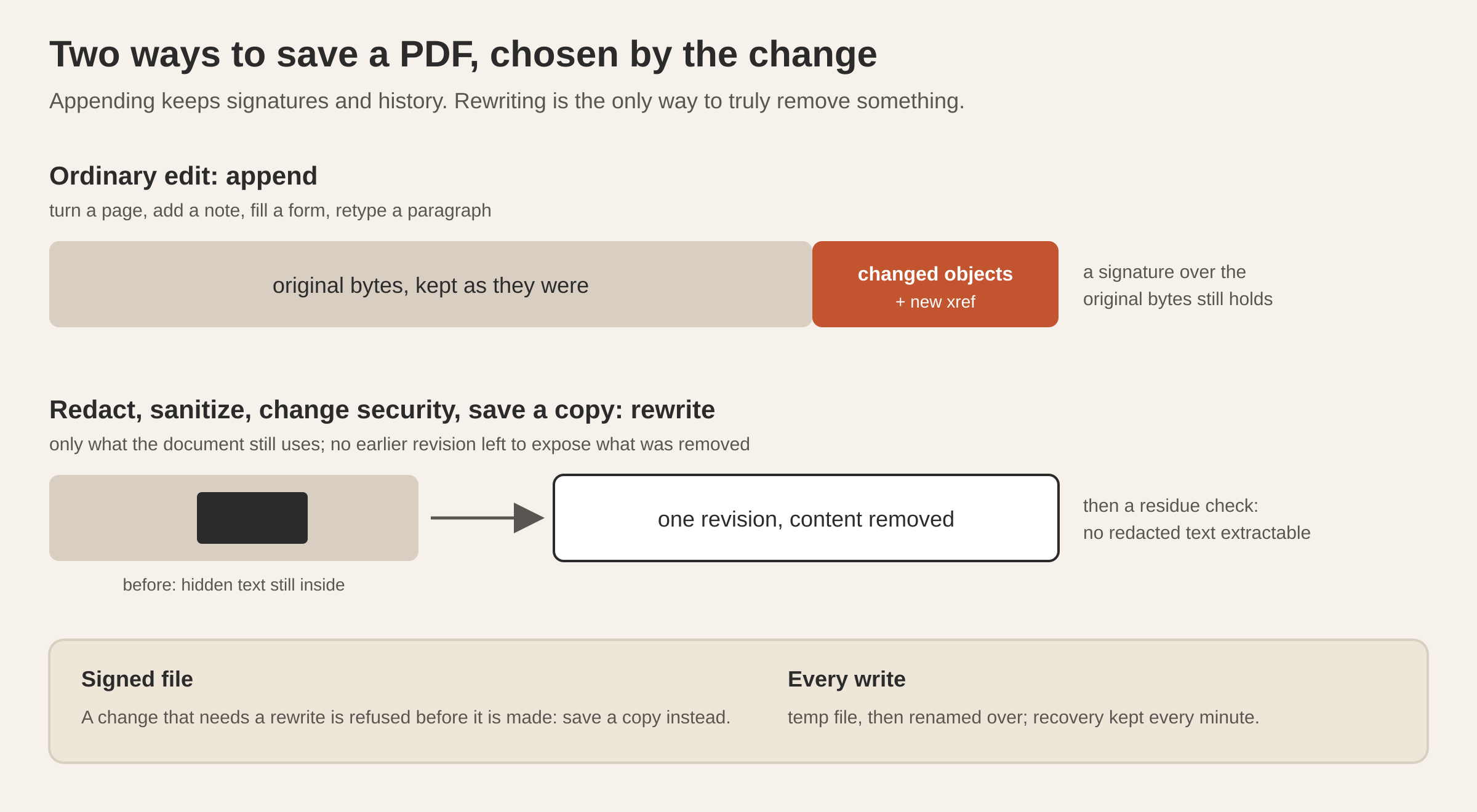
The editor has two kinds of save, and it chooses between them by what the change needs.
An ordinary save appends. The original bytes stay as a prefix of the new file, byte for byte. Only the objects an edit changed are written after them. Objects are compared decrypted, so an object the library only moved or re-encrypted counts as unchanged and is not written again. Turn one page, and only that page and the document information are appended; its neighbours, their contents and the fonts are untouched. An encrypted file keeps its original key and permissions.
Some changes rewrite on purpose. Redaction, removing hidden information, changing the security and Save a copy all write the file whole. The reason is simple: if you redact a name and the save appends, the old revision with the name is still sitting in the file’s earlier bytes. Anyone with a text editor could find it. A full rewrite with only what the document still uses is the only honest way to remove something.
A signed file keeps its signature. A change that would rewrite a signed document is stopped before it is made, and the editor offers Save a copy, so the signed original stays valid. A certified document keeps the level of changes its certificate allows, and each tool shows whether that level allows it.
Every write is atomic: the file goes to a temporary path and is renamed over the original, so an interrupted save leaves the old file whole. Unsaved work is kept aside every minute in one checksummed record per file, in the app’s own folder and never beside your file. An encrypted PDF stays encrypted there, and its password is never stored. If the app closes unexpectedly, the next time you open the file it offers to recover the changes. Undo compacts the file as well, so delete, save, undo, save gives one revision each time with the right page count.
In the tests, each kind of file the engine writes is checked with qpdf, an independent tool that validates PDF structure. A file that was damaged when it opened is repaired as it opens, the repairs are listed under Properties, and the next save writes the file whole and sound.
How does redaction make sure the content is gone?
Black boxes are not redaction. A rectangle drawn over text hides it on screen, but the text is still in the page and can be copied out.
When you apply redactions in Tesseract, the engine removes what lies under each mark: the text glyphs from the page’s content stream, the pixels from images, the vector paths, the annotations and form fields, and the text in tags and alternate text. Then the file is rewritten, as described above, so no earlier revision still holds it.
You can mark areas, text, whole pages, or patterns (phone numbers, email addresses, card numbers, US Social Security numbers and dates). You can redact a list of words or phrases, and label marks with code sets such as FOIA exemptions. After applying, a residue check confirms that no redacted text can still be extracted.
There is also an audit for faux redactions: opaque boxes or comments sitting over text that can still be extracted, and redaction marks that were never applied. It lists each with the words it hides, and can mark them for real redaction. A cell background in a table is not reported as one.
How do scanned pages become editable text?
A scanned page is a picture. To edit it, the editor has to read the text and decide how to put it back.
Recognize text reads a page, a range or the whole file, in the language you choose, and skips pages that already have text. You can then choose between two outputs:
- Searchable image. The scan stays exactly as it is, byte for byte, and the recognized lines are laid over it as invisible text. You can search, copy and have it read aloud, and nothing visible changes. Reading again replaces the invisible layer instead of adding a second one.
- Editable text and images. The letters are taken out of the picture and set as real text you can retype. When no installed font matches the scan, Tesseract makes one from the scan’s own letters. Each letter the scan shows goes into a template sheet, and the image model draws the letters the scan does not show in the same style. The result is assembled into a font with the scan’s own spacing. This uses the same font pipeline as the app’s font maker.
Before reading, Clean up scans can straighten a photo of a page (it finds the page’s corners and pulls them flat), fill the dark bands along the edges, make shaded paper white and take out specks. Each cleaned page is one undo step.
Reading a page uses your conversation’s own model, one look per page. So does restyling a chart. Everything else in the editor runs locally, with no model call and no paid service.
How do you edit the text that is already there?
Edit text and images finds paragraphs and text blocks on the page and lets you retype one in place. The edited text reflows inside its paragraph box and keeps its alignment, and you can change font, size, colour, bold, italic, underline, superscript and subscript.
Fonts are the hard part. A PDF usually embeds only the letters it used, a subset. If your edit uses only letters the subset already has, the edit stays in that embedded font and nothing is added. If it needs letters the subset lacks, the editor adds a matching face for them and tells you which, for example that some letters “were set in Georgia”. Right-to-left and CJK text can be edited too.
For review rather than direct change, Annotate can propose edits the way reviewers exchange them. A proposed insertion is a caret at the point you clicked, and a proposed replacement strikes out the selected words and attaches the new ones, grouped so the review lists them as one item. Comments can be exchanged with other tools as FDF and XFDF files.
What about signatures?
The editor signs with a PKCS#12 digital ID (.p12 or .pfx), with identities in the macOS Keychain or the Windows certificate store, or with a self-signed ID it creates. Signatures can be visible or invisible, carry a reason and location, and use SHA-256, SHA-384 or SHA-512 (never SHA-1 for a new signature).
It adds RFC 3161 timestamps, signs encrypted documents, certifies a document with the changes allowed after it, and stores the material needed for long-term validation. It validates every signature, shows each one’s status (valid, unknown, invalid) per revision, and lists the changes made after signing.
The only network calls in the editor are to timestamp authorities and certificate revocation services (OCSP and CRL), and Submit Form, which sends form data only after you agree.
How does the agent work in the PDF editor?
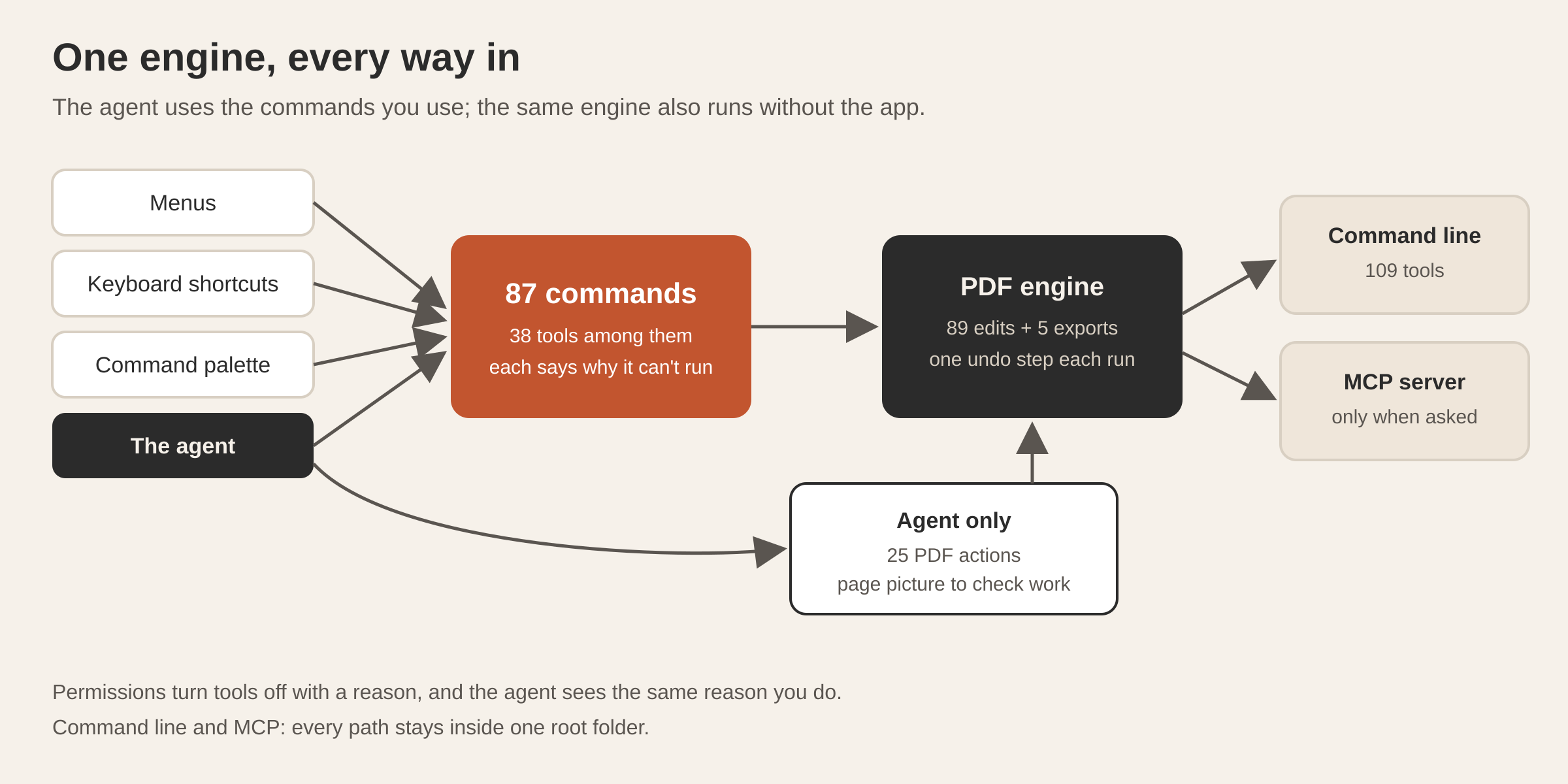
One list names every command of the PDF editor: its id, title, group and default keys, with each tool of the Tools catalogue among them, 87 in all. The menus, the key handling, the keys panel, the app’s command palette, Settings → Shortcuts and the agent all come from that list. A command that cannot run now says why, for example because the document’s permissions turn it off, and the agent sees the same reason.
Behind the commands, the agent has 25 PDF actions and every engine operation: 89 edits and 5 exports. Each one awaits the same engine, undo and save path as a click. A multi-step edit is one undo step and all-or-nothing: if a step fails, the document goes back to how it was, undo history included. The agent can also take a picture of the page as it is shown, to check its work.
Without the app, the same engine runs on the command line as tesseract-pdf, which comes with the tesseract-agent package. It has 11 commands (info, text, render, combine, extract, split, run and script among them) and 109 tools: the 89 edits, the 5 exports and 15 queries.
tesseract-pdf info contract.pdf
tesseract-pdf text contract.pdf --pages 1-3 -o first-pages.txt
tesseract-pdf extract contract.pdf --pages 2-4 -o part.pdf
tesseract-pdf combine a.pdf b.pdf -o both.pdf
Asked with tesseract-pdf mcp, it serves the tools as an MCP server over standard input and output, with page images and text as resources. Every path is confined to a root folder; .., absolute paths outside it and links that lead out are refused.
Pages are counted from 1 in the editor’s commands and the CLI’s commands, and engine tool arguments use page indexes from 0.
Questions
Does a PDF keep its digital signature when I edit it in Tesseract? Yes. An ordinary edit is appended after the signed bytes, so the signature still covers what it signed, and validation lists what changed after signing. A change that would need a full rewrite goes to a copy, so the signed original stays valid.
Is a redaction in Tesseract really permanent? Yes. Applying it removes the text, pixels, paths, fields and tags under each mark, rewrites the file without earlier revisions, and then checks that no redacted text can be extracted.
Can I edit a scanned PDF? Yes. Recognize text either lays invisible, searchable text over the untouched scan, or turns the page into editable text, making a font from the scan’s own letters when no installed font matches.
Where does the PDF editor work on my documents? On your computer. Reading scanned pages and restyling charts use your conversation’s model, and timestamps, revocation checks and Submit Form use the network.
Can another AI tool edit PDFs with this engine?
Yes, with the tesseract-pdf command line or its MCP server, which offer 109 tools.
The PDF editor is part of the desktop app: see what Tesseract makes, how the guided makers end in the app’s editors in every card on Home opens a guided maker, and how the agent drives the window itself.
Download Tesseract and open the PDF you have been meaning to edit.