 Tesseract
Updating an app without stopping its AI agents
How Tesseract ships updates in kilobytes and applies them only when nothing is running: risk tiers, signed deltas, idle checks and automatic rollback.
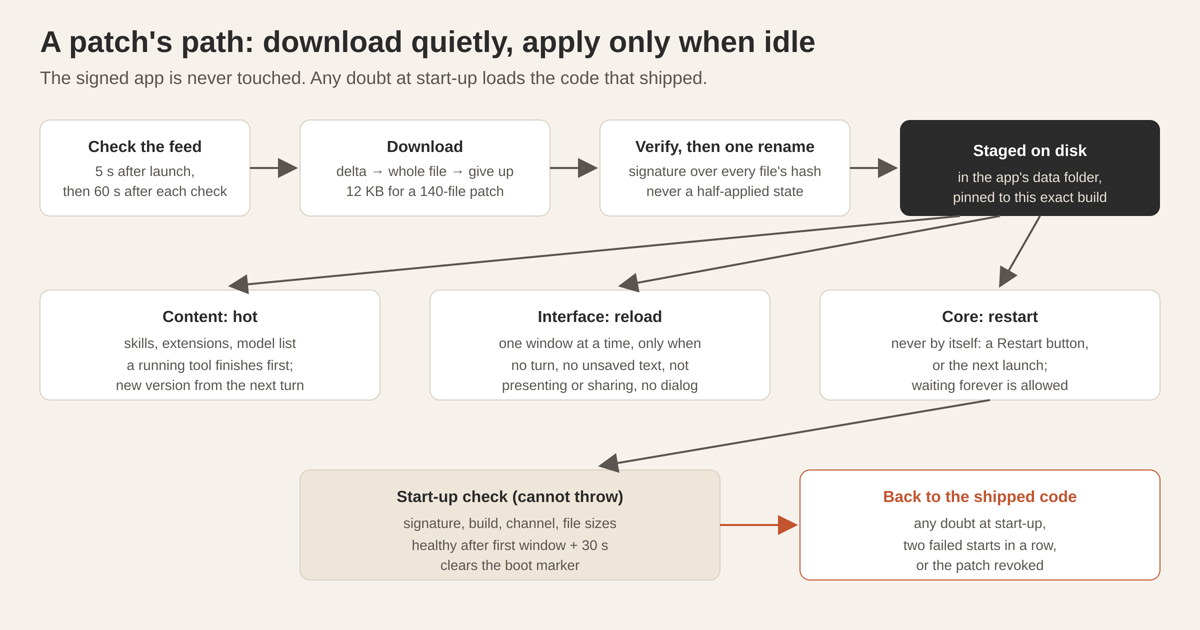
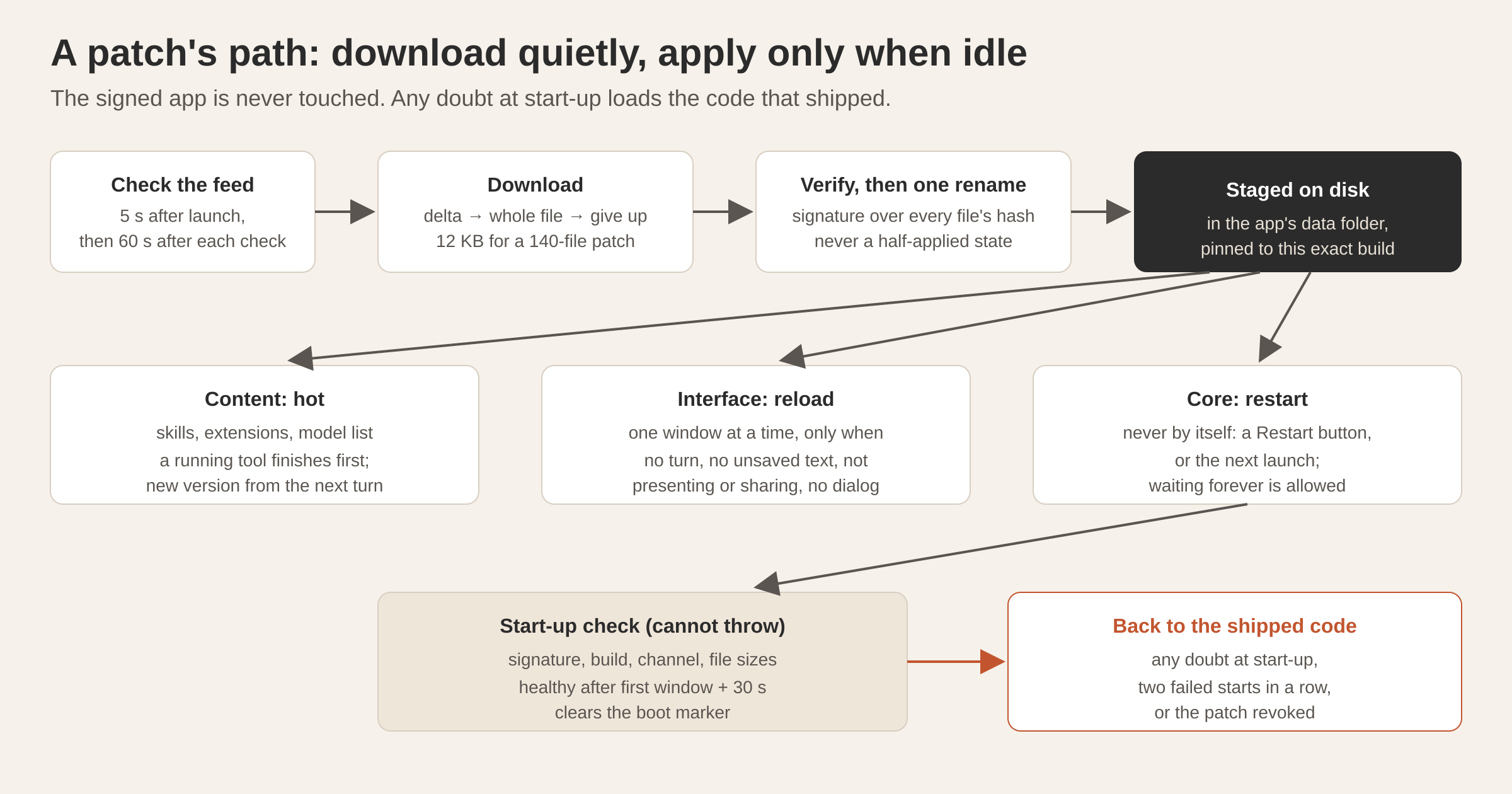
Tesseract updates itself without interrupting an agent that is working. Updates ship as small signed patches next to the full releases, often a few kilobytes. Each patch is sorted by how disruptive it is to apply: some take effect on the agent’s next turn, some reload one idle window, and some wait for you to restart. Nothing restarts the app on its own, and every patch is checked at start-up, with automatic rollback to the shipped code.
This post covers why we built a second update channel, how it decides when a change is safe to apply, and the compression trick that took one patch from megabytes to about 6 KB.
Why can’t an agent app just restart to update?
A normal desktop app updates by downloading a new version and restarting. That works when the cost of a restart is a few seconds of your attention. In an agent app, the cost is different. An agent may be twenty minutes into a task: editing files, running a dev server, waiting on a long build, in the middle of a call with a model. A restart at the wrong moment throws that away, or at best forces a careful resume.
Tesseract also carries a task on after a restart, as described in a task carries on after a restart. Better still is not to interrupt at all.
The second problem is size. When we measured an installed build, the app bundle was 1.3 GB. Comparing two consecutive builds, the parts that change every release are small: the main bundle is about 1.1 MB and the interface bundle about 37 MB, while 157 MB of assets almost never change. Most of a typical change is a few lines in one of those changing files. Shipping 1.3 GB to move a one-line change is wasteful for us and slow for you, and a release build takes hours.
So we kept full releases for what truly needs them and added a patch channel beside them.
What kinds of update does Tesseract have?
Three, and each interrupts you a different amount.
| Full release | Patch | Content | |
|---|---|---|---|
| What changes | anything, including native code and the app shell | the app’s own code and packages | skills, extensions, the model list |
| Typical size | about 1.3 GB | kilobytes to a few MB | kilobytes |
| How long to build | hours | minutes | none |
| What you notice | a restart | nothing, an idle window reloading, or a Restart button | nothing |
| Gradual rollout | no | yes, 1% → 10% → 50% → 100% | no |
| Automatic rollback | no | yes | no |
When we counted 211 commits that changed the shipped app, the biggest sources of change were two of the app’s core packages. With patches that can also replace those packages, 74% of commits are patchable. Most of the rest are the networking stack, which ships native code and goes out in full releases.
How does the app decide when a change is safe to apply?
Every file in the app is sorted by how risky it is to replace while running, into four tiers:
- Shell, never. The app’s executable and everything the operating system verifies. A patch that touches the shell is refused by an automated check.
- Core, restart. The main process, the code that connects the interface to it, and the app’s own packages.
- Interface, reload. The window’s code.
- Content, hot. Skills, extensions and the model list.
The tier of a patch is set by its most disruptive file. The tier numbers run opposite to disruption, so tests check the rule with the files in both orders, and a core patch is always applied as a core patch.
Core, connecting code and interface are also patched together in one signed manifest, because the messages between them span all three, so both sides of that contract always move together.
Then each tier has its own moment:
- Content applies on the next turn. A tool the agent is using right now finishes on the old version; the new one is used from the agent’s next turn. Nothing changes under a running step.
- Interface updates reload one window at a time, only when that window is idle. Idle means no agent turn running for that window, no unsaved text in an editor, not presenting, recording or sharing, and no dialog open. Busy windows wait and are checked again the next time they report their state. A screen share or a live call blocks every window. If you don’t want to wait, a Reload button appears in the title bar.
- Core updates never restart the app by themselves. The patch is marked active as soon as it is downloaded, so it takes effect on the next launch with nothing more to do. Meanwhile the title bar shows Restart, the notifications bell gets an entry, and the About screen offers to finish the update. Waiting forever is allowed. Our rule is that no patch is urgent enough to interrupt a running session. When you do restart, it is a normal few-second restart into code that is already on disk, not a full download and bundle swap.
How do we know nothing is running?
The hard part of “apply when idle” is defining idle once and meaning it everywhere. Two definitions that drift apart are worse than one rough one.
The app already counted active agent turns to keep your computer from sleeping during a task. We made that same counter the idle signal for updates, instead of building a second one that could disagree with it. The process is idle when, roughly:
processIdle := no agent turns && no remote-desktop session && no voice, call, share or recording
               && no scheduled job running && no file transfer && the computer idle for a while
windowIdle  := no turn in this window && no unsaved text && not presenting && no dialog open
Each window reports its own state; the main process doesn’t guess. A report that is incomplete counts as busy. A window that has never reported falls back to “is any agent active anywhere”, which is the safe answer.
How does a patch get from us to your computer?
Seven rules shape the path.
- The signed app is never touched. Patches live in the app’s data folder in your home directory, which survives upgrades. Nothing inside the signed application bundle is ever written, so its code signature and notarization stay valid.
- Each patch is pinned to one exact build. The manifest names the build it applies to, and that build ID is compiled into the app as text, so it can’t be faked by changing a setting. A new release means a new build ID, so old patches simply stop applying, with no cleanup. Beta patches can’t apply to a stable install, because the base builds always differ.
- One compressed bundle per patch, each file a delta. Every changed file arrives as a difference against the file you already have. File names carry a content hash, so the manifest names each delta’s base file explicitly.
- A fallback ladder. If a delta fails, download that one file whole. If the whole file fails, abandon the patch and stay on the current build. We borrowed this idea from how a large chat app updates itself.
- Verify, then rename once. Everything is assembled in a temporary folder, the signature is checked, and a single rename makes it live. A half-applied patch can never be seen.
- Signed file list. The signature is Ed25519 over a sorted list of each file’s path and SHA-256 hash. It sits in its own file next to the manifest.
- The feed is checked on the existing update timer, 5 seconds after launch and then 60 seconds after each check completes. There is no second timer. If a full release has been downloaded and is waiting, patch checks pause: a release always outranks a patch. “Check for updates” looks at both releases and patches and gives one answer.
Interface code is served “patch first, then the shipped file” by intercepting the window’s file requests, so none of the roughly 8,500 interface modules had to change to support patching. Patched packages are served whole, never mixed with shipped copies of the same package.
A trimmed manifest looks like this:
{
  "patchId": "sha256:…",
  "baseBuildId": "<the build this patches>",
  "channel": "beta",
  "apply": "reload",
  "files": [
    { "path": "dist/renderer/assets/index-Xy1.js", "op": "replace", "sha256": "…",
      "delta": { "algo": "zstd-patch-from", "base": "dist/renderer/assets/index-Be6q0X1T.js" } }
  ]
}
How did one patch shrink from 8 MB to 6 KB?
This is the trick we’re proudest of, and it came from measuring rather than guessing. We took the real 37 MB interface bundle, made a small source change, rebuilt, and compressed the difference three ways. Every result was checked to round-trip byte for byte.
| Method | Patch size | Compared with a full release |
|---|---|---|
| The whole new file, compressed at zstd’s level 19 | 8,207,159 bytes | about 160× smaller |
| Node’s built-in zstd with the old file as a dictionary | 939,859 bytes | about 1,400× smaller |
The zstd command-line tool, --patch-from the old file | 6,076 bytes | about 220,000× smaller |
Node’s built-in dictionary mode is built for bases up to 32 MB: an 8 MB base gave a 1,040-byte patch, 24 MB gave 3,184 bytes and 31 MB gave 4,307 bytes. The command-line tool handles bases of any size, and the interface bundle is larger than 32 MB.
So we bundle the zstd command-line tool, a 1.9 MB binary. Our publisher uses dictionary mode below 32 MB and the command-line tool above it, so every delta it sends is a good one. The library and its options are documented in the zstd project.
In a full end-to-end test (two real builds, a real signed patch, the real app and window, and a marker read from the live page to prove the patched code was running), a 140-file patch sent 71 files as deltas and none whole: 12 KB downloaded, 49 MB written to disk.
How does a patch keep the app safe at start-up?
Every patch comes with a start-up check. Before anything else runs, a small check that cannot throw decides which code to load. Any doubt means the shipped code:
no active patch → shipped code;   patch marked bad → shipped code;
base build ≠ running build → shipped code;   channel ≠ your setting → shipped code;
bad signature → shipped code, delete the patch, report it;
otherwise → write a boot marker, load the patch
The full file check happens once, at download. At start-up it checks the manifest’s signature and each file’s size, modification time and file ID, which is fast enough to run every launch.
The boot marker is the rollback. It is cleared once the app is healthy: its first window has loaded, its background service is running, and 30 seconds have passed. Two failed starts in a row mark the patch as bad, load the shipped code, report the error and tell you. Why two? One failure could be a power cut, an unrelated crash, or you quitting during start-up.
Two more controls sit on our side. Every patch passes a test on a real device before it is published, starts at 0% and rolls out gradually, by hashing your install’s ID with the patch’s ID against the current percentage. Publishing raises the rollout as its own step, then reads the feed back as a client would. And a patch can be revoked; clients return to the shipped code at their next start. Safe mode turns patches off entirely, so it always starts on the shipped code.
What about the agent frameworks themselves?
Tesseract runs 14 agent frameworks, and they are outside programs with their own release cycles. Their updates follow their own schedule, and each new version can change behaviour Tesseract builds on.
So framework versions are certified, not followed. A test gate runs each framework against our contract and approves a version when its tests pass, scored on tests passed rather than on the exit code. The gate starts each framework twice, so a version is proven on a second start as well as the first. Approvals run in the nightly tests, so recommendations stay current. And “update” installs the exact certified version, not whatever is newest. Settings checks for newer published versions every 6 hours. More on the frameworks themselves: the agent frameworks Tesseract runs.
Questions
Will an update ever stop my agent mid-task? No patch restarts the app by itself. Content applies on the agent’s next turn, interface updates wait for an idle window, and core updates wait for you to click Restart or launch the app again.
How do I know which version I’m running? The About screen shows the version, the active patch, when it was released and applied, and any pending restart or reload.
What if a patch is bad? Two failed starts in a row roll it back to the shipped code automatically, and we can revoke a patch so every install returns to the shipped code at its next start.
Does patching weaken the app’s code signature? The signed application bundle is never modified. Patches live in your data folder, are signed separately, and are verified before they are used.
Can I turn patches off? Yes. There’s an off switch, and safe mode turns them off as well.
Try it
Tesseract installs and updates itself on Mac, Windows and Linux; see what changed most recently in 0.11.38. Download it at tesseract.dev.