 Tesseract
How the app maker checks a real app against its demo
How Tesseract's app maker turns a tappable demo into Flutter, React Native or SwiftUI, then reads every built screen to prove it matches what you approved.
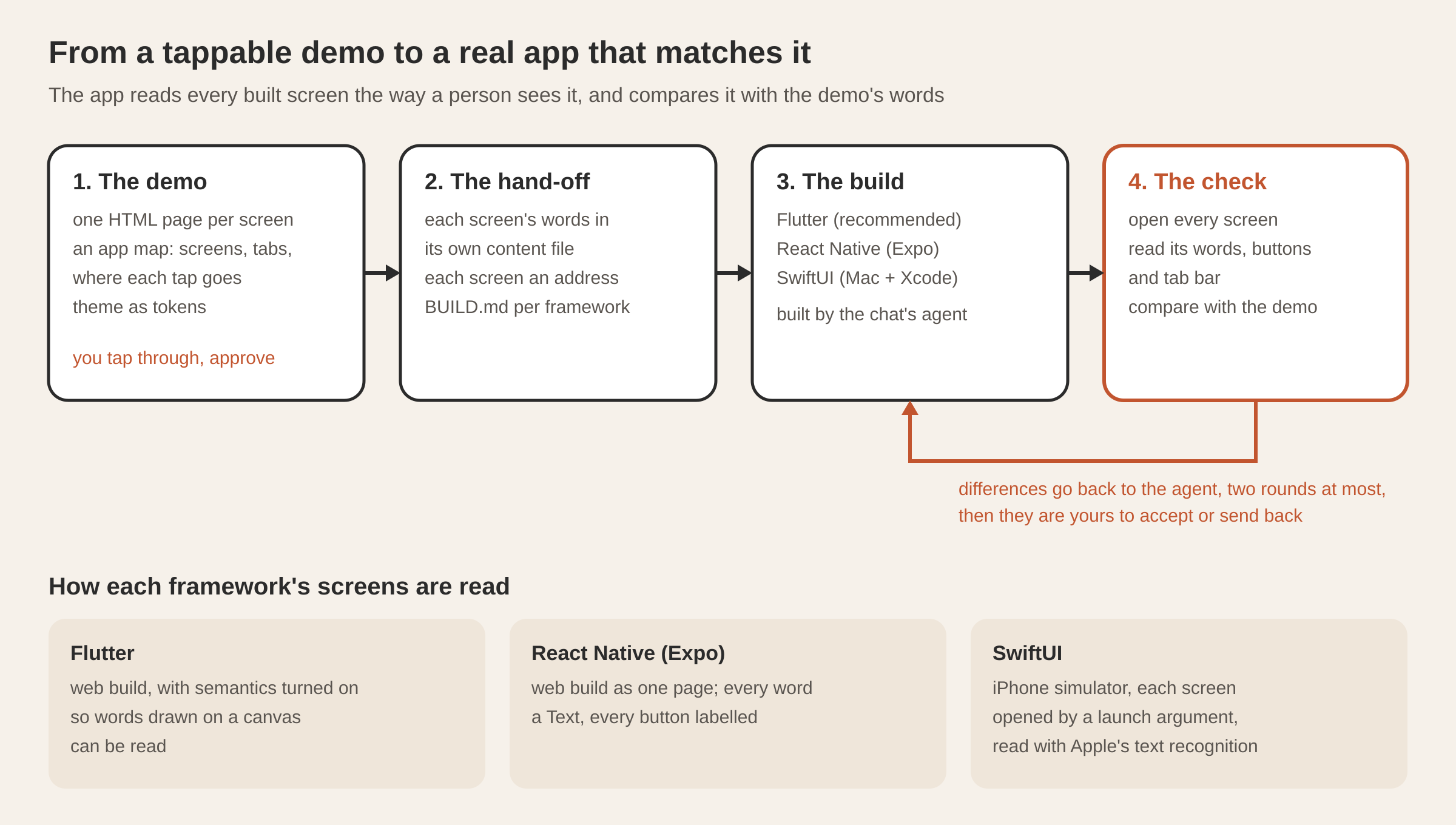
Tesseract’s app maker first builds your app as a demo of plain HTML screens and a map of where each tap goes. After you approve it, the chat’s agent builds the real app in Flutter, React Native or SwiftUI from a hand-off. The app then opens every built screen, reads its words and buttons as a person sees them, and sends any differences back.
Our earlier post, Make it a real app, introduced the mobile app maker: the phone demo, the 14 looks, Write it for…, and the button that builds a native project. This post answers the question a developer asks next: when an AI writes the real app from a demo, how do you know the two match? It covers what the demo is made of, what the agent is given, how each framework’s screens are read back, and the phone-specific checks.
What is the demo made of?
You start from “Create a mobile app” on Home, or ask for an app in any conversation. The maker reads your first message once to learn the app’s name, what kind of app it is, where it is used, its language, who uses it, what people mostly do in it and which phones it is for. It then asks only what is still missing, one tap each, and every question has “Decide for me”. It never invents a name.
There are two ways to get a demo:
- From a kit. The maker picks three ready-made app designs suited to your app. One tap, and the demo is on the phone beside the chat in seconds.
- Drawn to order. Instead of a kit, the chat’s agent designs this app, its look first and then each screen, straight into the app’s folder. Each screen appears on the phone the moment it is saved.
Either way, the demo ends up as the same set of plain files, which is why everything after this step works the same for both:
| File | What it holds |
|---|---|
design/<screen>.html | one screen, as a page that opens in any browser |
design/app.css | the shared styles |
design/design-system/tokens.json | the theme (colours, fonts, sizes, radii, light and dark), the same engine the website maker uses |
design/assets/photos/ | the photos |
design/app.json | the app map: its screens, its tabs, and where each tap goes |
The app is kept in its own folder under Documents › Tesseract › Apps and listed under Your work on Home. The phone beside the chat shows it in a real device frame: every current iPhone, iPad, Pixel and Galaxy, turned sideways or a foldable opened, in light or dark, or all screens side by side. A tap that leads to another screen opens it, and Back goes back.
How are an app’s words written?
The words are not left as the kit’s placeholder text. Write it for… asks the agent to research first. It looks at your business’s own material first (what it sells and at what price, its hours, where it is), then at what an app of this kind cannot do without, and how good apps of its kind are laid out. It saves this as notes in the app’s folder. (Choose “From what I told you” to skip research and plan at once.) The plan card shows every screen, the words for each tab, and what only you can supply.
Write the screens then writes each screen from its own facts only, three at a time, and the phone fills in as each one lands. The tab bar is named once by the plan, so every screen’s bar says the same thing. Finally, the whole app is read once together, as a person tapping through it would read it. This is the same method the website maker uses, applied to screens. The model rewrites words in the screen’s existing structure and never rewrites the markup.
After that, you edit on the phone itself. Double-click any words to change them in place: they are saved to the screen’s file at once, with no model call. Taps still move between screens, but a beat later, so that a double-click on a button’s words edits the words instead of following the tap. Double-click a photo to swap it, and every screen showing that photo updates. Point turns a tap into a chip in your message, so the agent knows exactly which part of which screen you mean. History keeps a checkpoint before each message, each edit and each change of look, and one tap goes back to any of them.
What does the agent get when you press “Make it a real app”?
You choose the framework. Each one is a recipe in the maker:
| Framework | What it needs | How the maker sees the result |
|---|---|---|
| Flutter (recommended) | Flutter 3.35 or newer | its web build, served locally |
| React Native (Expo) | Node 20 or newer | its web build, served locally |
| SwiftUI (iPhone only) | a Mac with Xcode 16 or newer | the iPhone simulator |
The app runs the framework’s own starter (flutter create, create-expo-app). For SwiftUI it writes a minimal Xcode project itself, with the source folder included as it is, so the agent adds Swift files and never edits the project file. Then the agent gets a hand-off written so that any framework can follow it:
- Each screen’s words go to
content/<screen>.json. The app must read its words from those files and never write them into its code. Then a word edited on the canvas, a rewritten screen or a translation is a change to one file, whatever the framework. - Each screen gets an address. The first screen is
/and the others are/<screen>. The built app keeps those addresses, and the check opens each screen by its address. - The theme is one tokens file that the app reads at start. No colour, font or size is written into a widget or a view, so a change in the Look panel changes the real app too.
BUILD.mdsays what to build in the framework’s own terms and what the check will look at.
The build is a turn of the conversation’s own agent, on your framework and model. It shows as a build card, so you can follow it at a glance.
How do you read a screen the app drew itself?
This is the hard part. The check has to see what a person would see: every word and every button, from the top of the screen to the bottom, scrolling a step at a time. Each framework draws differently, so each recipe tells the agent how to make its screens readable, and the check reads them in that framework’s own way.
Flutter draws on a canvas. In a Flutter web build the page has no words in it, only pixels. Flutter’s semantics tree, the one screen readers use, has the words, but on the web it is off by default for performance. So the hand-off asks the app to turn it on at start, and every button must carry its words as a label. That includes a button drawn as an icon alone (a minus, a plus, a heart), which gets the demo’s words for it as a tooltip. The check then reads the semantics tree. As a side effect, the app is also more usable with a screen reader.
React Native writes real elements on the web. Every word must be a Text and every button a Pressable with the button role and its words as its accessibility label, so the web build turns them into elements the check can read. The web build is exported as a single page that every address opens, so each screen loads cleanly in the browser with nothing rendered ahead.
SwiftUI runs in the iPhone simulator. The app builds it there. The app opens on the screen named in a launch argument, so the check can open each screen in turn, take a picture of it and read the words with Apple’s text recognition. In our run on 10 October 2026, the written project built for the simulator in 9 seconds.
The check then compares each screen with its content file: every word, every button by its words, and the tab bar. Whatever differs goes back to the agent as a list, for up to two more rounds. Anything that still differs after that is shown to you, to accept or send back. From then on the project is the app: the agent changes it, and the canvas shows its web build (or the simulator) in the phone frame.
What does the phone check look for?
Matching the demo’s words is one check. Each screen is also looked at as a phone shows it, in a window nobody sees, at the phone’s size with its safe area set, in light and in dark.
| Check | What it catches |
|---|---|
| Faint text | words too light to read; words on a photo are measured against the photo’s own pixels behind them |
| Pictures | a picture with no description |
| Width | anything wider than the screen |
| Status bar and home indicator | words underneath them |
| Tap targets | anything smaller than a finger, 44 points |
| Light and dark | any of the above in either theme |
Each screen is checked on two phones: the one the canvas shows, and the narrowest Android, at 360 points wide. If it fits both, it fits every phone in between. Findings from a drawn-to-order demo go back to the agent, at most twice, before the demo is handed to you.
Can you share the demo before anything is built?
Yes. The app maker has the same Publish button as the other makers: a private link (only people with the link), Share with team (your organisation’s gallery) or Publish to the community (the public gallery). The link is copied when it is made.
What goes up is the demo itself, clickable: every screen of the design in a phone frame, with its taps leading to the right screens. Its theme and photos are carried inside one page. So you can send a link to a client or a co-founder and have them tap through the app before anyone writes a line of Dart or Swift. You press Publish yourself; the agent never publishes on its own.
Questions
Which framework should I choose? Flutter is recommended: one project for iPhone, Android and the web. Choose React Native (Expo) if your team writes TypeScript and React, and SwiftUI for a native iPhone app if you have a Mac with Xcode.
If I change a word on the demo after the build, does the real app change? Yes. The real app reads each screen’s words from the same content file the canvas edits, so a double-click edit reaches both.
How does the app know the built screens match the demo? It opens every screen by its address, reads its words, buttons and tab bar the way a person sees them, and compares them with the demo’s content files. Differences go back to the agent for up to two rounds.
Can a client tap through the app before it is built? Yes. Publish the demo as a private link. It opens as a clickable phone with every screen and tap.
Is the app checked on small phones? Yes. Every screen is checked on the phone you chose and on the narrowest Android (360 points), in light and dark, for faint text, overflow, the safe area and tap targets under 44 points.
Try it
Pick “Create a mobile app” on Home, describe the app in a sentence, tap through the demo, then press Make it a real app. Download Tesseract for Mac, Windows or Linux, and read how every Home card opens a guided maker.