 Tesseract
Open your files in Tesseract, right from Open With
Tesseract is now in Open With for documents, PDFs, video, pictures and code on Windows, Mac and Linux, and it never takes your files over.
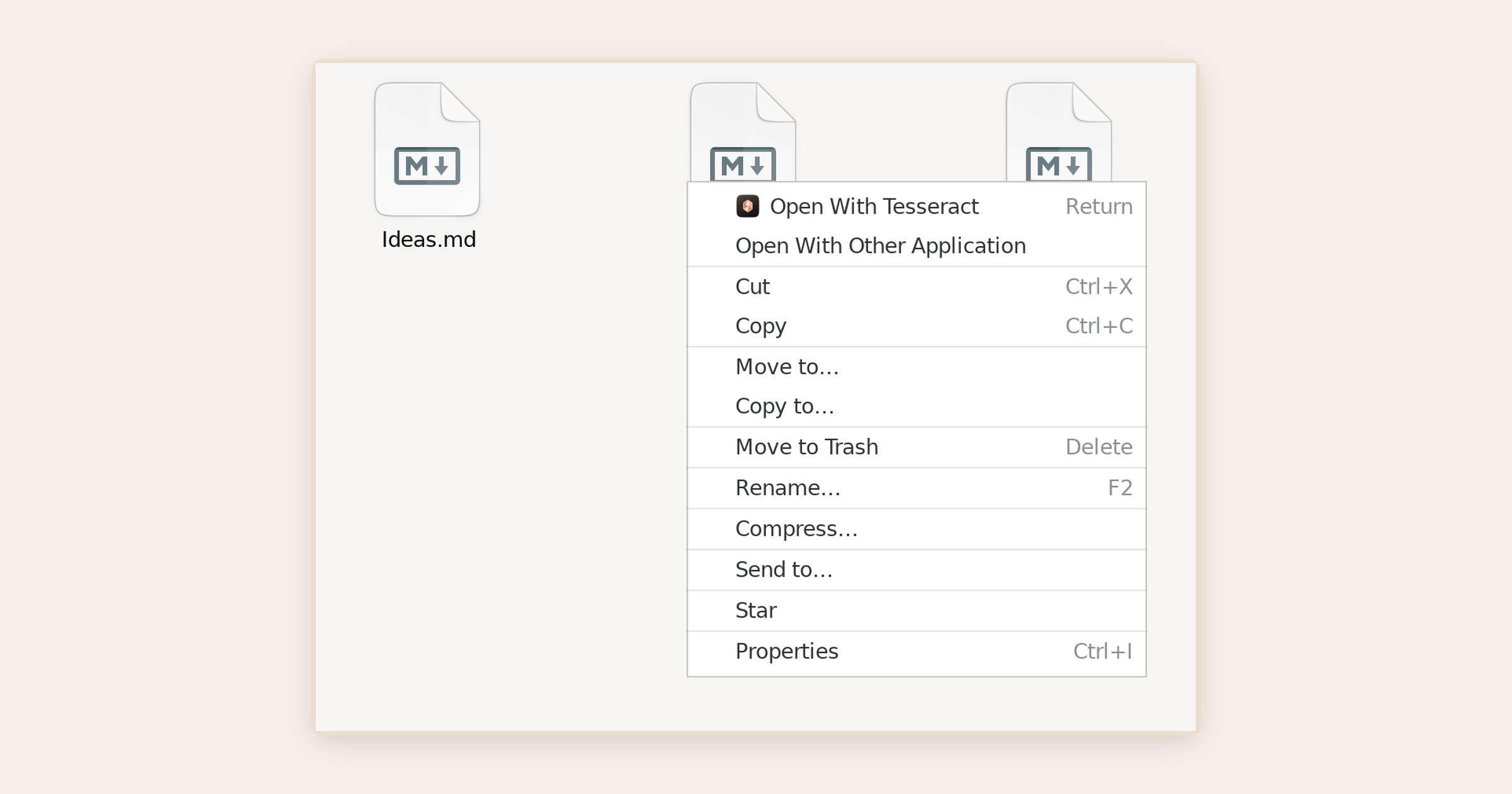
Your files now open in Tesseract, one right-click away from an AI that can edit them. On Windows, Mac and Linux, Tesseract is in the Open With menu for documents, PDFs, pictures, video, audio, design files, fonts, Markdown, data, archives and code, and it never takes your files over. It is in Tesseract 0.12.3, available to everyone from November 6, 2026, and free to download.
It is for anyone who already works with files in Tesseract: a Word file you want rewritten, a PDF to fill or sign, a clip to cut, a deck to finish. Free AI coding agents come with it too, with no API key needed.
What can you open in Tesseract?
Every kind of file Tesseract’s editors open now lists Tesseract in Open With:
- Documents and PDFs: Word, Excel and PowerPoint files and PDFs.
- Video, audio and pictures: MP4, MOV, MP3, WAV, JPEG, PNG and more.
- Everything else: design files, drawings, fonts, Markdown, archives and data files.
- Code and plain text: source files and text files open in the code editor.
Tesseract’s own files, such as presentations, images, drawings, videos, motion and comics made in it, always open in Tesseract with a double-click, each with its own icon.
How do you choose what opens in Tesseract?
Tesseract is in Open With for your files; it never takes them over. Your files keep opening in the programs they open in today, and Tesseract is one right-click away whenever you want the agent on a file.
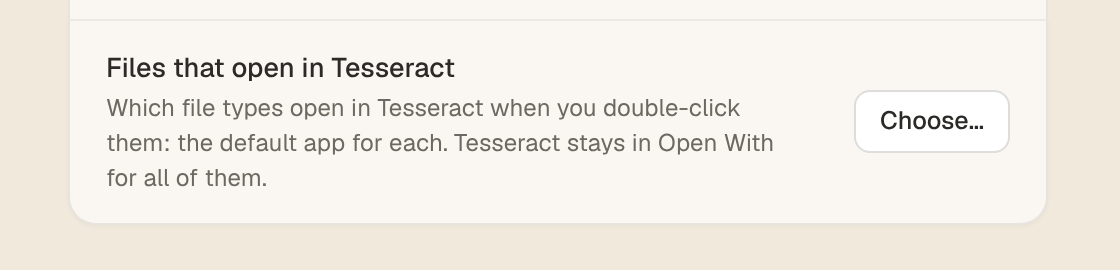
If you want a kind of file to open in Tesseract when you double-click it, open Settings → General → This computer and press Choose… under Files that open in Tesseract. Unticking a type gives it back to the program that had it.
What does it look like on Windows and Linux?
On Windows, right-click a file, choose Open with, and Tesseract is there.
On Linux, the file manager offers Open With Tesseract for the types it handles, such as a Markdown file.
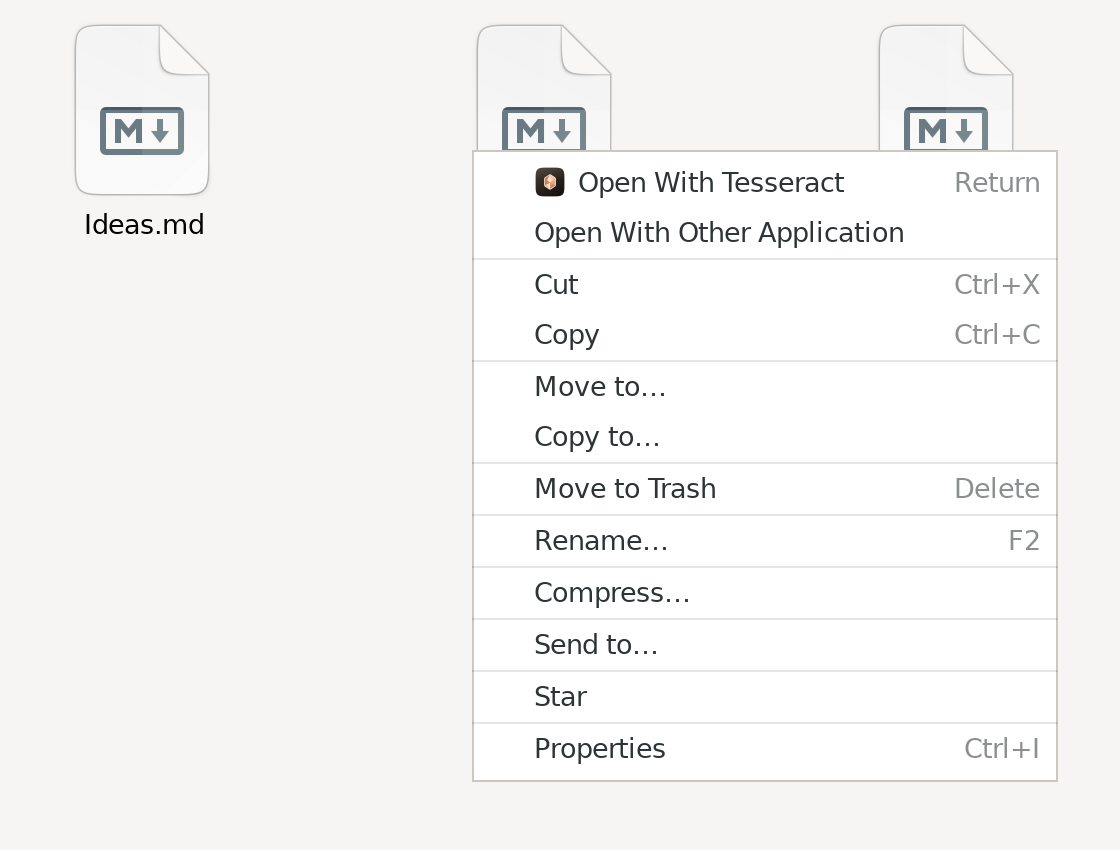
On a Mac, Tesseract appears in Finder’s Open With menu in the same way.
Can you open a whole folder?
Yes. A folder opens as a project, with the agent working in that folder:
- Mac: use Finder’s Open With, or drop the folder on Tesseract in the Dock.
- Windows: right-click the folder in Explorer and choose Open in Tesseract.
- Linux, or any terminal: run
tesseract-desktop .in the folder.
What happens after it opens?
The file opens in the editor made for it, with the agent beside it. Ask in plain words: shorten this letter, fill in this form, cut the pauses from this clip, turn these notes into a deck. The agent works in the same editor you see, so you can check every change and undo it.
Availability and price
Opening files in Tesseract is part of Tesseract 0.12.3 for Windows, Mac and Linux. Tesseract is free to download and updates itself; the free allowance needs no API key, and you can top up when you want more.
Everything else in this release, including the media board and 30-minute videos, is in the Tesseract 0.12.3 post.
Questions
Will Tesseract take over my PDFs or Word files? No. Tesseract is in Open With for your files; it never takes them over. A file opens in Tesseract on a double-click only if you choose that type yourself in Settings.
Can I change my mind later? Yes. Settings → General → This computer → Choose…, then untick a type, and it goes back to the program that had it.
Does it work on Windows? Yes, on Windows, Mac and Linux.
Do I need an API key to edit a file with the agent? No. The free allowance runs without one.
Download Tesseract free at tesseract.dev and open your next file in it.